Payment to Patient / Medical Aid is when you want to do a "REFUND" to the Patient or Medical Aid Use this transaction when the Debtor / Patient or Medical Aid has overpaid the account
Go to the Med Debs screen
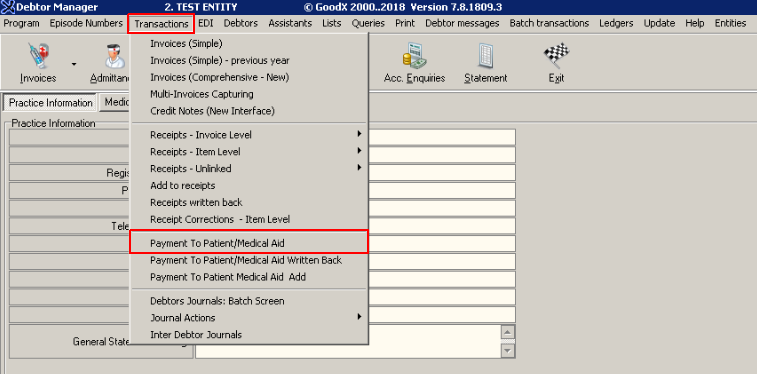
Click on the "Transactions" icon and select "Payment to Patient / Medical Aid" from the drop-down menu
Select the applicable "Cashbook" the Receipt that you want to refund is posted in and press "OK"
Select the applicable "Period"
Click on "OK" or use the shortcut key (F2)
Invoice Level
Part 1 (Header)
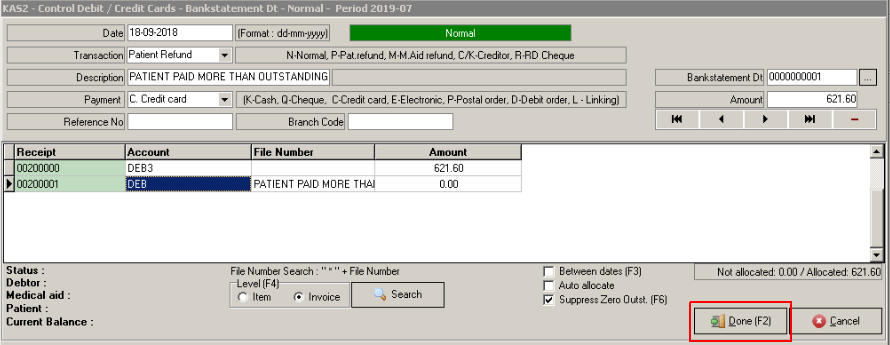
Enter the Information in the HEADER(Part 1) of the receipt:
Transaction: Patient or Medical Aid Refund)
Description: Any reason for the refund
Payment: What cashbook the refund is done on
Use the "TAB" key to navigate through the system
Enter the "AMOUNT" that is being refunded
Press "TAB" to go to the following screen
NOTE: Will look as follow when completed
Part 2 (Debtor)
Enter the Deb Number or "TAB" to search through the Debtor list.
Press TAB
Leave the amount the same like completed above (R621.60)
Press "TAB" until you get to the linking part
NOTE:
The Level (F4) defaults is on "Invoice". Leave it like this unless you link per item.
Do not tick / select "Between dates" and "Auto allocate" functions
Part 3 (Detail)
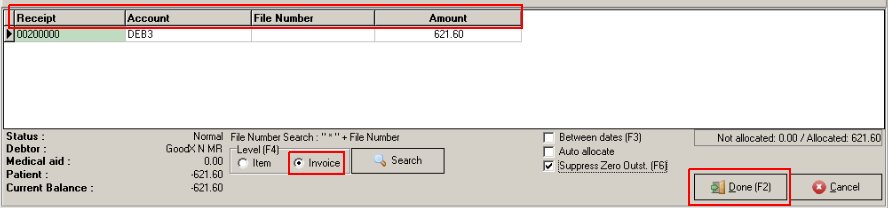
A list of the outstanding "Receipts", are reflected.
Select the correct Receipt to refund
Allocate the refund amount to link to the Receipt by:
Entering the refund amount in the "Received" column at the correct Receipt
Press "TAB"
The Receipt line will turn Blue
At the bottom of the screen the "Balance / Receipt Amount and Journals" must be = R0.00
Click on "DONE"
Following screen will be seen
Click on DONE
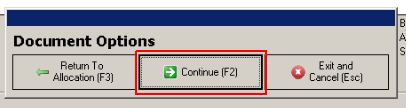
Select "Continue" when you get the following pop up
The following screen will pop up
Click on "EXIT"
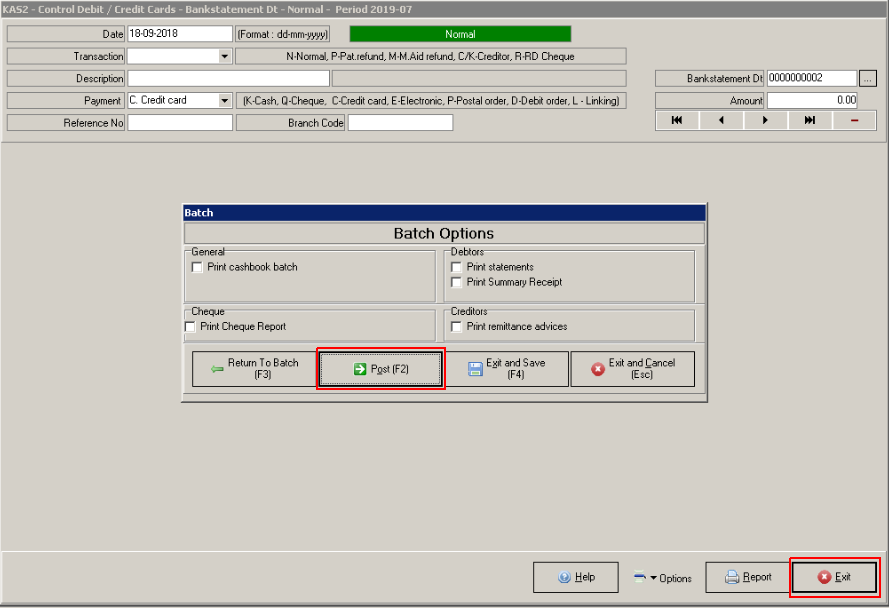
Select "Post"
Refund is now posted and receipts are linked on the account.