Credit Notes are done when an Invoice or an item on an Invoice was captured incorrectly. The Invoice will in effect be written back.
TAKE NOTE: BEFORE A CREDIT NOTE IS DONE, THE CLAIM MUST FIRST BE REVERSED.
How to do a Credit Note:
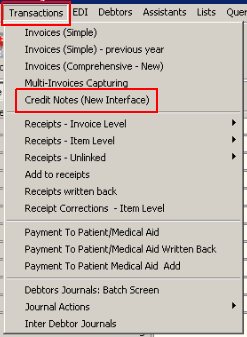
Click on Transactions and select Credit Notes (New Interface)
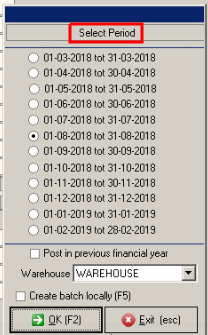
Select the Period in which the transaction should be posted
If you are on a month end system you need to do it in the current period, If you are on a none-month end the system will allow you to choose the correct period in which the service was rendered.
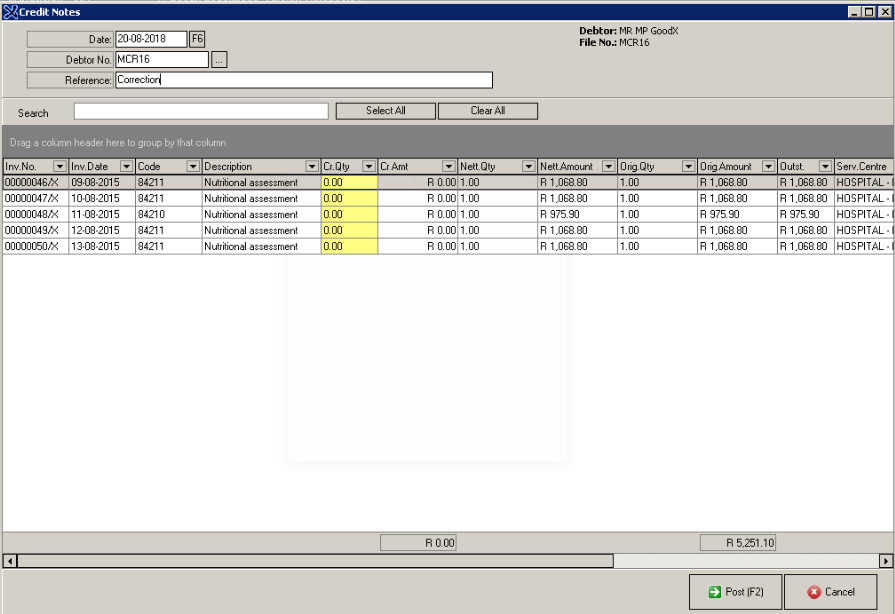
Note: That the date should be in the period selected on the previous screen
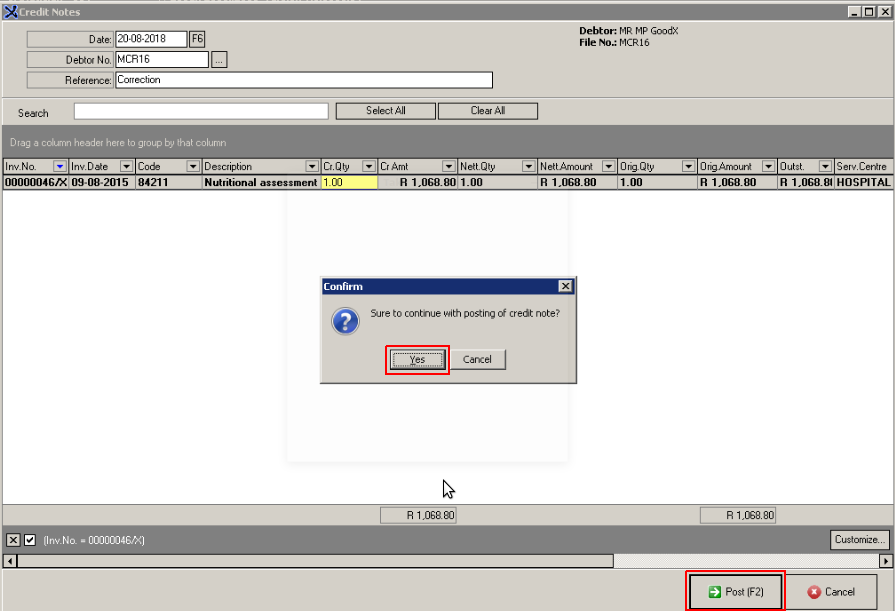
Select F6 and change the date on the calendar.
Enter the Debtor number or search for it by clicking on the browse button next to the Debtor Number field
Enter a Reference (The reason for the Credit note)
Note: That transactions in red have already been paid in full and a credit note should not be written back before a receipt has been written back.
Select the Invoice you want to credit by marking the checkbox next to the bold printed line
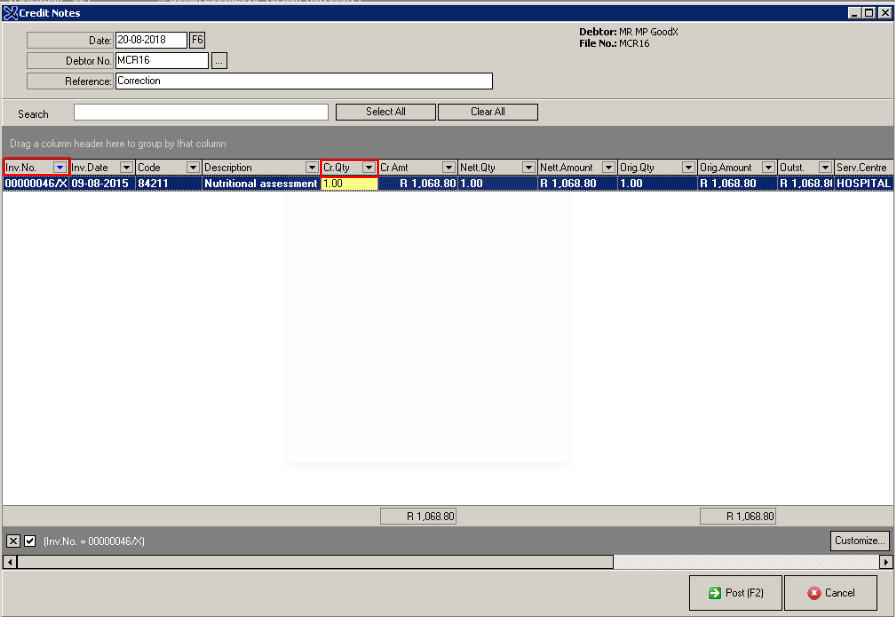
You can also select only the Invoice that you want to Credit by clicking the "Inv No" drop down button
Click on INVOICE NO or press F2
You can Credit only part of the Invoice or the full amount by changing the Quantity
Select Invoice No and Quantity to Credit
Select Post to process the transaction
Click on YES
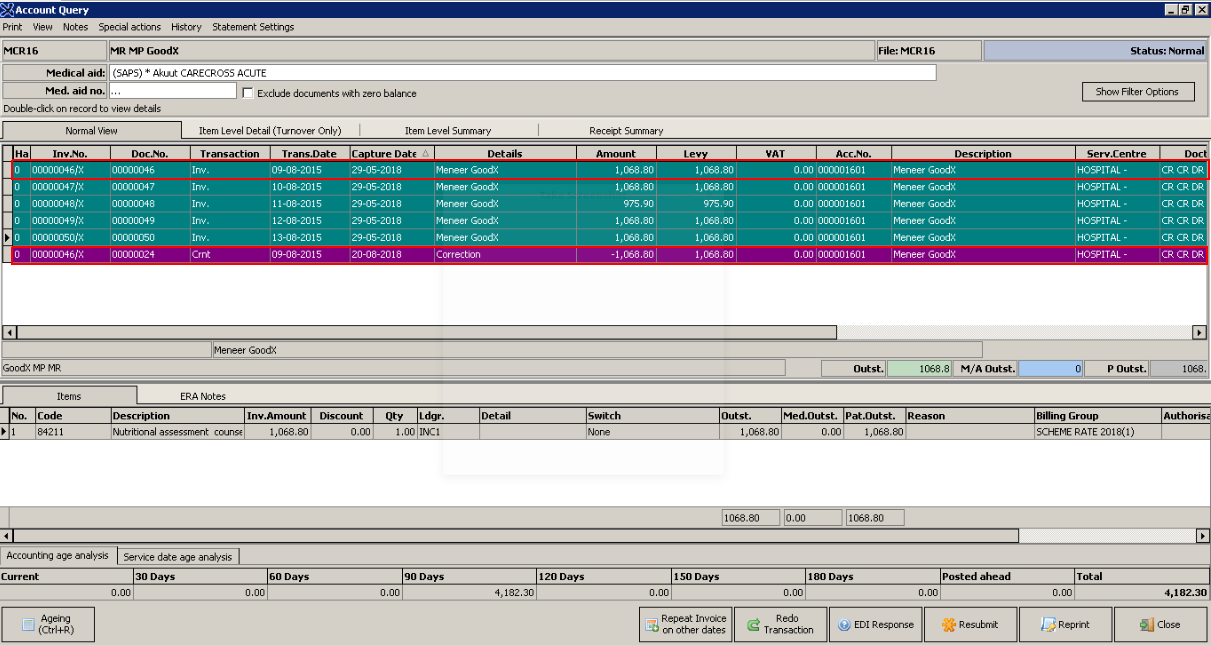
Credit Note screen will close. Credit Note is now posted.