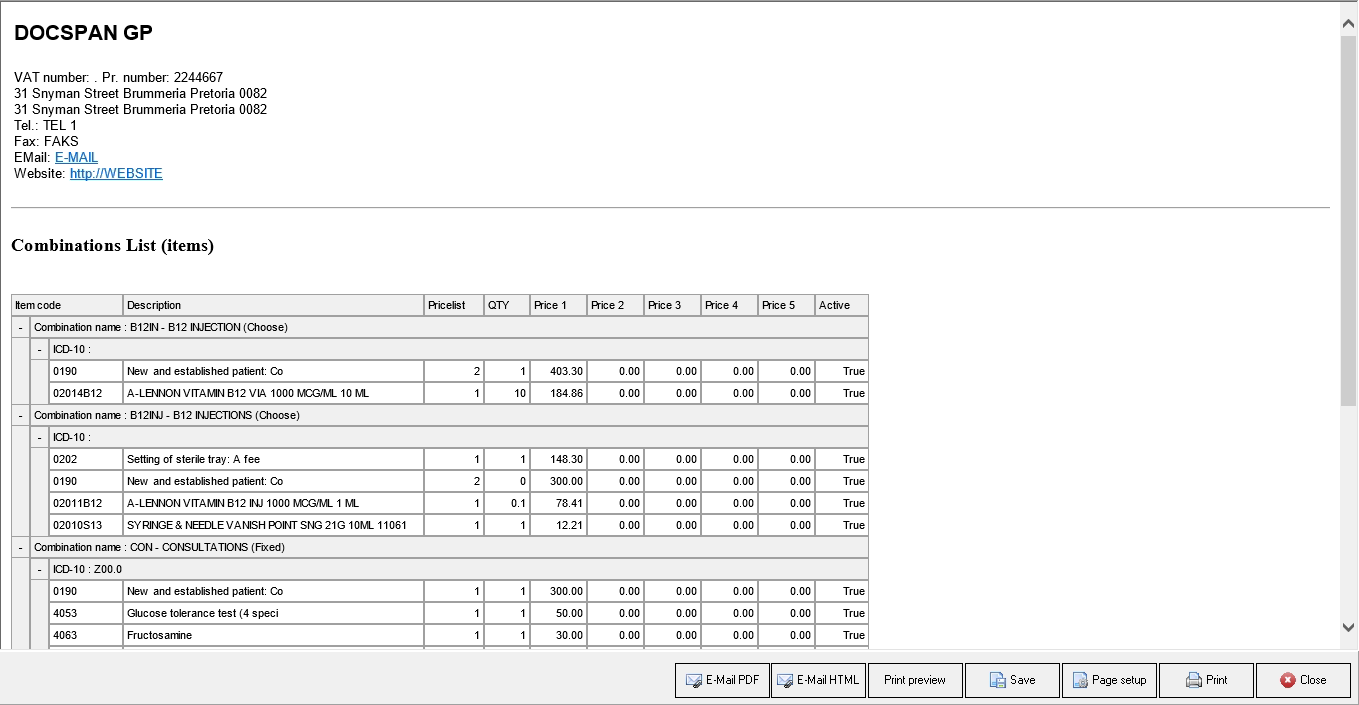
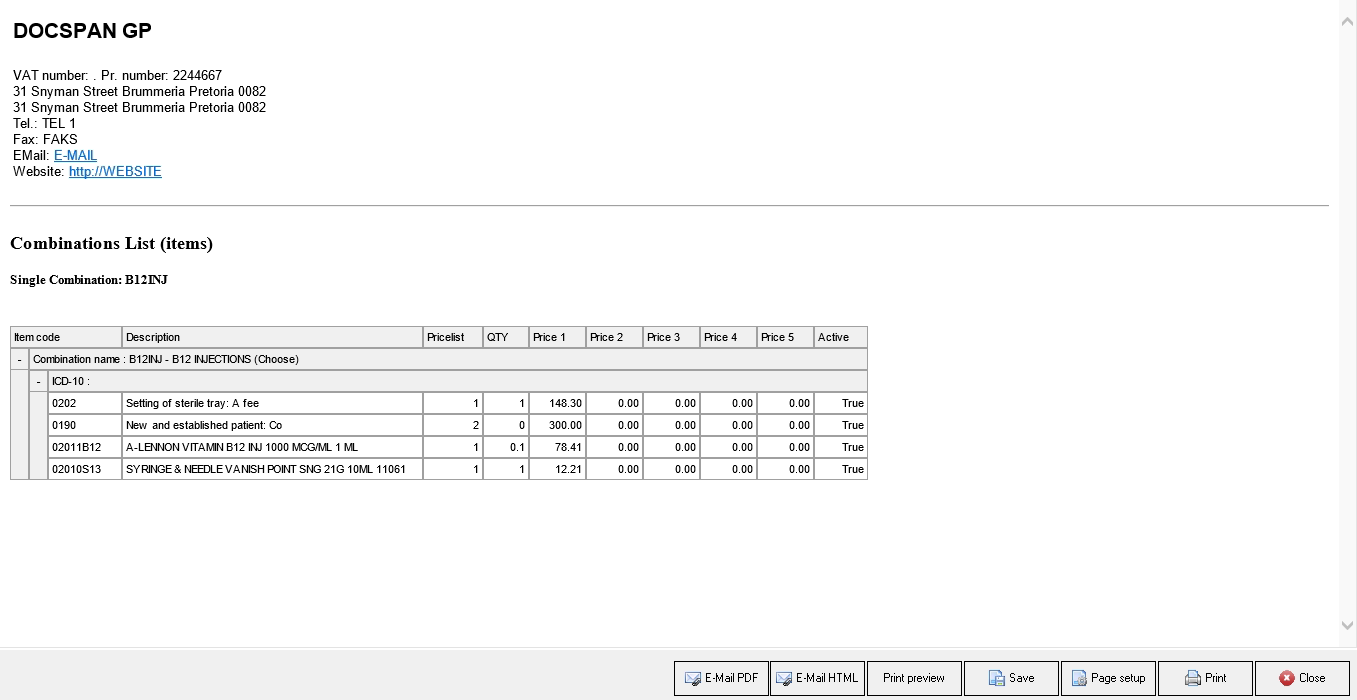
Combinations can be printed as a full list with its contents or one selected item with its contents.
The contents of this User Manual will consist of the following information:
Print Combination With Items
Print Selected Combination With Items
Print List Options
Sign in to the GoodX Desktop using your GoodX username and password.
From the Navigator Double Click on the MedDebs Module.
The Main MedDebs screen will open.
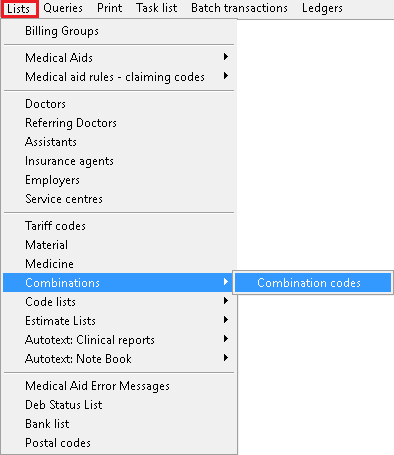
From the Menu bar, click on Lists.
Click on Combinations from the drop-down list.
Click on Combination codes from the submenu.
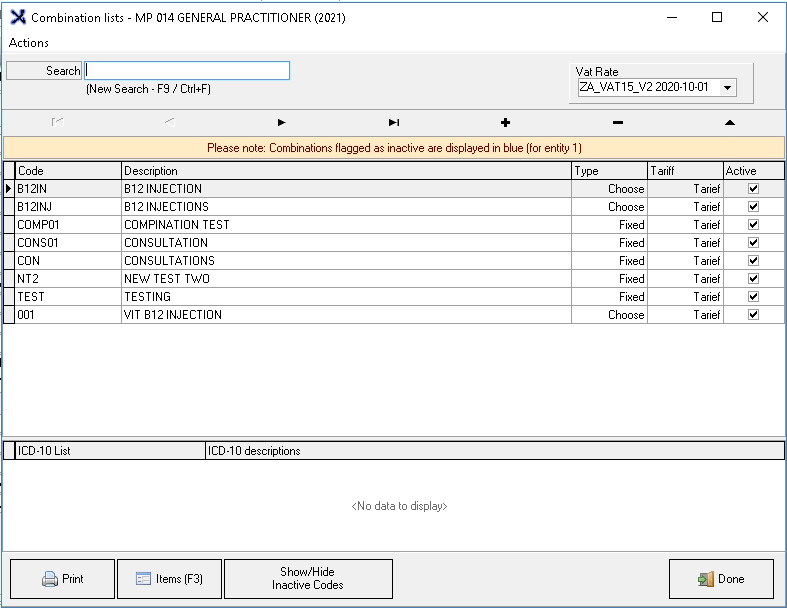
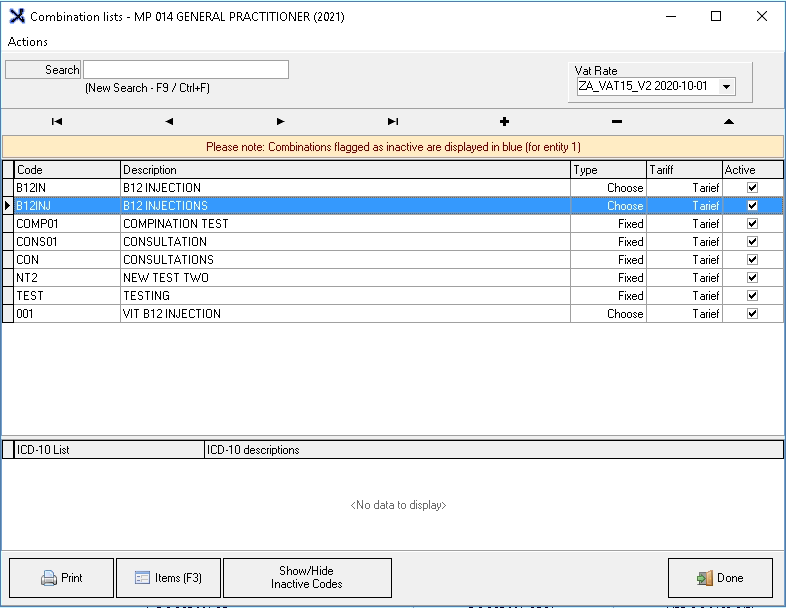
The Combination Lists screen will open, all the combinations that have been set up will be listed here.
Print Combination With Items
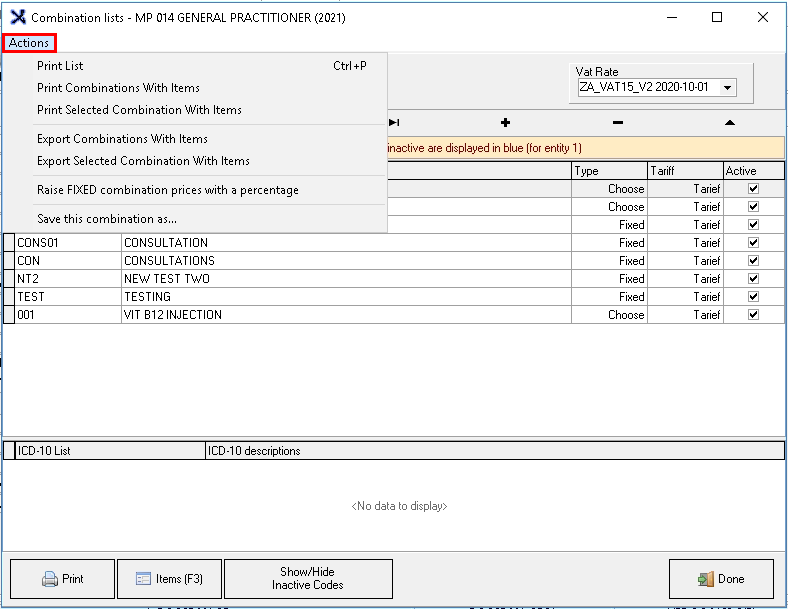
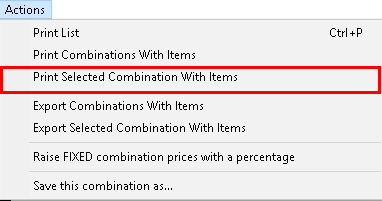
Click on Actions on the Menu bar on the Combination Lists Screen.
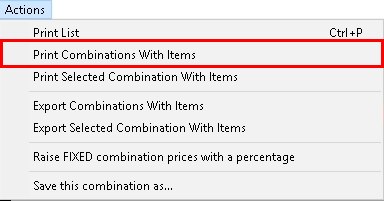
Click on Print Combination With Items on the submenu.
This will print a detailed list of all the combinations with their items as it was set up. Please refer to the user manual: Combinations (Protocols) for a full explanation
of how the data will be sorted into the columns.
Print Selected Combination With Items
Select the combination from the list that would like to be printed, by clicking on it.
Click on Actions on the Menu bar.
Click on Print Selected Combination With Items on the sub-menu.
This will print a detailed list of the combination that was selected with its items as it was set up.
Print List Options
The following options will be available on each printed list :
Email PDF: Attaches the report in a .pdf format to the email.
Email HTML: Send the email with an HTML link.
Print Preview: Preview how the list will look when a hard copy is printed.
Save: Saves a digital copy to the computer.
Page Setup: Opens the page setup screen.
Print: Prints a hard copy to the Set-up printer.
Close: Closes the screen and returns to the List screen.
Click on Done to close the screen and return to the main MedDebs screen.