Postal codes are used as an identification number for certain areas, each area will have its own unique postal code.
Sign into the GoodX Desktop using your GoodX username and password.
Click on the Med Debs module.
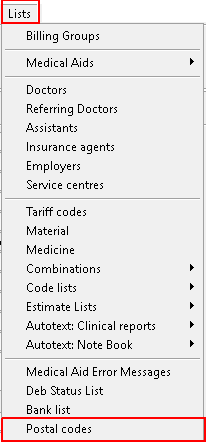
Navigate to the Lists tab on the Navigation panel and click on it.
Scroll down to Postal codes and click on it.
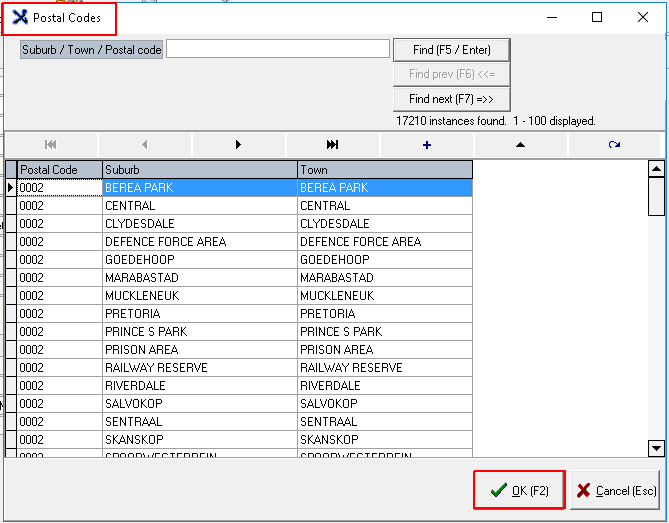
Once you have clicked on Postal codes then a new screen will open up that will show a list of all the postal codes that is listed already on the system.
Should you not wish to add a new postal code click on the OK (F2) button to close the screen.
OK (F2) button
If a new postal code needs to be added, then you need to click on the plus button to add a new code.
Plus button
A new screen - Postal Code Input will open up where you can do the input of the new postal code, ensure all the fields are filled in correctly.
After the input is done then click on the OK button to exit the screen and save the entry
OK button
The screen will go back to the Postal codes screen where the whole list was available to view.
Click on the OK (F2) to exit the screen and save all entries that have been done.

 OK (F2) button
 Plus button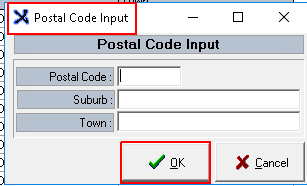
 OK button