If a user is responsible for updating more than one Doctor's Diary, there is an option to view the Diary for more than one Doctor.
All the functions that are available in the Main Diary are also available on the Multi-Doctor View Screen.
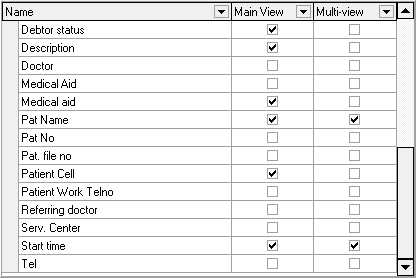
The user can select which columns to reflect on the Multi-Doctor View Screen in User Preferences.
In the Diary View tab, tick the appropriate blocks under the Multi-View column (In this case only the Start Time and Patient Name are ticked).
Click on the Doctors Icon on the Menu bar.
The Multi-Doctor screen will be displayed.
Click on the drop-down arrow next to the field below Add Doctor, and select the Doctor to be displayed.
Click on the Add button.
Repeat the process to add Doctors.
The screen should now be displayed as follows (in this case three Doctors were selected).
Each Doctor's diary has its own date selector.
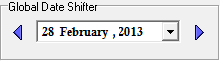
BUT: Click on the arrows of the Global Date Shifter at the left-hand-side of the screen if the user wants to change the date of all the visible Doctors simultaneously.
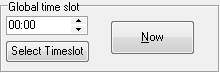
Click on Now to change the focus of all the Doctors to the same time slot.
Click on Add to add another Doctor.
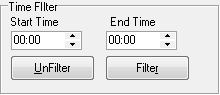
Click on Filter to filter the times that should be displayed.
Click on Refresh All to refresh to screen or change the frequency of the function.
Click on Print All to make a printout of all the visible screens.
Click on Exit to exit the Multi-Doctor view
Click on Close All to close all the Doctor screens.