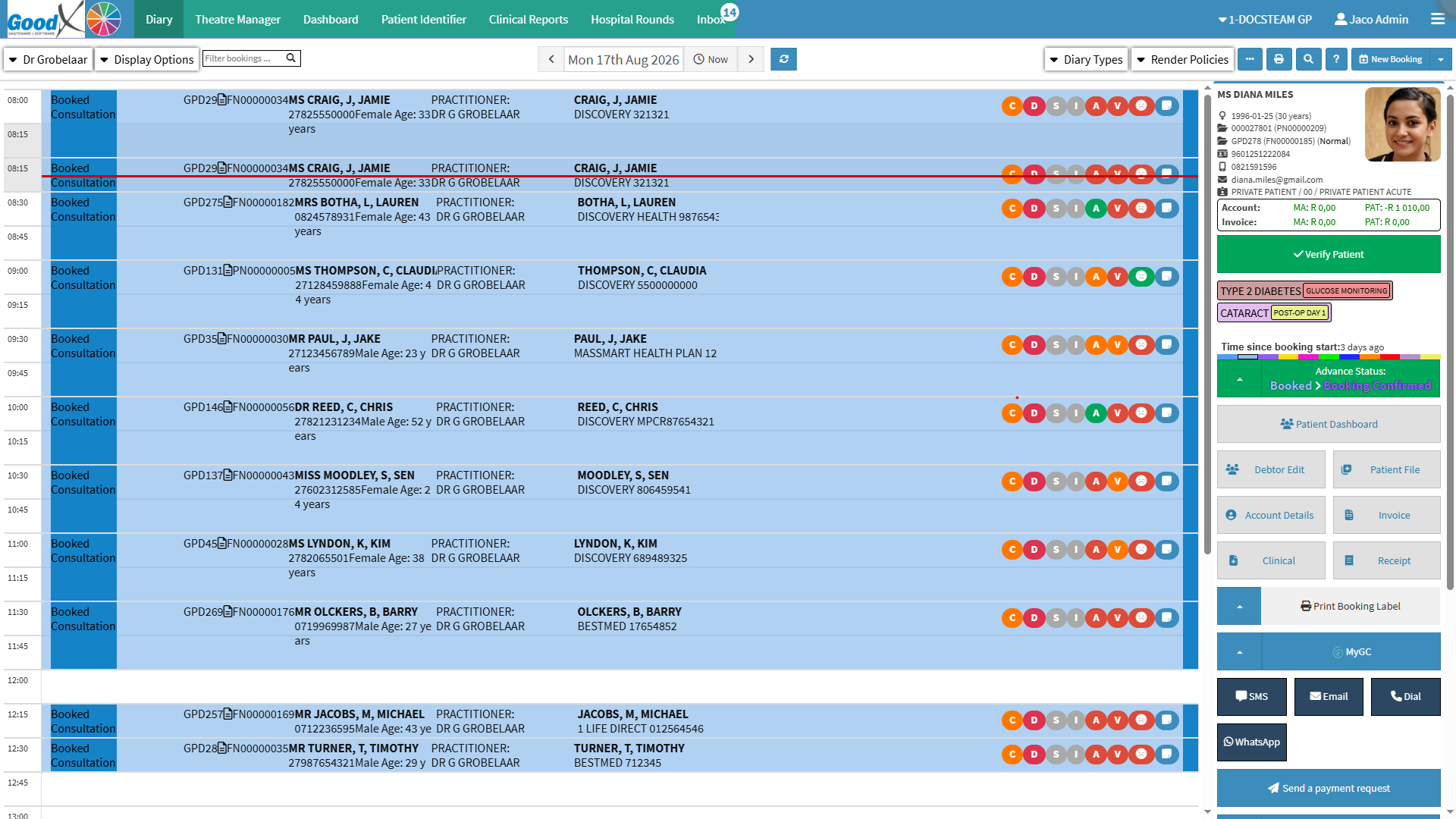
The Diary screen is the central point for managing the practice's daily appointments, activities, and workflow. It provides a clear, customisable view of time slots, making it easy to schedule and manage bookings, monitor practitioners' availability, and track activities throughout the day.
From creating a booking through to the patient's arrival, consultation, and completion of the visit, information and actions can be recorded and managed through the Diary. This provides a clear overview of what is happening within the practice and helps keep appointments, patient activity, and administrative processes organised.
Using the Diary screen helps the practice make better use of available time, coordinate daily activities, reduce scheduling errors, and maintain a smooth patient flow. With the information and tools needed to manage the day's activities in one central location, the Diary supports efficient practice operations and a more organised patient experience.
Start on the Diary screen.
Sections
Practice Logo
Navigation Wheel
Diary Tabs
User Toolbar
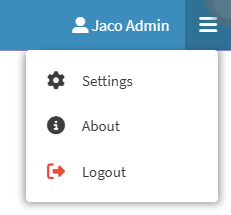
User Menu
Minimiser
Diary Options
Diary Date
Diary View
Diary Actions
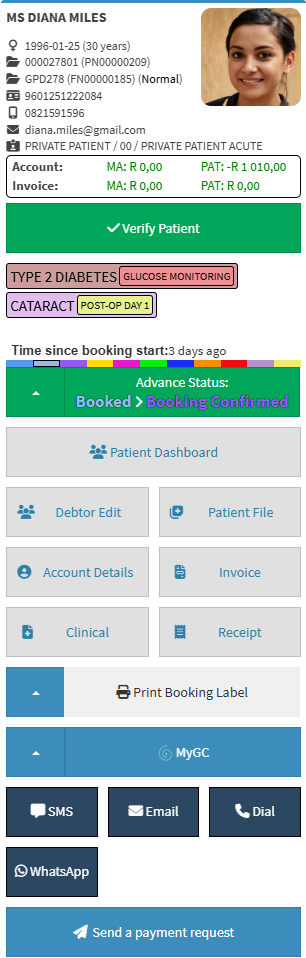
Diary Sidebar
Booking Information
Practice Logo
This is your practice's logo and can be updated and changed according to your specific practice. For details, see Entity Settings Panel.
Navigation Wheel
The Navigation Wheel provides quick access to the various modules. For details, see Navigation Wheel.
Entity Drop-Down Menu: Switch between entities associated with your practice. For details, see Entity Setup.
User: Displays the currently logged-in staff member.
💡 Please Note: Practices with only one entity may not have the Entity drop-down menu available. Entities are created during the initial installation of the system and cannot be created manually; however, the details of an existing entity can be updated if required.
About: Provides information about the software version, installation, user manuals, changelogs, and active services. For details, see About Page Navigation.
Logout: Securely ends your current GoodX session.
Minimiser
The Minimiser allows screens and functions to remain open in the background without needing to save and close them. For details, see How to Use the Minimiser.
Diary Options
Practitioner Menu: Select which practitioner’s Diary to be displayed. For details, see How to Add a New Practitioner.
Display Options: Customise the information shown on the Diary screen. For details, see How to Change Display Options.
Filter Bookings: Quickly find bookings in the Diary by filtering specific patient or debtor information. For details, see How to Use the Diary Filter.
Diary Date
Arrows: Navigate between dates.
Date Picker: Select a specific date.
Now: Return to the current time and date.
Refresh: Reload the page.
💡 Please Note: You can also use the Refresh button to reload the webpage if content appears outdated, cached, or if there has been a loss of connection.
Diary View
Diary Types: View and organise the Diary for effective management of bookings. For details, see Diary Types Navigation.
The Diary sidebar provides a central access point to information and actions related to a specific diary entry. For details, see Diary Sidebar Navigation.
Booking Information
The Booking Information displays appointment time, patient and practitioner details, and booking icons. For details, see Booking Timeslot Navigation.
💡 Please Note: Timeslot intervals in the Diarycan be customised to suit the needs of the practice, including the length of booking intervals and the information displayed.