The Theatre Manager is used to streamline the management of Theatre Bookings within a Practice. It allows Practitioners to schedule and organise surgeries or procedures that require a Theatre. A Practitioner would use the Theatre Manager to ensure that Theatre time is properly allocated, avoiding scheduling conflicts and ensuring that all necessary procedures are accounted for. Additionally, it allows for easy access to a printable or downloadable Theatre List, making it simpler to coordinate with other staff and maintain accurate records of Theatre usage. This tool ultimately helps in optimising time management and improving operational efficiency.
💡Please Note:In order to use the Theatre Manager, it first needs to be activated. For more information, please refer to the user manual: Diary Settings - Theatre Setup.
The Contents of This User Manual:
Theatre Lists Filter
Add Theatre List
Theatre List
Actions
Theatre Bookings for Selected Theatre List
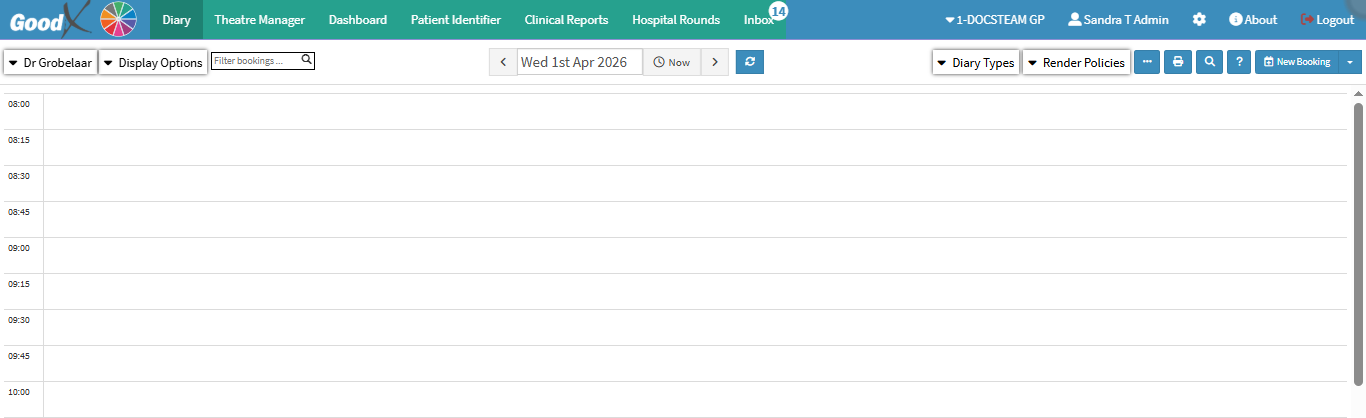
This user manual will start on the Diary screen.
Click on the Theatre Manager tab.
The Theatre Manager screen will open.
Theatre Lists Filter
Tools or functionalities that allow you to narrow down or refine the results displayed on the Theatre List.
Click on the Refresh button to reload the details of the page in order to update the information that is being displayed.
💡Please Note: You will need to refresh every time the filters are adjusted.
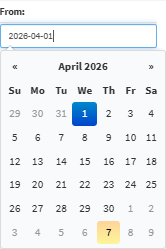
Click on the From field to select the datefrom the date picker,where your search will start.
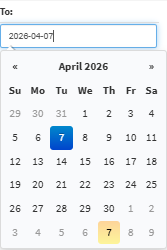
Click on the To field to select the datefrom the date picker, where your search will end.
Add Theatre List
Allows you to create a new Theatre List.
Click on the Add Theatre List button.
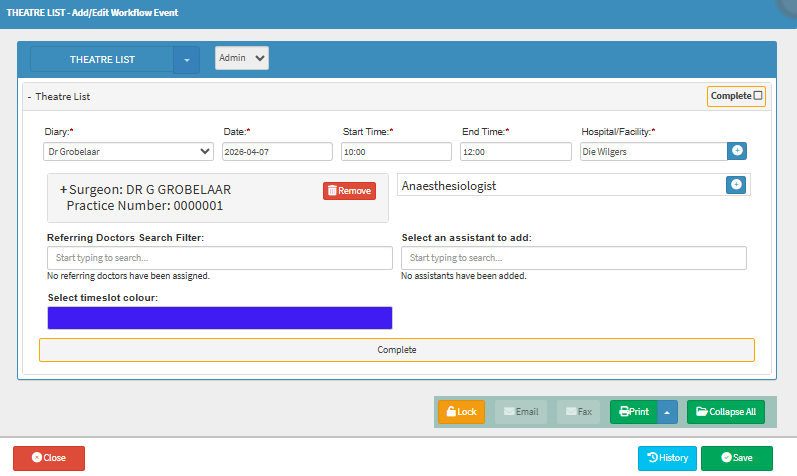
The Theatre List - Workflow Event screen will open.
For more information regarding how to create a new Theatre List, please refer to the user manual: How to Create a Theatre List.
Theatre List
Shows all the details of the Theatre List.
The details are divided into Columns to logically group related information together:
Date: The date on which the Theatre List has been booked.
Hospital: Where the Theatre Bookings will take place.
Start Time: The time at which the Bookings on the Theatre List will start.
End Time: The time at which the Bookings on the Theatre List will end.
Average Time: The average time of each procedure.
Total Time: The amount of time that has been booked on this Theatre List.
Time Remaining: The amount of time that can still be booked out on this Theatre List.
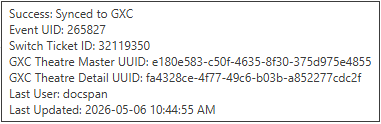
Sync Status: Indicates whether the data has been successfully synced with grandXchange and where the item is within the syncing process.
Green: Successfully synced with unique ID.
Orange: Ticket exists, but synced is pending on unique ID.
Blue: Not syncing because the workflow is not yet finalised or completed.
Red: Synchronisation was unsuccessful.
💡Please Note: If you hover over each syncicon, you will be able to see more information regarding the Sync Status.
Actions
Additional Options are available for the Theatre List.
Click on the Edit button to make changes to the Theatre List.
Click on the Move button to transfer the Theatre List to a different Practitioner/Diary.
Click on the Delete button to remove the Theatre List.
Click on the Print button to send the Theatre List to the Printer in order to print a hard copy of all the bookings scheduled on the list.
Click on the Email button to send the Theatre List via email to the desired recipients.
Click on the Theatre List entry to see the Theatre Bookings for the selected Theatre List.
Theatre Bookings for Selected Theatre List
Each procedure that is associated with this specific Theatre List.
The details on the Theatre List are divided into Columns to logically group related information together:
Patients: The full name of the Patient for whom the Operation has been booked.
Start Time: The time the Operation has been scheduled to start.
ICD10: The code used to identify and classify the disease, indicating why the Patient needs the Operation.
Procedure Description: The name of the Operation that is going to be performed.
CPT4 Code: The code used to describe medical, surgical, and diagnostic procedures and services.
Sync Status: Indicates whether the data has been successfully synced with grandXchange and where the item is within the syncing process.
Tick the Show Deleted Operations checkbox to view operations that have been removed.
💡Please Note: Deleted Operations will be highlighted in red.
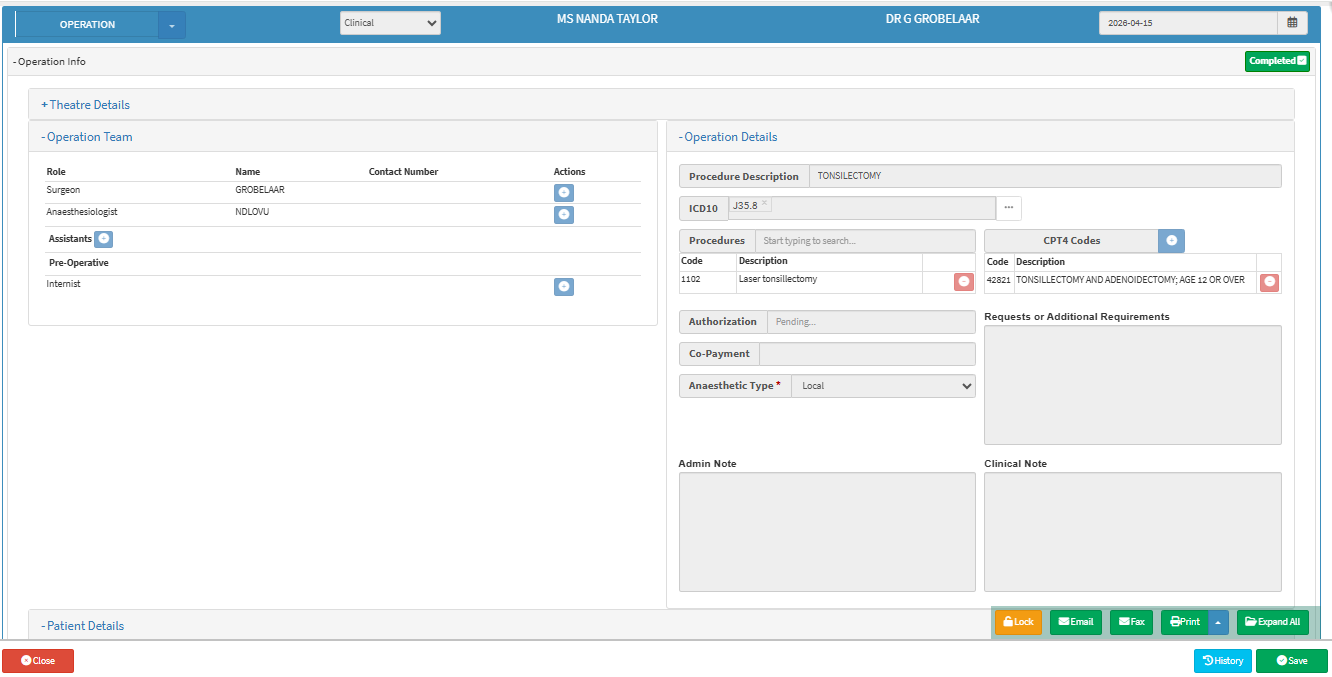
Double-click on the Procedure Entry to make changes to the Operation.
The Operation screen will open.
For more information regarding how to edit the Operation, please refer to the user manual: How to Set Up an Operation.