Navigating the About Page
Why Use This Function:
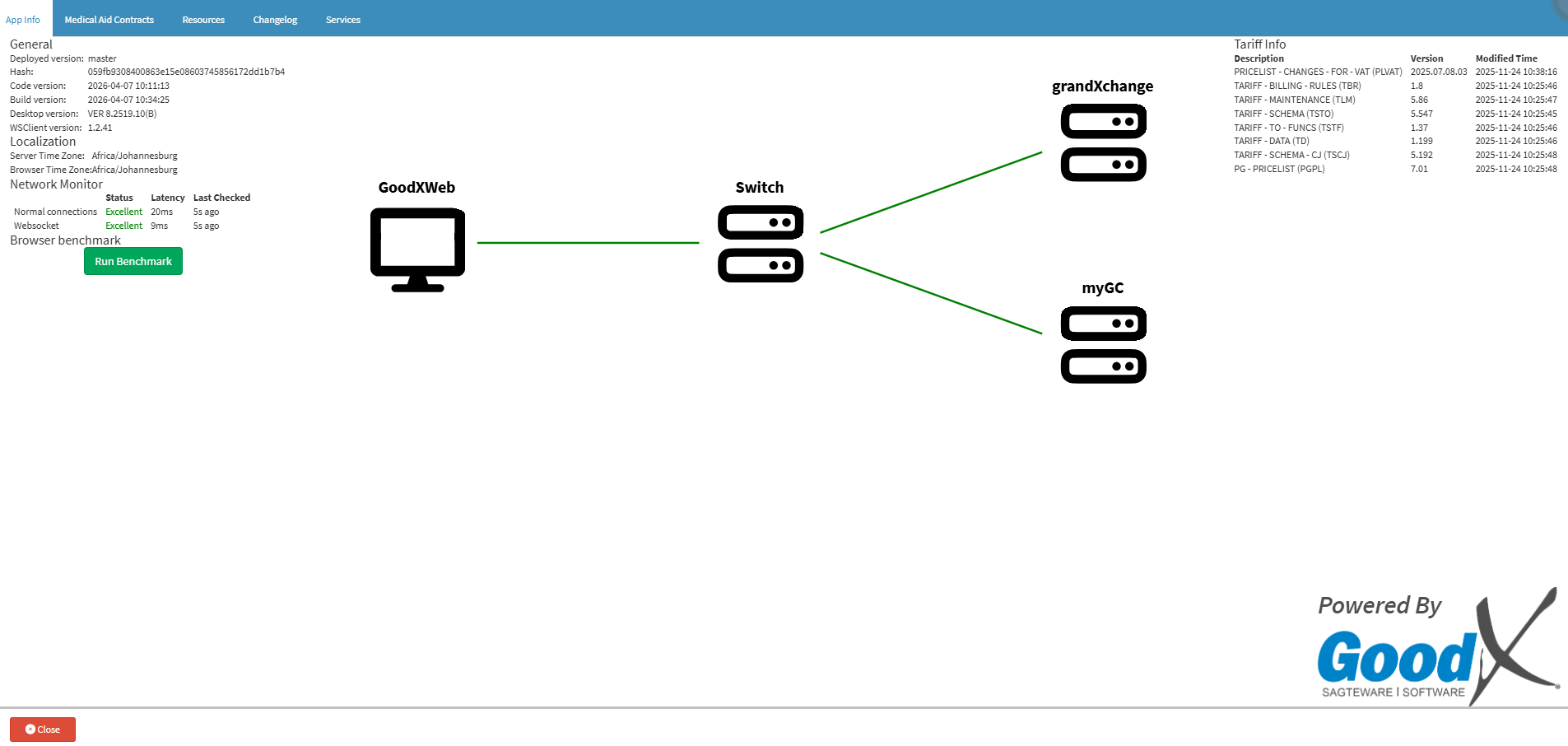
The About page provides a system status overview, displaying software version details, localisation settings, network connectivity health, tariff information, and a graphical representation of system components and their connections, including warnings for potential issues.
You will also be able to access user manuals, changelogs, and the additional services that you are subscribed to.
The Contents of This User Manual:
- App Info
- General
- Localisation
- Network Monitor
- Integration Health Checker
- Tariff Info
- Medical Aid Contracts
- Resources
- User Manual
- Changelog
- Services
- This user manual will start on the Diary screen.

- Click on the About button.

App Info
All the information regarding the current version of the Web App, the status of the browser connection, Portal Connections and Tariff Information.
- The App Info tab will open.

General

- The data in the General section is Developer information.
Network Monitor
- Normal Connections: The status of your current internet connection.
- Websocket: The status of your connection to the server.
- Status: The current rating of the connection of the program in the browser.
- Latency: The time that has elapsed before the data transfer begins.
- Last Checked: The time that has elapsed since the last data transfer was checked.
Browser Benchmark
- Click on the Run Benchmark button to run a Benchmark test on the browser for the user to be able to see if the software is operating as it should.
![]()
- An Attention pop-up will appear to advise the user that they are about to start a benchmark on the browser to determine the performance of the browser and to ensure accurate results all other web browser tabs should be closed.

- Click on Cancel to cancel the request and close the pop-up.

- Click on Ok to go ahead to run the Benchmark test.

- A Progress Bar will appear to indicate how far the browser Benchmark test is.
![]()
- Once the Benchmark has been completed the results will appear with the rating and at what speed operations are running and a rating will be given of how the system is performing.

Integration Health Checker
Shows a map of all the connections the Practice has to the Switch and external Portals.
💡Please Note: When a connection error occurs, an indicator will display on the relevant app. 
Tariff Info
Shows the latest Price lists and Tariff versions that are loaded for your Practice.
Medical Aid Contracts
Gives you an overview of all the Contracts that are loaded for the Practice.
- Click on the Medical Aid Contracts tab.
![]()
- The Medical Aid Contracts screen will open with a list of all the contracts of the Practice.

Resources
The Resources tab provides a central hub for users to access essential external support tools and educational materials. By using this function, users can quickly navigate to the GoodX Software Learning Centre for training or connect with the GoodX App, ensuring they have the latest documentation and mobile tools at their fingertips.
- Click on the Resources tab.
![]()
- The Resources screen will open.

- Click on the GoodX Software Learning Centre link to open the learning centre.

-
- Alternatively, Hover on the QR Code to scan the QR Code to redirect to the learning centre.

- Click on the GoodX App link to open the GoodX Sub-App Home.

-
- Alternatively, Hover on the QR Code to scan the QR Code to redirect to the GoodX App.

Changelog
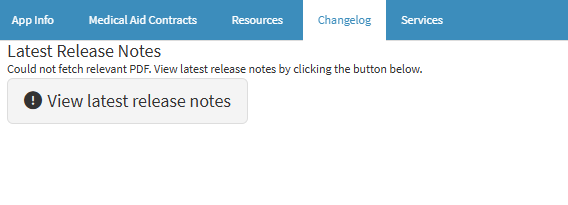
A log of all changes, updates, bug fixes and development that has been done for the latest and previous releases.
- Click on the Changelog tab on the navigation bar.
![]()
- The Changelog tab will open.

- Click on the View Latest Release Notes button.

- You will be directed to the Latest Release Notes of the WebApp in a new tab of their web browser.

Services
The additional services that the user is subscribed to on GoodX Web.
- Click on the Services tab.
![]()
- The Services tab will open.

- Available Services: The additional services that are offered on GoodX Web that can be enabled at your Practice.
- SMS: Allows you to send text messages directly from within the system to communicate quickly with Patients.
- Emailing: Enables the user to send electronic mail communications, such as statements or reminders, from within the system.
- WhatsApp: Allows you to send WhatsApp messages from within the system for modern, instant patient engagement.
- Invoicing: Allows you to bill Patients and generate financial records for the professional services rendered.
- Switching: Enables the practice to send claims directly to the Medical Aid and receive an immediate real-time response regarding the claim status.
- Payments: Allows you to send payment requests to Patients, providing them with a secure Payment Link to settle their accounts easily.
- Dial: Enables you to make outgoing voice calls directly from the system using a VOIP (voice-over internet protocol) connection.
- Fax: Allows for the digital sending and receiving of documents via traditional fax protocols without the need for a physical fax machine.
- A Green checkmark corresponding to the service indicates that you are subscribed to the service.

- A Red cross corresponding to the service indicates that you are not subscribed to the service.