Skip to navigation
Skip to navigation
Skip to search form
Skip to login form
Skip to main content
Skip to accessibility options
Skip to footer
Skip accessibility options
Reset settings
Close
Accessibility profiles
Visual impairment
Seizure and epileptic
Color vision deficiency
ADHD
Dyslexia
Learning
Content adjustments
Readable font
Dyslexia-friendly font
OpenDyslexic
Highlight headings
Highlight links
Highlight buttons
Hide images
Tooltips
Stop animations
Text size
+
+ +
+ + +
Line height
+
+ +
+ + +
Text spacing
+
+ +
+ + +
Color adjustments
Dark contrast
Light contrast
Invert colors
Change colors
High contrast
High saturation
Low saturation
Monochrome
Orientation adjustments
Reading guide
Reading Mask
Big black cursor
Big white cursor
Menu
Search
Log in
Log in
Show
Forgotten your username or password?
Home
GoodX Web Modules
Diary
Debtors
Clinical
Communication
Hospital
Stock
Creditors
Accounting
Reports
Custom & Configurations
Feature Focus
Data Management
Support
Client Portal
GoodX Support Manual
Online Courses
Ethical CPD Courses
FREE GoodX Software Courses
FAQ
Search
Log in
Log in
Course
myGC
Home
Courses
myGC
Section outline
Select section General Introduction
Collapse
Expand
General Introduction
Collapse all
Expand all
Select activity How to Log In to myGC
How to Log In to myGC
Page
Select activity myGC Home Page: Navigation and Use
myGC Home Page: Navigation and Use
Select section Beginner Essentials
Collapse
Expand
Beginner Essentials
Select activity Non Registered User: Search Results (logged out)
Non Registered User: Search Results (logged out)
Page
Select activity How to Create a New Account Whilst Making a Booking
How to Create a New Account Whilst Making a Booking
Page
Select activity Demographic Request on myGC
Demographic Request on myGC
Page
Select activity Feedback (Sign Up & Login)
Feedback (Sign Up & Login)
Page
Select activity Push Notifications on myGC
Push Notifications on myGC
Page
Select activity Login Via Secure Message
Login Via Secure Message
Page
Select activity Register for myGC Via Secure Message
Register for myGC Via Secure Message
Page
Select activity Frequently Asked Questions and Answers
Frequently Asked Questions and Answers
Page
Select activity How to Create a Booking Without an Account
How to Create a Booking Without an Account
Page
Select activity How to Review a Practitioner
How to Review a Practitioner
Page
Select section myGC Dashboard
Collapse
Expand
myGC Dashboard
Select activity How to Search on myGC
How to Search on myGC
Page
Select activity Navigating the myGC Dashboard
Navigating the myGC Dashboard
Page
Select activity How to Use the myGC Navigation Panel
How to Use the myGC Navigation Panel
Page
Select activity myGC Notifications Screen: Navigation and Use
myGC Notifications Screen: Navigation and Use
Page
Select activity How to Navigate the Health Screen on myGC
How to Navigate the Health Screen on myGC
Page
Select activity How to Set Access Rights on myGC
How to Set Access Rights on myGC
Page
Select activity Medical History Screen: Navigation and Use
Medical History Screen: Navigation and Use
Page
Select activity Medical History Screen: General: Navigation and Use
Medical History Screen: General: Navigation and Use
Page
Select activity Medical History Screen: Family: Navigation and Use
Medical History Screen: Family: Navigation and Use
Page
Select activity Medical History Screen: Allergies: Navigation and Use
Medical History Screen: Allergies: Navigation and Use
Page
Select activity Medical History Screen: Chronic: Navigation and Use
Medical History Screen: Chronic: Navigation and Use
Page
Select activity Medical History Screen: Operations: Navigation and Use
Medical History Screen: Operations: Navigation and Use
Page
Select activity Medical History Screen: Treatments: Navigation and Use
Medical History Screen: Treatments: Navigation and Use
Page
Select activity Medical History Screen: Vaccinations: Navigation and Use
Medical History Screen: Vaccinations: Navigation and Use
Page
Select activity Medical History Screen: Travel: Navigation and Use
Medical History Screen: Travel: Navigation and Use
Page
Select activity Medical History Screen: Occupation: Navigation and Use
Medical History Screen: Occupation: Navigation and Use
Page
Select activity Medical History Request on myGC
Medical History Request on myGC
Page
Select activity Navigating Clinical Documents on myGC
Navigating Clinical Documents on myGC
Page
Select activity Navigating Consent Forms on myGC
Navigating Consent Forms on myGC
Page
Select activity How to Sign a Consent Form Sent via an SMS/Email Link
How to Sign a Consent Form Sent via an SMS/Email Link
Page
Select activity Questionnaires on myGC
Questionnaires on myGC
Page
Select activity myGC: Editable Image on Questionnaire
myGC: Editable Image on Questionnaire
Page
Select activity myGC Payments Screen: Navigation and Use
myGC Payments Screen: Navigation and Use
Page
Select activity myGC Account: Navigation and Use
myGC Account: Navigation and Use
Page
Select activity myGC Account: My Account
myGC Account: My Account
Page
Select activity myGC Account: Payment Methods Tab
myGC Account: Payment Methods Tab
Page
Select activity myGC Account: Medical Aid Tab
myGC Account: Medical Aid Tab
Page
Select activity myGC Account: Family Management Tab
myGC Account: Family Management Tab
Page
Select activity myGC Account: Navigating the Settings Tab
myGC Account: Navigating the Settings Tab
Page
Select activity Privacy Policy
Privacy Policy
Page
Select activity myGC Dashboard: Navigating the Feedback Screen
myGC Dashboard: Navigating the Feedback Screen
Page
Select activity How to Navigate the Patient Profile Menu
How to Navigate the Patient Profile Menu
Page
Select activity Receiving Pathology Reports on myGC
Receiving Pathology Reports on myGC
Page
Select section Configuration
Collapse
Expand
Configuration
Select activity Setup Medical Aid
Setup Medical Aid
Page
Select activity Add a Dependant to Main Member Profile
Add a Dependant to Main Member Profile
Page
Select activity Setup My Account
Setup My Account
Page
Select activity Setup Family Management
Setup Family Management
Page
Select activity Forgot Your Password
Forgot Your Password
Page
Select activity How to Sign Up for myGC
How to Sign Up for myGC
Page
Select activity Sign Up with Google
Sign Up with Google
Page
Select activity myGC: Delete My Account
myGC: Delete My Account
Page
Select activity How to Sync a myGC Booking to a Calendar
How to Sync a myGC Booking to a Calendar
Page
Select activity How to Set Up Push Notifications on myGC
How to Set Up Push Notifications on myGC
Page
Select section Paperless Information Sharing
Collapse
Expand
Paperless Information Sharing
Select activity Demographic Requests on myGC
Demographic Requests on myGC
Page
Select activity How to View PDF Document Using myGC
How to View PDF Document Using myGC
Page
Select activity Secure Messages Screen: Navigation and Use
Secure Messages Screen: Navigation and Use
Page
Select activity Push Notifications on myGC
Push Notifications on myGC
Page
Select section Telemed/Telehealth From myGC
Collapse
Expand
Telemed/Telehealth From myGC
Select activity Telehealth (Telemed) for the Practitioner
Telehealth (Telemed) for the Practitioner
URL
Select activity Telehealth Booking / Call for the Patient myGC
Telehealth Booking / Call for the Patient myGC
URL
Select activity How to Join a Telemed Consultation
How to Join a Telemed Consultation
Page
Select activity How to Send Text Messages on a Telemed Call
How to Send Text Messages on a Telemed Call
Page
Select section Online Bookings myGC App
Collapse
Expand
Online Bookings myGC App
Select activity How to Make a Booking as a Non Registered User (Logged Out)
How to Make a Booking as a Non Registered User (Logged Out)
Page
Select activity How to Make Bookings Once Logged In
How to Make Bookings Once Logged In
Page
Select activity Saved Doctors
Saved Doctors
Page
Select activity Booking Types
Booking Types
Page
Select activity External Booking (from Practice Link)
External Booking (from Practice Link)
Page
Select activity First Available Booking
First Available Booking
Page
Select activity How to Confirm Bookings with an SMS/Email Link
How to Confirm Bookings with an SMS/Email Link
Page
Select activity Booking Confirmation Status Trigger Setup
Booking Confirmation Status Trigger Setup
Page
Select activity Verifying Rostered Patients on myGC
Verifying Rostered Patients on myGC
Page
Select section Online Patient Payments
Collapse
Expand
Online Patient Payments
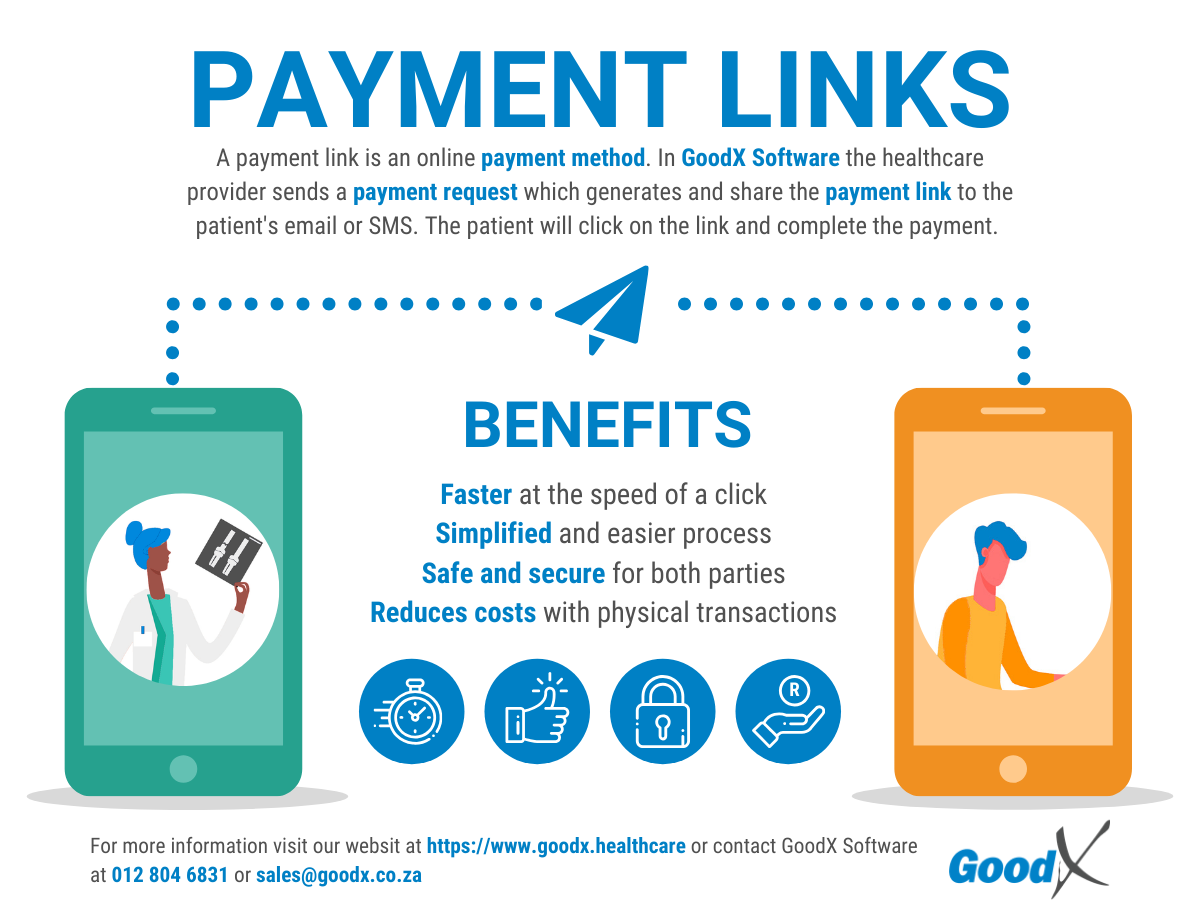
Select activity Payment Link Process
Payment Link Process
File
Select activity Send Payment Request (WebApp)
Send Payment Request (WebApp)
Page
Select activity Making a Payment with a Payment Request Link
Making a Payment with a Payment Request Link
Page
Select activity Send Payment Request Desktop App
Send Payment Request Desktop App
Page
Select section Kiosk
Collapse
Expand
Kiosk
Select activity Kiosk: Welcome Screen Overview
Kiosk: Welcome Screen Overview
Page
Select activity Kiosk: Feedback
Kiosk: Feedback
Page
Select activity Booking Not Found
Booking Not Found
Page
Select activity Kiosk: Settings
Kiosk: Settings
Page
Select activity How to Use Self Service Check In (Existing Patient)
How to Use Self Service Check In (Existing Patient)
Page
Select activity Self Service Check In (New Patient)
Self Service Check In (New Patient)
Page
Select section myGC Feature Overviews
Collapse
Expand
myGC Feature Overviews
Select activity External Booking Page: Google Ad Tracking
External Booking Page: Google Ad Tracking
Select activity Payment Requests and Payment Links
Payment Requests and Payment Links
Page
Scroll to top
Close
Log in
Show
Forgotten your username or password?
Close
Close
Close