Why Use This Function:

Telemed is designed to enable face-to-face communication between Practitioners and Patients, regardless of their locations. It offers a convenient and cost-effective alternative to phone consultations, making it a popular budget-friendly choice for both Practices and Patients.

Patients can book a Telemed consultation either by phoning the Practice or through the myGC app. Detailed instructions for booking via the app can be found in the user manual: How to Make Bookings Once Logged In.

💡Please Note: While a myGC account is not required to join a Telemed call, Patients have the option to create one if they wish. For more information on account creation, please refer to the user manual: How to Sign up.
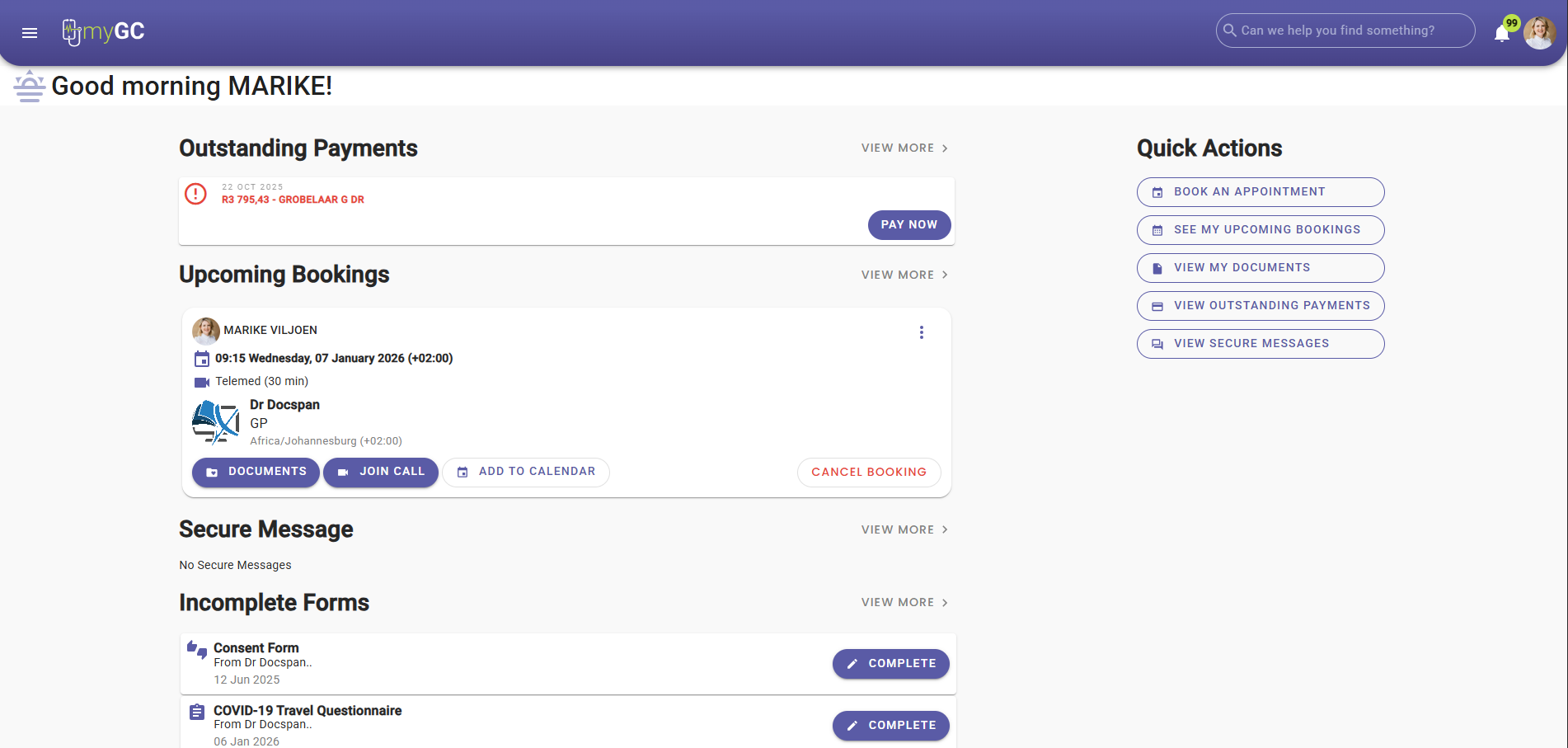
  • This user manual will start on the myGC Home screen.

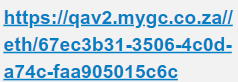
💡Please Note: If you do not have a myGC account, you will receive a Telemed SMS link. 
  • Click on the Join Call button.

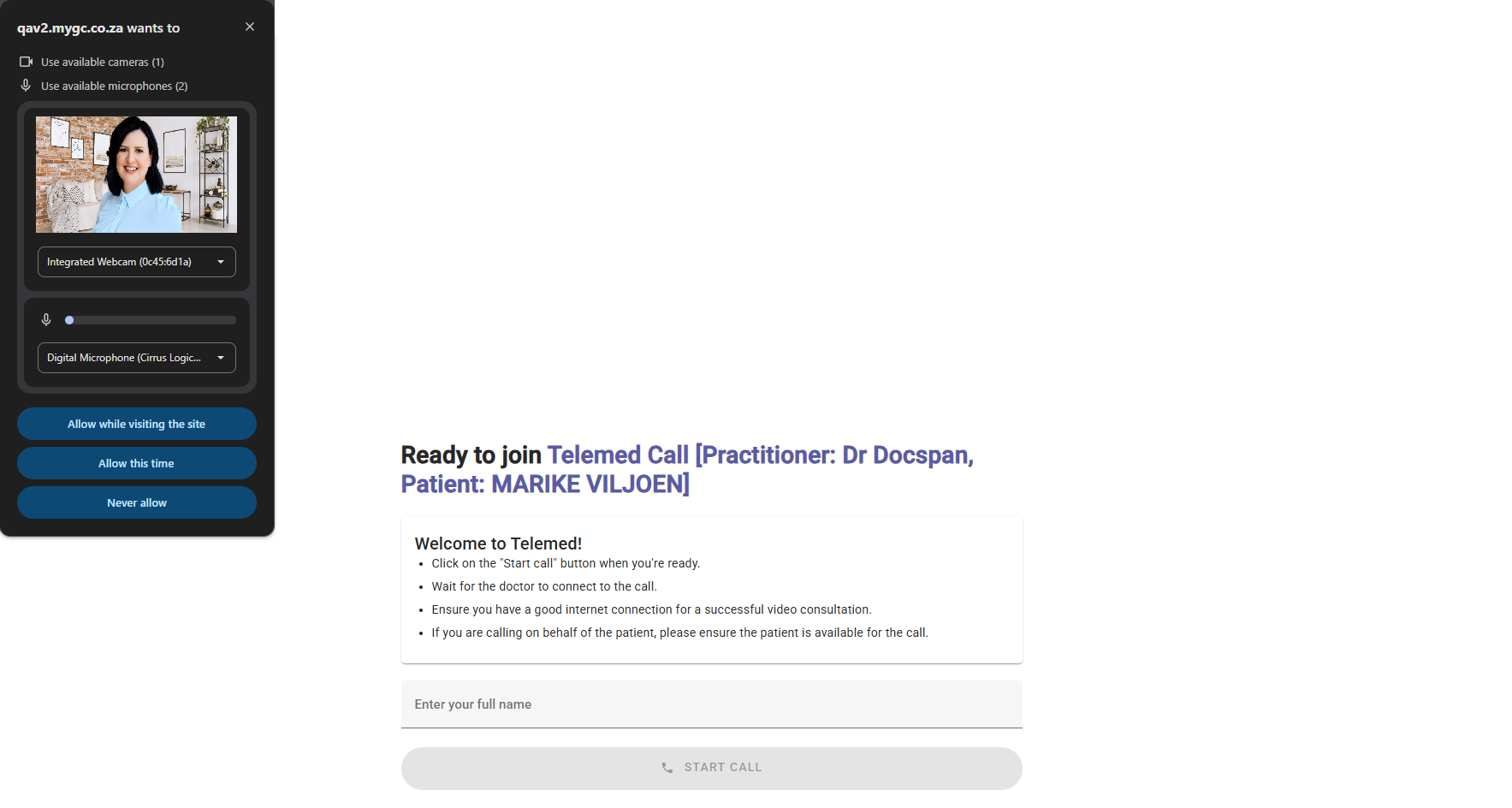
  • The Ready to Join the Telemed Call screen will open.

  • You will be asked to Allow permissions for the use of your Camera and Microphone.

💡Please Note: If you select Never Allow, your camera and microphone will not work on the Telemed Call.
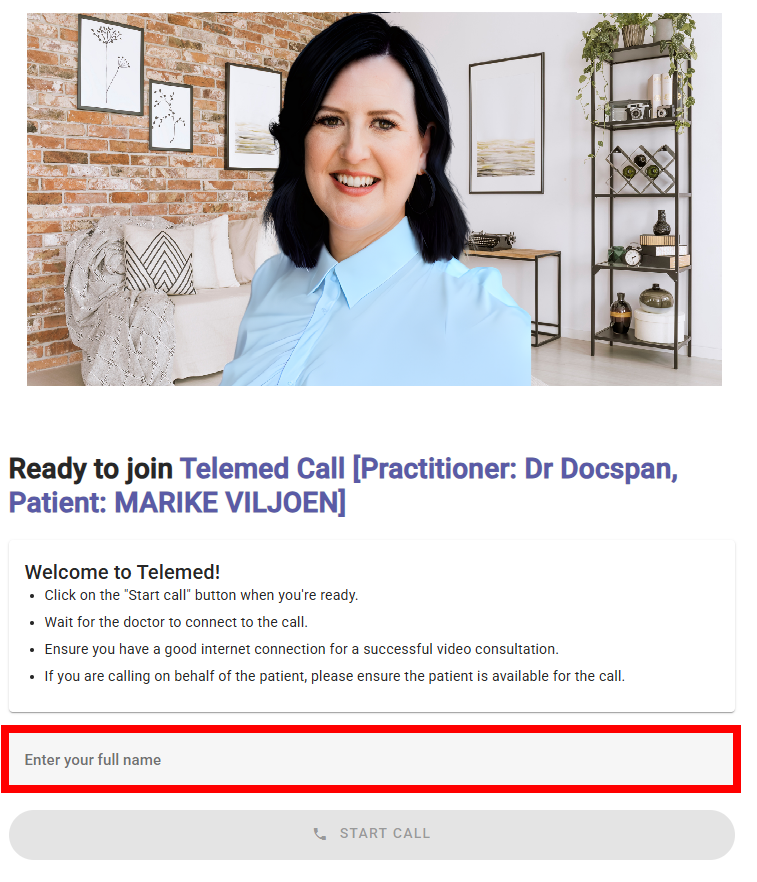

  • Click on the Enter Your Full Name field to input your name that will be displayed on the Telemed Call.

  • Once your name has been entered, the Start Call button will become available.

  • Click on the Start Call button to join the Telemed call.

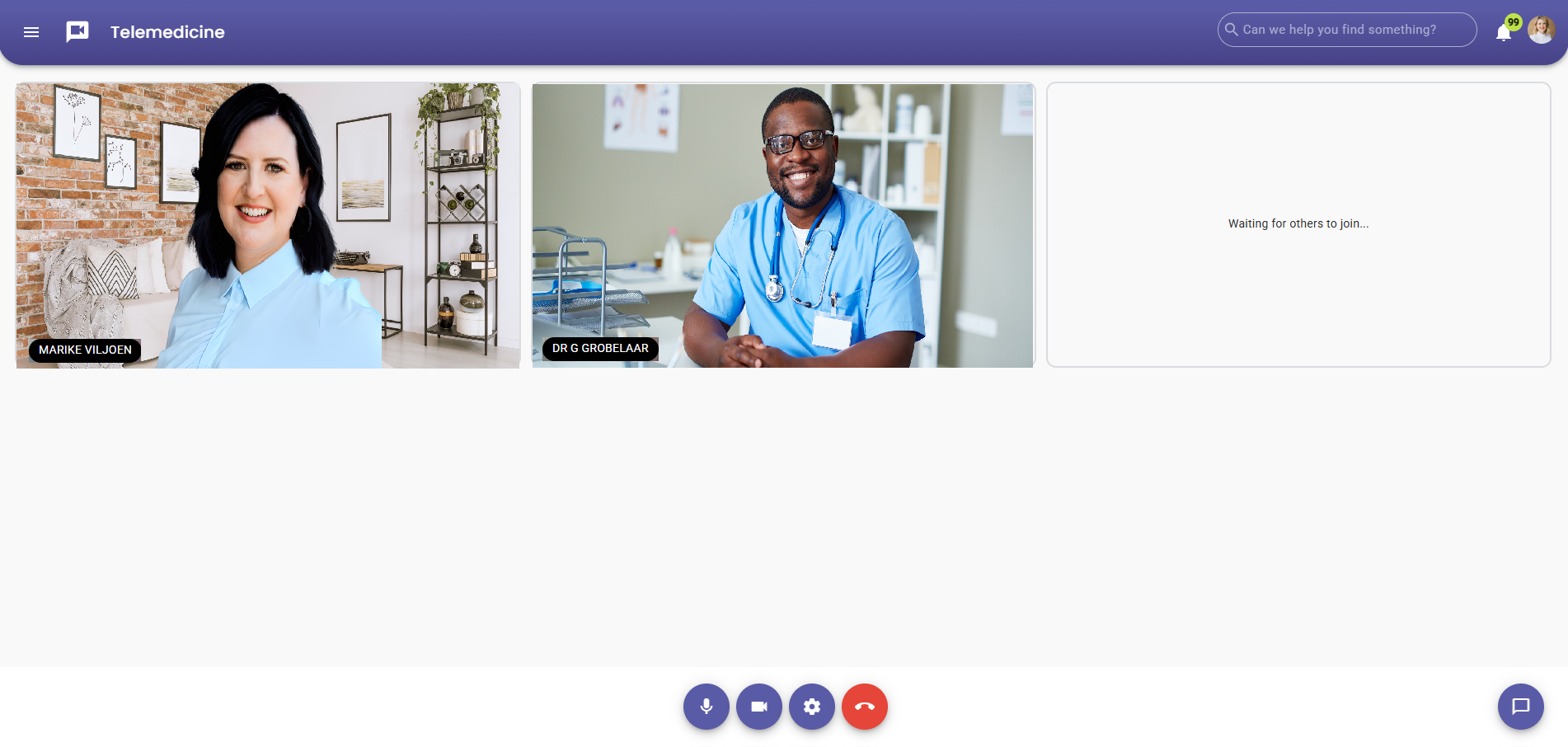
  • You will then connect to the call, where the Telemedicine screen will open.

💡Please Note: Multiple Practitioners can join the call, so communication is easier when multiple Practitioners are involved.
 

  • Click on the Message button.

  • A Message sidebar will open.

  • Click on the Microphone button to mute and unmute your microphone.

  • Click on the Camera button to turn your camera on and off.

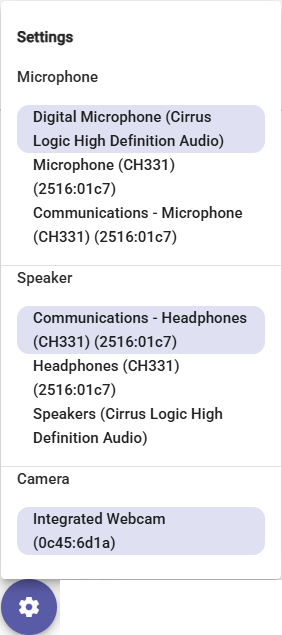
  • Click on the Settings button to change your microphone and camera settings.

  • Click on the End Call button to disconnect the Telemed Call. 

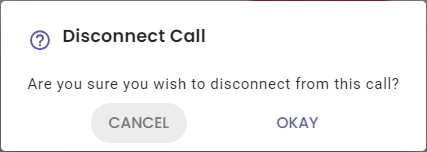
  • The Disconnect Call pop-up will appear, asking if you are sure you want to disconnect from this call.

  • Click on the Okay button to continue.


Last modified: Monday, 30 March 2026, 2:42 PM