Debtor Screen Sidebar Navigation
Why This Matters?
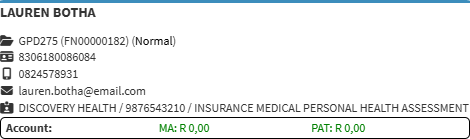
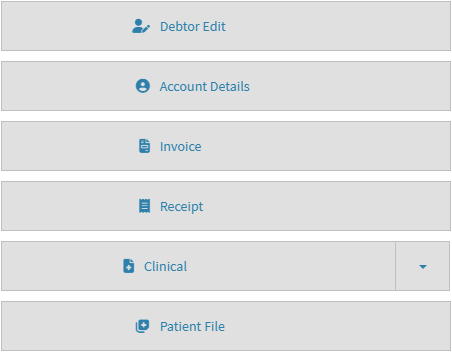
The Debtor Sidebar brings together the key information and functions related to the selected debtor. It displays important details such as the debtor's contact information, medical aid information, and outstanding account balances, while providing quick access to functions such as Debtor Edit, Account Details, Invoice, Receipt, Clinical, and Patient File.
Having this information and these functions available in one place makes it easier to manage the debtor's account and access related patient information without navigating through different areas of GoodX. This saves time, keeps the workflow organised, and makes it easier to move between account, clinical, and patient file information when needed.
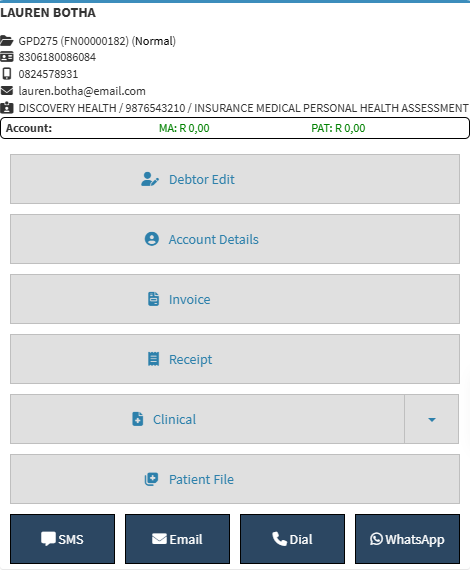
- Start on the Debtor sidebar.

-
- For navigation, see Debtors Screen Navigation.
Sections
- Debtor Information
- Debtor Sidebar Buttons
- Communication Buttons
Debtor Information

- Debtor's Name: The patient's title, name, and surname.
- Debtor Number, File Number and Type: The debtor number, file number, and type of case.
- ID Number: The debtor's identification number.
- Cellphone Number: The debtor's cellphone number.
- Email Address: The debtor's email address.
- Medical Aid Details: The name, membership number, and plan name of the debtor's medical aid.
- Medical Aid Outstanding: The amount outstanding and payable by the medical aid.
- Patient Outstanding: The amount outstanding and payable by the debtor.
Debtor Sidebar Buttons

- Debtor Edit: Edit the debtor's demographic information. For details, see Web 1.19 - Debtor Details.
- Account Details: Access the debtor's account information. For details, see Navigating and Understanding the Account Details Screen.
- Invoice: Capture procedures and items used for the invoice. For details, see The Invoice Screen: Navigation and Use.
- Receipt: Capture a receipt for the selected debtor's invoice. For details, see Receipt Screen: Navigation and Use.
- Clinical: Capture the debtor's medical information and clinical events. For details, see Clinical Screen Navigation.
- Patient File: Access the debtor's clinical and medical history. For details, see Patient File Screen: Navigation and Use.
Communication Buttons

- SMS: Send an SMS to the debtor. For details, see Send an SMS.
- WhatsApp: Send a WhatsApp message to the debtor from GoodX Web.
- Dial: Make a VoIP phone call to the debtor. For details, see Making a VoIP Call.
- Email: Send an email to the debtor. For details, see Send an Email.
💡Please Note: Some features will have to be set up by your practice. For setup details, see Services.