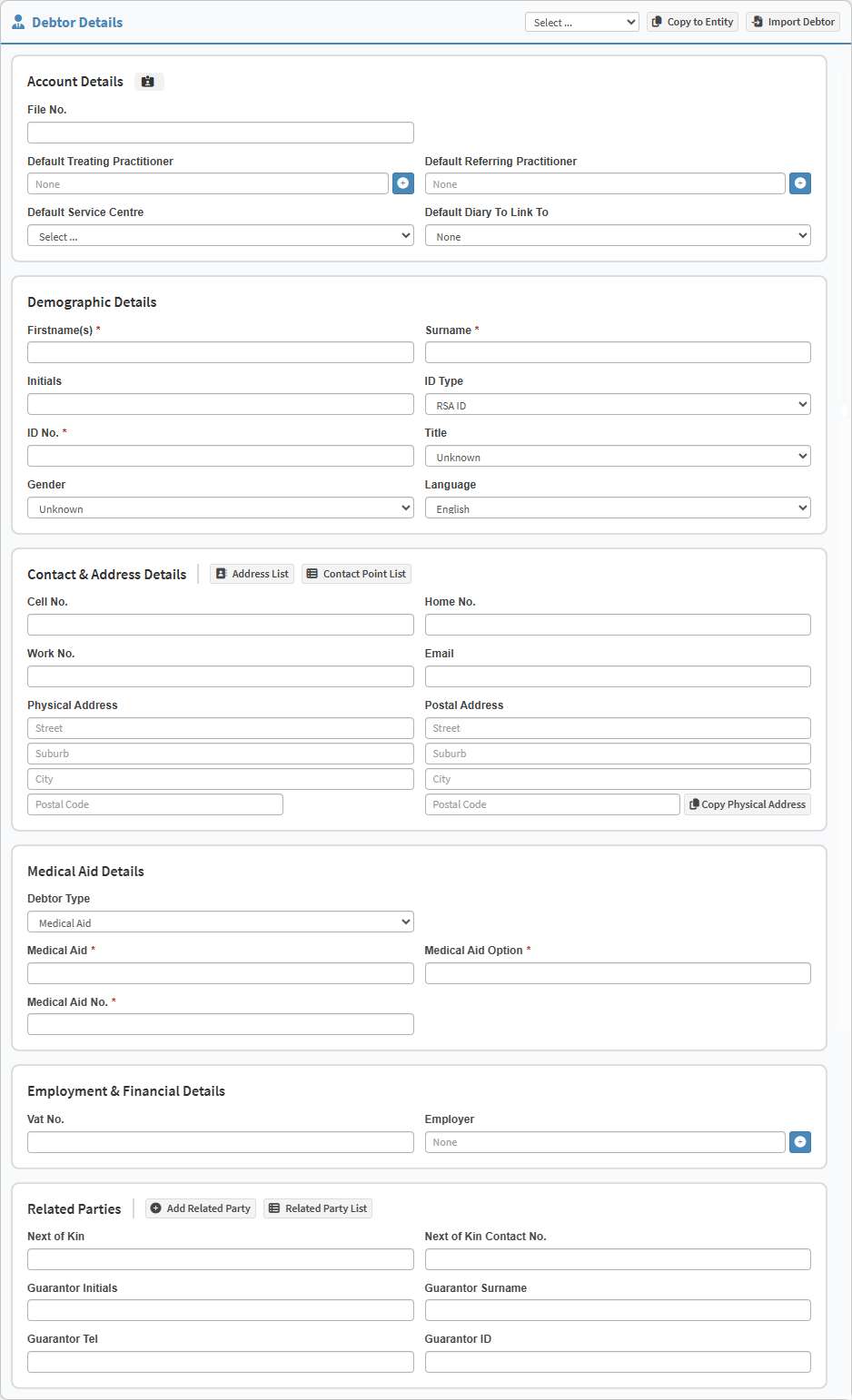
The Debtor Details section provides a comprehensive platform for you to capture and organise the essential personal and administrative information of the person responsible for the account. Maintaining an accurate record of these details ensures that the Practice has a reliable foundation for communication, identification, and record-keeping for every account holder. If you have the necessary access, the system makes it easy for you to update and maintain this information when changes occur, such as updates to contact details or Medical Aid information, ensuring the file remains current and compliant.
The Contents of This User Manual:
Account Details
Demographic Details
Contact and Address Details
Medical Aid Details
Employment and Financial Details
Related Parties
This user manual will start on the Debtor Details section.
Account Details
The Account Details section allows you to manage the status of the Debtor and link them to a specific Practitioner. You can easily update these settings to ensure the account is correctly categorised.
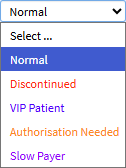
Click on the Select drop-down menu to select the status of the Debtor.
?Please Note: The available options will depend on the setup of the Practice's preferences. For more information regarding Debtor Statuses, please refer to the user manual: Debtor Status.
Click on the Copy to Entity button to copy Debtor Information from one Entity to another without having to recreate the Debtor, to save time and prevent the loss of information.
The Account Identifier will be generated by the system once the details have been saved, which will be linked to the person who is responsible for the payment of the account.
Click on the File No. field, which corresponds to the number assigned to the account holder’s physical file, allowing you to either enter a custom file number or use a preset configuration that automatically assigns a number from a predefined range.
For more information on how to set up Auto File Numbers, please refer to the user manual: Auto File Numbers.
Click on the Default Treating Practitioner field and start typing the name of the desired Practitioner, and select the desired Default Treating Practitioner from the drop-down menu that will become available.
Click on the Add button to add a new Default Treating Practitioner to the previously set up Treating Practitioner list.
For more information on how to add a Practitioner to the Referring Practitioner list, please refer to the user manual: How to Add a New Practitioner.
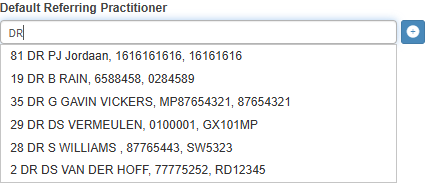
Click on the Default Referring Practitioner field and start typing the name of the desired Practitioner, and select the desired Default Referring Practitioner from the drop-down menu that will become available.
Click on the Add button to add a new Practitioner to the previously set up Referring Practitioner list.
For more information on how to add a Practitioner to the Referring Practitioner list, please refer to the user manual: How to Add a New Practitioner.
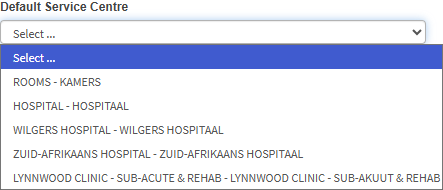
Click on the Default Service Centre drop-down menu to select the desired service centre.
?Please Note: The Service Centres that appear on the list are dependent on the options that are set up for your Practice.
Click on the Default Diary To Link To drop-down menu to select an appropriate option of the diary that this Debtor will be automatically linked to by default.
Demographic Details
The Demographic Details section is used to record the official name and identification of the Debtor. These fields are simple for you to maintain to ensure identities are always accurate.
Click on the Firstname(s) field to enter the first names of the person responsible for the payment of the account.
Click on the Surname field to enter the surname of the person responsible for the account.
Click on the Initials field to enter the Debtor's initials.
?Please Note: The Initials field will be completed automatically once the Firstname(s) field is completed.
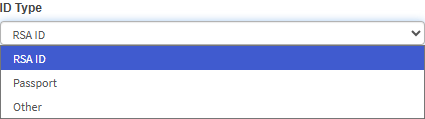
Click on the ID Type drop-down menu to select an appropriate option.
Click on the ID Number field and enter the identification number of the chosen identification for the person who is responsible for the account.
?Please Note: The validation of the ID Number field will be determined by the ID Type that has been selected.
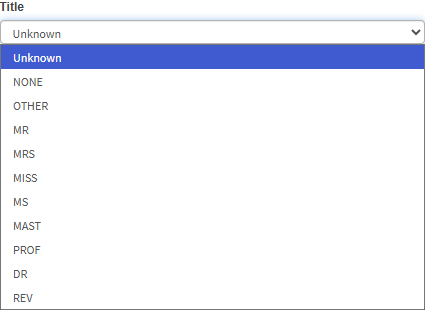
Click on the Title drop-down menu to select an appropriate option.
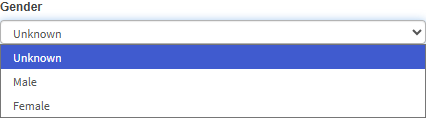
Click on the Gender drop-down menu to select an appropriate option.
?Please Note: The Gender will automatically be selected based on the ID Number that was entered, using the ID Number validation, but can be changed manually.
Click on the Language drop-down menu to select an appropriate option.
Contact and Address Details
The Contact and Address Details section enables you to store and update phone numbers, emails, and addresses. This ensures the Practice can always reach the Debtor through the correct channels.
Click on the Cell No. field to enter the mobile number of the account holder.
Click on the Home No. field to enter a landline number that belongs to the person responsible for the account.
Click on the Work No. field to enter the telephone number of the workplace where the person responsible for the account is employed.
Click on the Email field to enter the email address of the account holder.
?Please Note: An email address will be validated using specific criteria such as an @ sign. The Email field will be highlighted in red if the email address is invalid.
Click on the Physical Address field and begin typing the desired address, and select the desired option on the list that becomes available.
?Please Note: The Physical Address auto-fill feature is integrated with Google Maps and will automatically populate the Address fields when a selection is made from the suggestion list. Using this feature is optional, and you are also able to manually enter the address.
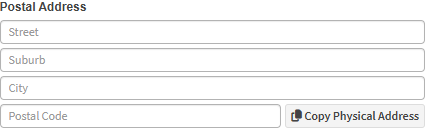
Click on the Postal Address fields to enter a mailing address, where letters can be delivered.
Click on the Copy Physical Address button if the Postal Address is the same as the Physical Address.
?Please Note: If the details of the Physical Address and Postal Address are not the same, you will need to complete the details of the Postal Address manually.
Medical Aid Details
The Medical Aid Details section provides a space for you to link the Debtor to their specific insurance provider. Maintaining these records ensures the system reflects the correct coverage type for the account.
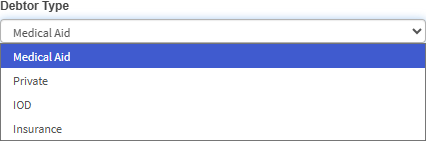
Click on the Debtor Type drop-down menu to select an appropriate option.
Normal: The person responsible for the account has Medical Aid or Medical Insurance.
Private: The person responsible for the account does not have any form of medical insurance.
IOD: Injury on Duty, while the person was on duty at their place of work.
For more information on how to add a new IOD Debtor, please refer to the user manual: Create New IOD Debtor.
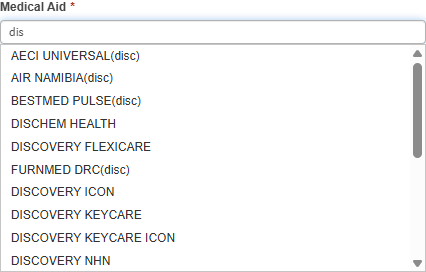
Click on the Medical Aid field and start typing the name of the desired Medical Aid, and select the desired Medical Aid from the drop-down menu that becomes available.
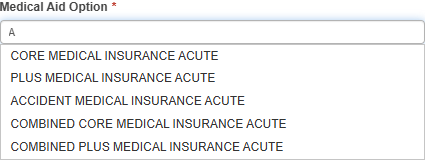
Click on the Medical Aid Option field and start typing the name of the desired Medical Aid option, and select the desired Medical Aid Option from the drop-down menu that will become available.
Click on the Medical Aid Number field to enter the Medical Aid membership number associated with the account of the person responsible for the account.
Employment and Financial Details
The Employment and Financial Details section allows you to capture workplace information and tax details for the Debtor. You can quickly update these fields to keep the account profile complete.
Click on the VAT No. field to enter the value-added tax number of the person responsible for the account, if they are VAT registered.
Click on the Employer field and start typing the name of the desired Employer, and select the desired Employer from the drop-down menu that will become available.
?Please Note: If the Employer is not found, a new one will need to be created.
Click on the Add button to add the new Employer’s information to the system if it has not been captured yet.
For more information on how to Add a New Employer, please refer to the user manual: Create New Employer.
Related Parties
The Related Parties section is used to record next of kin, emergency contacts, and guarantors. This ensures the Practice has immediate access to secondary contact persons whenever needed.
Click on the Related Party List button to view the Related Party List.
Click on the Next of Kin field to enter the closest living relative of the person responsible for the account, which can also be the emergency contact who is not related to the Debtor.
Click on the Next of Kin Contact No. field to enter the contact number of the closest living relative or emergency contact of the person responsible for the account.
Click on the Guarantor Initials field to enter the first letter of each name of the person who will take financial responsibility for the account if the Debtor cannot fulfil their obligations.
Click on the Guarantor Surname field to enter the surname of the person who will take financial responsibility for the account.
Click on the Guarantor Tel field to enter a mobile or landline telephone number that belongs to the person who will take financial responsibility for the account.
Click on the Guarantor ID to enter the official identification number of the person who will take financial responsibility for the account.