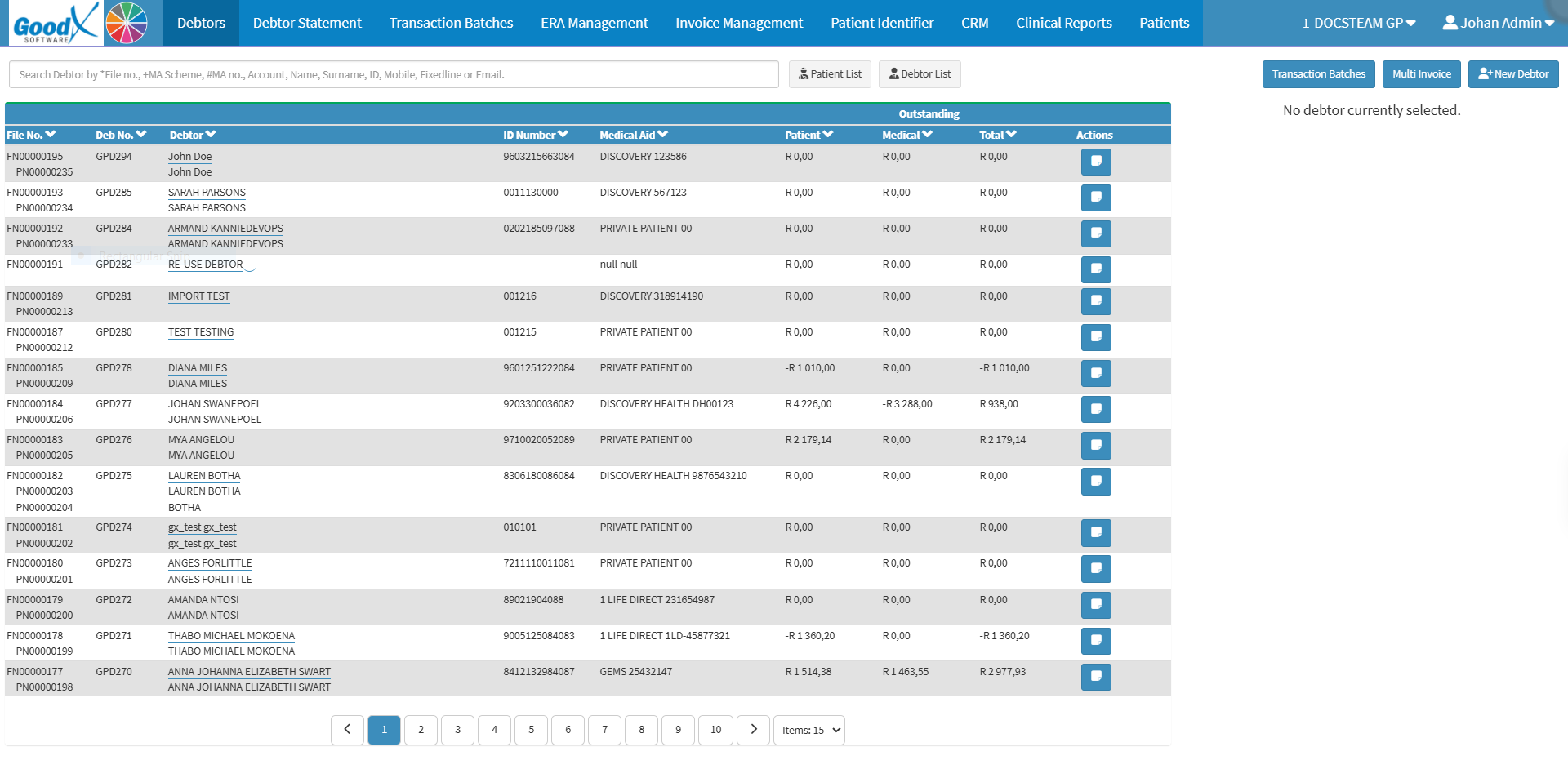
The Debtors screen is the central place for managing the practice's debtors and their account information. It brings together key details such as File Numbers, Debtor Names, ID Numbers, Medical Aid information, and outstanding balances, giving you a clear overview of the accounts linked to the practice.
You can search and review debtor information, manage accounts, process payments, and monitor outstanding amounts from patients and Medical Aids. Having this information in one place makes it easier to identify accounts that need attention and track the practice's financial activity.
This streamlines debtor administration, reduces time spent searching for account information, and supports accurate, up-to-date financial records. It also makes it easier to follow up on outstanding amounts and maintain better control over the practice's cash flow.
Debtor List: Lists the account holders (debtors responsible for payment). For details, see Debtor List Navigation.
Action Buttons
Multi Invoice: Generate invoices for multiple debtors at once, streamlining bulk billing without opening individual profiles. For details, see Multi Invoice Screen Navigation.
Transaction Batches: Open the batch processing to enter, manage, and post group financial transactions (such as bulk receipts, journal entries, or adjustments) all at once. For details, see Transaction Batch List Screen Navigation.
New Debtor: Create a new debtor profile to capture payment details for accurate billing and account management. For details, see Debtor Edit Screen Navigation.
Columns
File No: The reference number assigned to the physical file, to retrieve the debtor or patient's details when needed.
Deb No: The debtor number assigned to the individual responsible for managing the account.
Debtor: The full name and surname of the debtor or patient responsible for the account.
ID Number: The Identification Document number of the debtor or patient.
Medical Aid: The name of the medical aid scheme that the debtor or patient uses.
Patient: The amount still owed by the patient that remains unpaid.
Medical: The amount still owed by the medical aid that remains unpaid.
Total: The total amount of the bill after the consultation or treatment that the patient, debtor or medical aid needs to settle.
View Notebook
View Notebook: Opens the Notebook screen to view, manage, and record notes and communication logs linked to the debtor or patient's account. For details, see Notebook Screen: Navigation and Use.
Sidebar
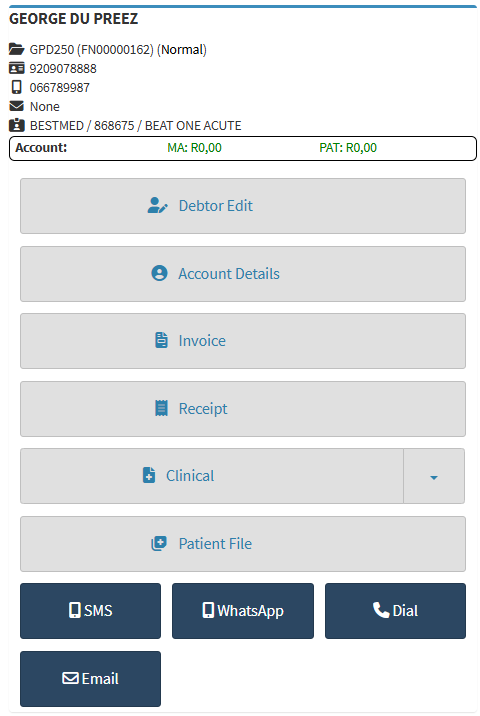
Sidebar: Quick access to key information and functions for the selected debtor and patients, including contact details, account balances, and billing and clinical features. For details, see Debtor Sidebar Screen: Navigation and Use.
Page Navigation
Page Navigation: Navigate between the pages and choose how many items are displayed on each page. For details, see Page Options Navigation.