Glossary: Add/Edit Booking Screen
VIDEO Why This Matters? The Add/Edit Booking screen serves as an essential tool for seamless appointment management within the system. Designed with user experience in mind, it offers an intuitive and efficient interface that enables authorised staff and practitioners to easily create new bookings, view existing appointments, or make necessary updates all in just a few clicks. This screen plays a critical role in supporting accurate scheduling, reducing administrative burden, and ensuring that the daily operations of the practice run smoothly and effectively.
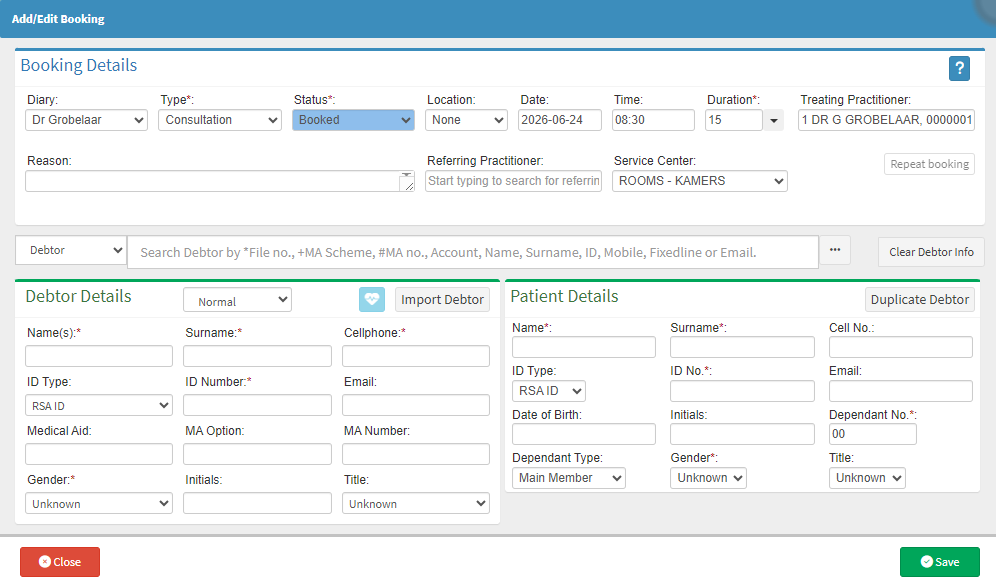
Start on the Add/Edit Booking screen.
Booking Details
Search
Debtor Details
Patient Details
Diary: On whose diary this booking will be booked.Type: What the patient has been booked for. For setup, see Booking Type Setup. Status: The point at which the booking is in your practice workflow. For setup, see Booking Statuses .Location: The place in the practice where the booking will take place. For setup, see Booking Location Setup .Date: When the booking is taking place.Time: The exact time of the booking.Duration: How long the booking will be.Treating Practitioner : Who is treating the patient.Reason: Why the patient is seeing the practitioner.Referring Practitioner: Who referred the patient to the practice. For details, see How to Add a New Practitioner .Service Centre : The type of facility where the booking is taking place. For setup, see Service Centres: Navigation and Use. Available Booking Time Button: To view booking times that are free at the practice. For details, see Available Bookings Screen Navigation
💡Please Note: If a booking is being edited, the Delete button will be available. For details, see How to Delete a Booking.
Search
Click on the Debtor drop-down to select the relevant option. Enter the details in the Search field to search for the desired debtor/patient.
Click the Clear Debtor Info button to clear the information in the Debtor Details section.
Click the Authorisation button to add authorisation details to this specific booking. For details, see Authorisation Setup .
💡Please Note: To add Authorisation, an existing debtor needs to be selected first.
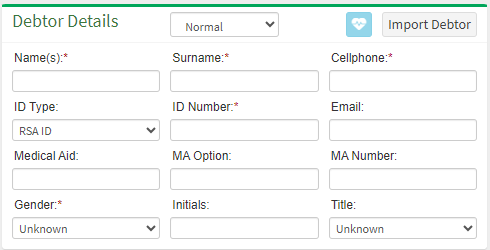
💡Please Note: If a booking is being edited, the Import Debtor button will be replaced by an Edit Debtor button. For details, see How to View/Edit Debtor and Patient Information
Debtor Type: Determines how the debtor account will be managed and billed.Name(s): The debtor's first names.Surname: The debtor's surname or family nameCellphone: The debtor's cellphone numberID Type: The type of identification used for the debtorID Number: The debtor's identification numberEmail: The debtor's email addressMA Option: The medical aid option or plan linked to the debtor.MA Number: The medical aid membership numberGender: The debtor's gender, assigned at birth.Initials: The debtor's initialsTitle: The debtor's title.
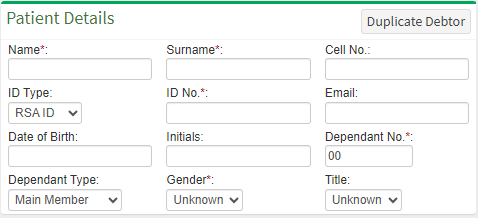
Click the Duplicate Debtor button to copy the details from the Debtor Details section to the Patient Details section.
Name: The patient's first name.Surname: The patient's surname or family name.Cell No.: The patient's cellphone number.ID Type: The type of identification used for the patient.ID No.: The patient's identification number.Email: The patient's email address.Date of Birth: The patient's date of birth.Initials: The patient's initials.Dependant No.: The dependant number linked to the medical aid membership.Dependant Type: Indicates the patient's relationship to the main medical aid member.Gender: The patient's gender, as assigned at birth.Title: The patient's title.
Last modified: Monday, 21 September 2026, 12:39 PM