When a Patient is unable to attend their appointment, or if the Practitioner is unable to see the Patient, you are able to cancel the appointment from the booking.

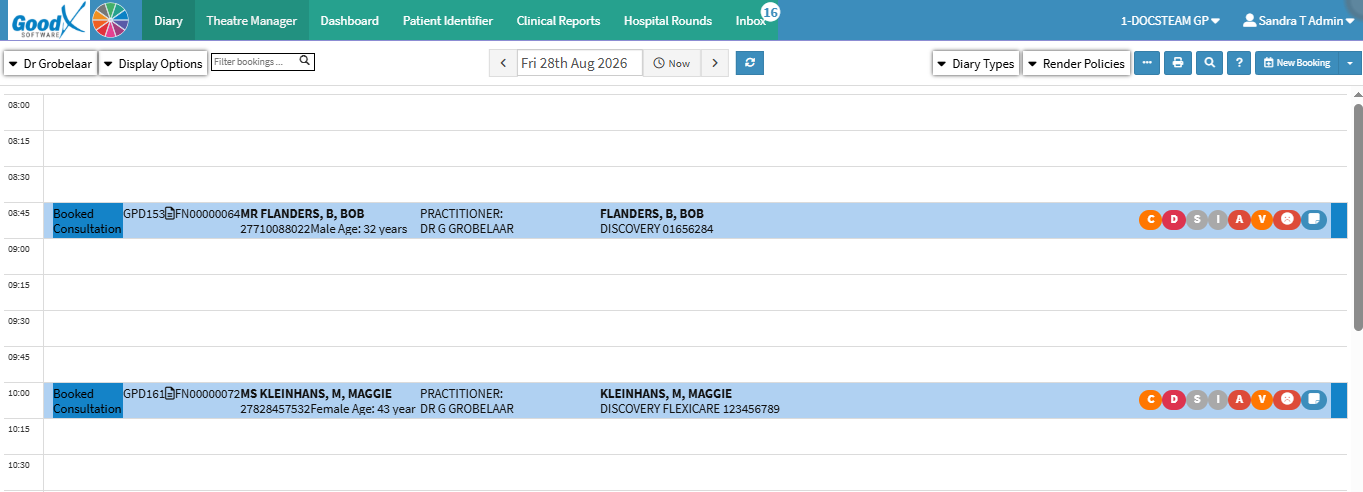
  • This User Manual will start on the Diary screen.

  • Double-click on the booking which needs to be cancelled.


  • The Add/Edit Booking screen will open.

    • Click on the Delete button in the top right corner to Delete the appointment.

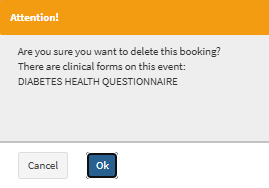
    • An Attention! pop-up will appear, asking if you are sure you want to delete this booking?


    • Click on the Ok button to confirm the deletion. 

    • The booking will have a red line through, indicating that the booking is now cancelled, and the timeslot is now open for a new booking to be made.

Please Note: The appearance of the booking after cancellation will depend on the setup that was done on the Diary. 

  • It is possible for the cancellations to appear in three different ways, being: 
        • Red line through the booking showing it is cancelled.
        • A cancelled status on the Diary will let the booking disappear from the Diary completely.
        • Status on the Diary will indicate in a red block showing Cancelled.

    • For more information on setting up various displays for cancelled bookings and different display options on the Diary, please refer to the user manuals: Booking Status Setup and Display Options.

Last modified: Monday, 23 March 2026, 8:43 PM