Text size
Line height
Text spacing
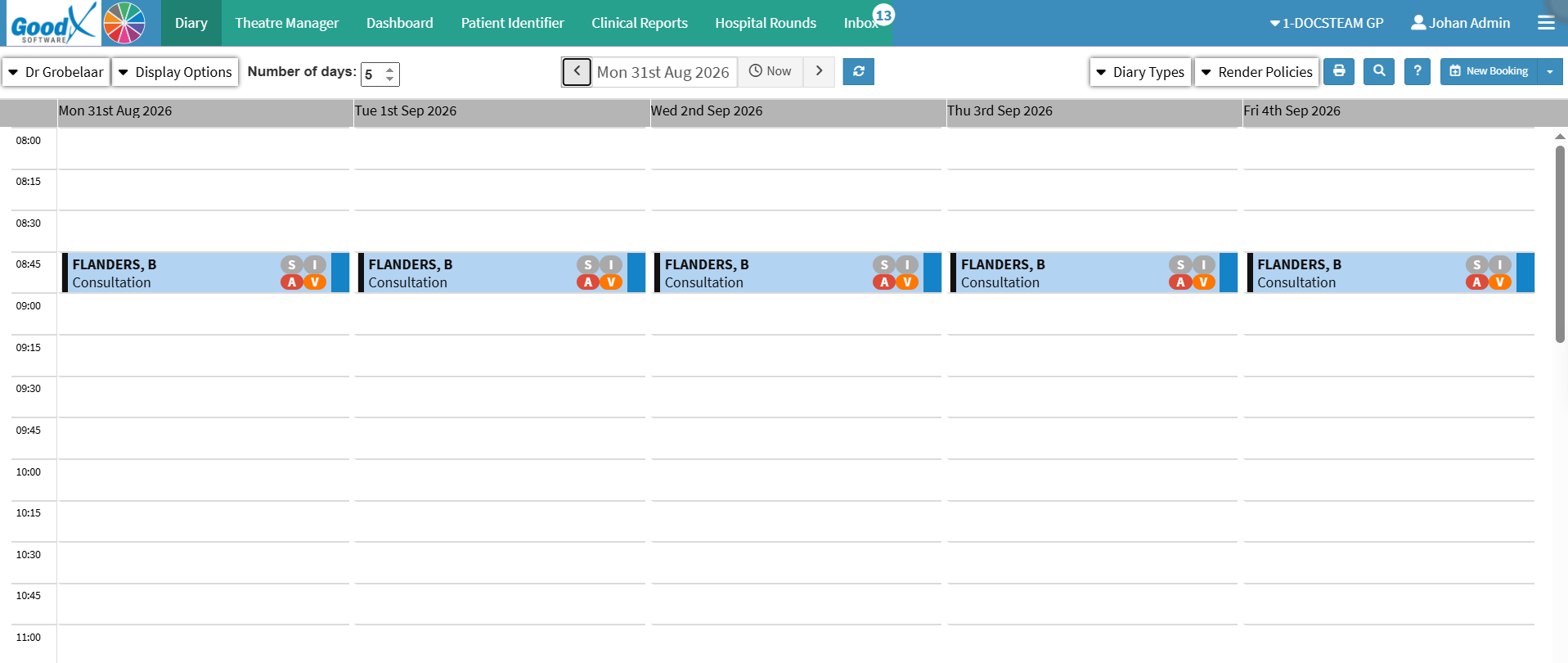
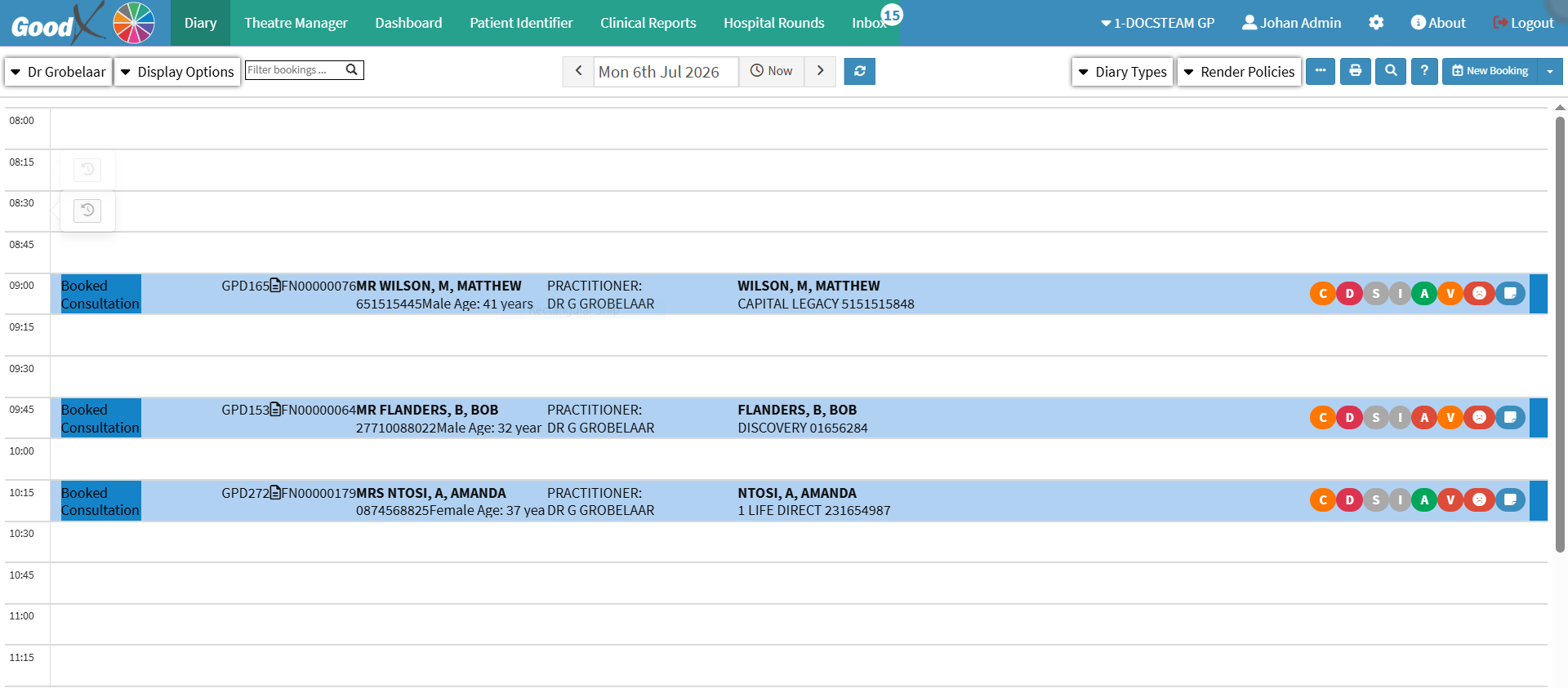
Repeat Bookings allow you to schedule the same type of Appointment across multiple days without having to create each booking separately. You can easily copy a Booking from one date to another using the same details, with flexible intervals such as daily, weekly, every 2 weeks, every 3 weeks, or monthly.
This is especially useful for patients who need ongoing treatments or procedures over several sessions and for practitioners or therapists who manage long-term appointment plans. This saves time, reduces repetitive data entry, and ensures consistent scheduling. You can also use it to block out specific times in the Diary when the practitioner will be unavailable, helping you maintain an organised and efficient schedule.

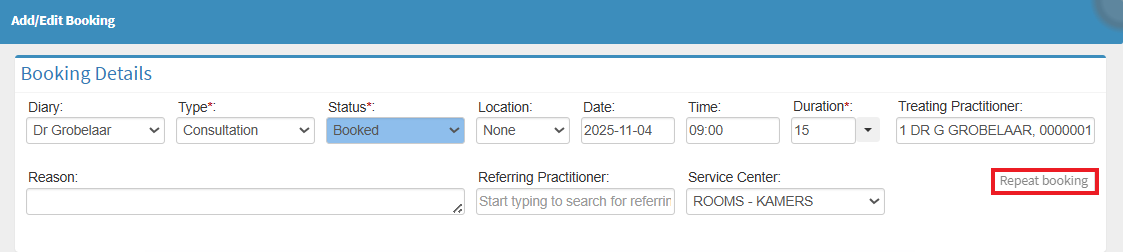
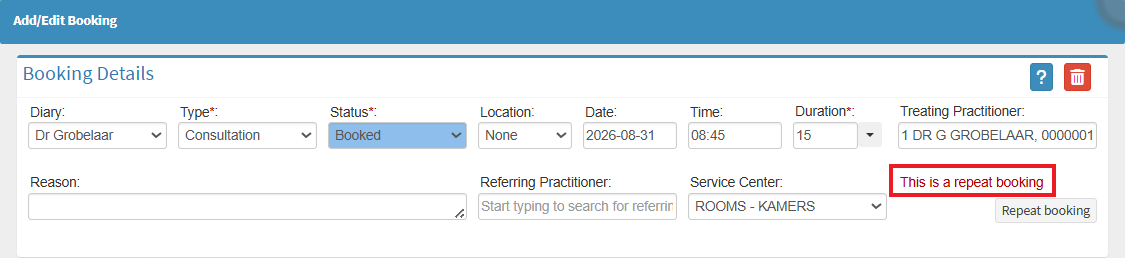
💡Please Note: A red notice will appear on the Add/Edit Booking screen to indicate that the booking is a Repeat Booking.