Telemed is designed to enable face-to-face communication between Practitioners and Patients, regardless of their locations. It offers a convenient and cost-effective alternative to phone consultations, making it a popular budget-friendly choice for both Practices and Patients.
Patients can book a Telemed consultation either by phoning the Practice or through the myGC app. Detailed instructions for booking via the app can be found in the user manual: How to Make Bookings Once Logged In.
?Please Note: While a myGC account is not required to join a Telemed call, Patients have the option to create one if they wish. For more information on account creation, please refer to the user manual: How to Sign up.
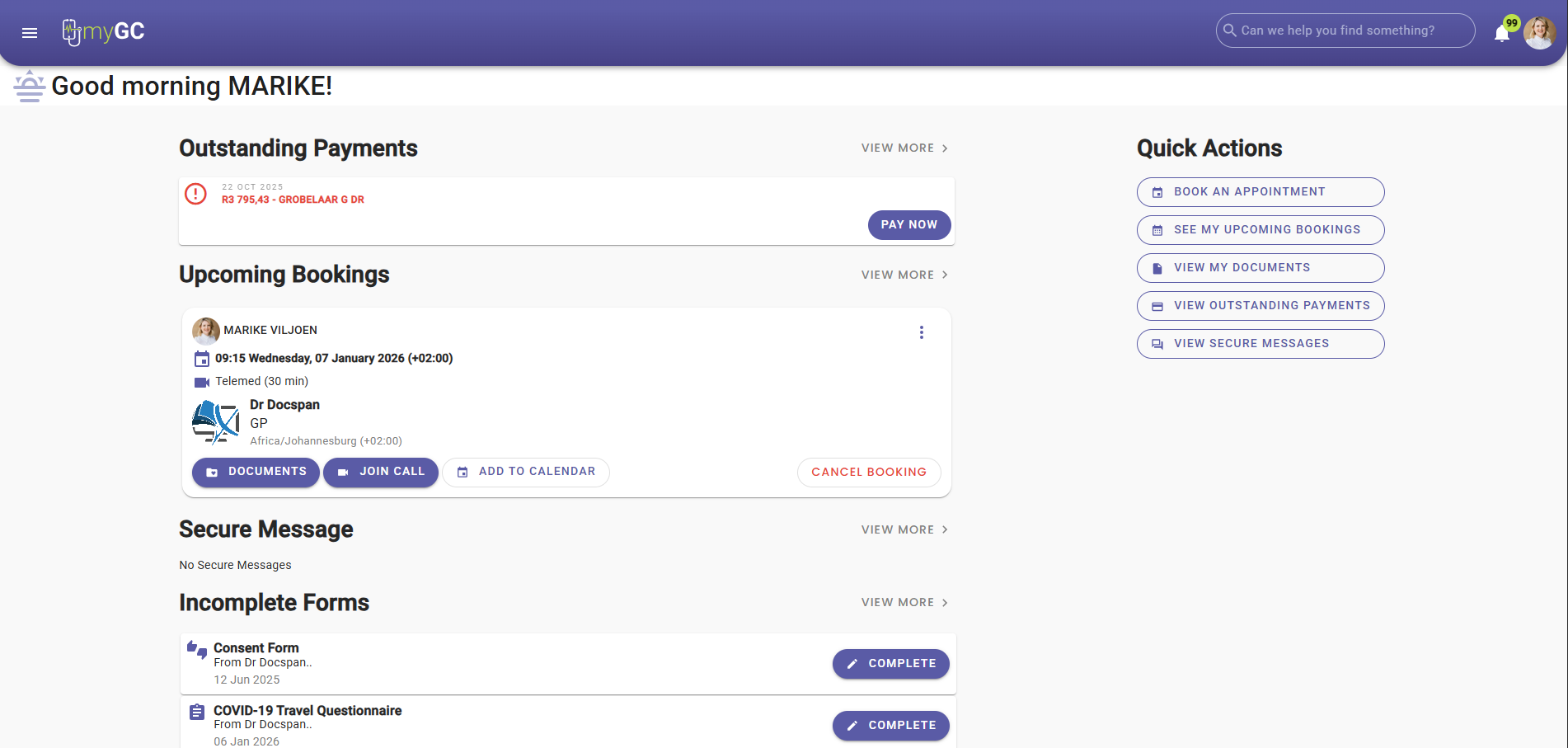
This user manual will start on the myGC Home screen.
?Please Note: If you do not have a myGC account, you will receive a Telemed SMS link.
Click on the Join Call button.
The Ready to Join the Telemed Call screen will open.
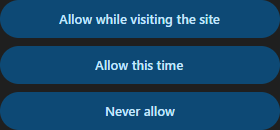
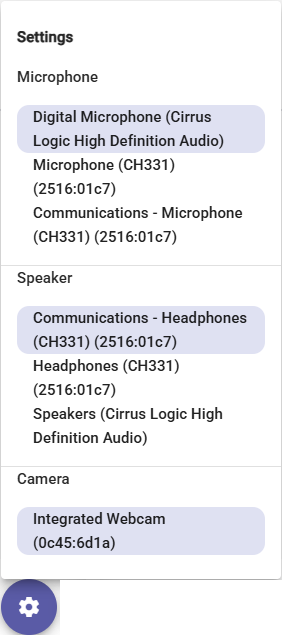
You will be asked to Allow permissions for the use of your Camera and Microphone.
?Please Note: If you select Never Allow, your camera and microphone will not work on the Telemed Call.
Click on the Enter Your Full Name field to input your name that will be displayed on the Telemed Call.
Once your name has been entered, the Start Call button will become available.
Click on the Start Call button to join the Telemed call.
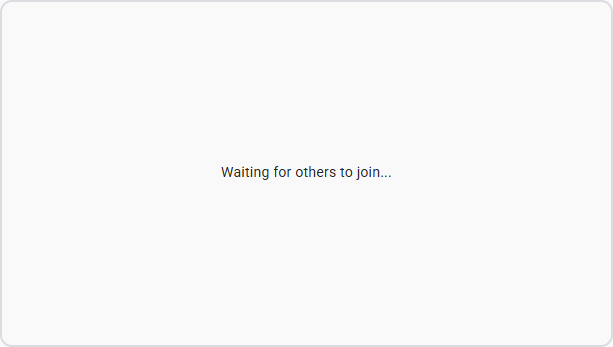
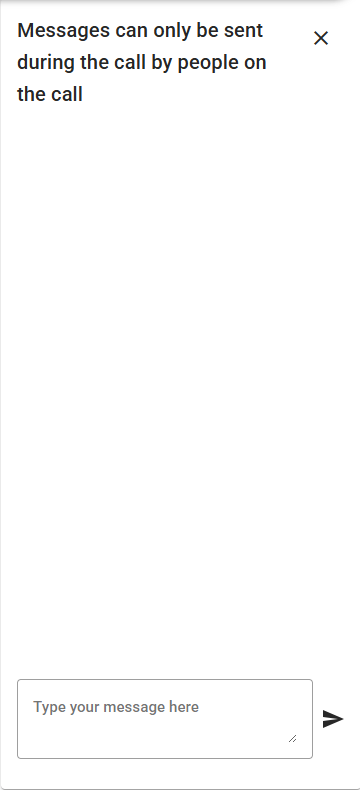
You will then connect to the call, where the Telemedicine screen will open.
?Please Note: Multiple Practitioners can join the call, so communication is easier when multiple Practitioners are involved.