Booking Icons visually indicate a patient's booking progress, from initial file and validation checks through treatment, billing, and payment. They help practitioners and practice staff quickly identify which steps are complete and which remain outstanding.
Booking Icons give the practice a clear overview of the patient's progress and help staff identify outstanding actions before the patient leaves the practice. This supports a consistent workflow and helps ensure that the necessary clinical, administrative, and billing steps are completed.
Best practice is for all icons on the booking to be green before the patient leaves the practice.
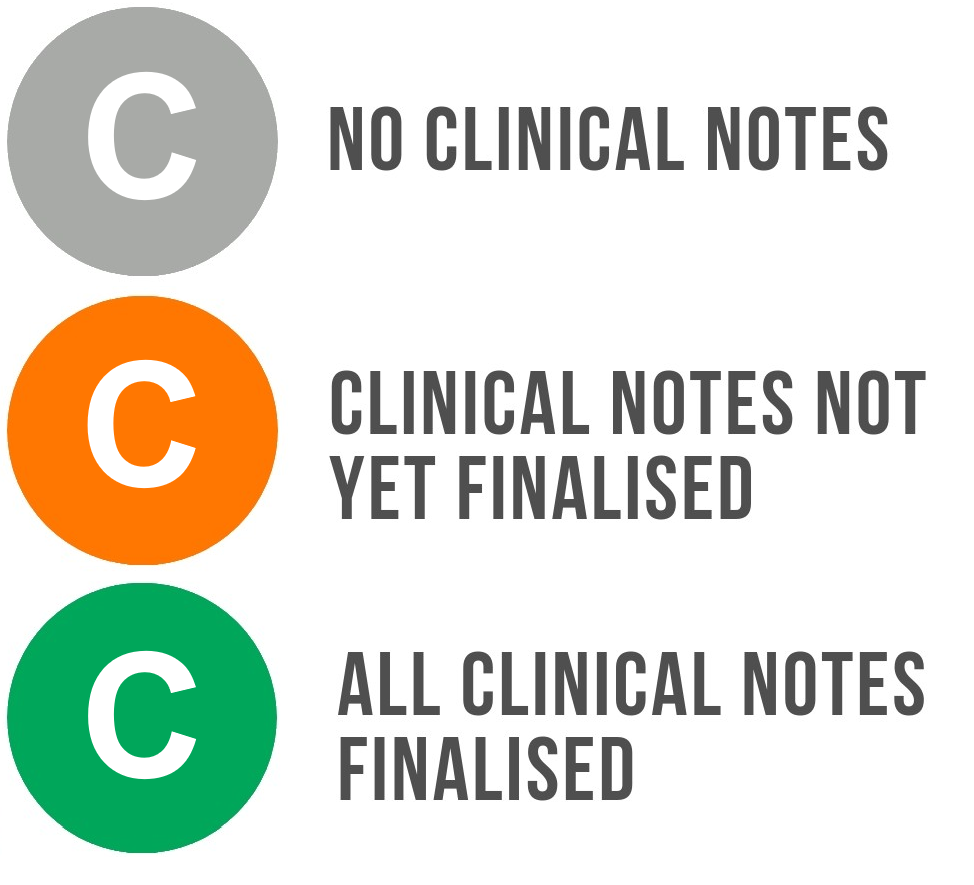
Clinical Case: A central record for documenting and managing the patient's clinical care, including medical history, diagnoses, findings, treatment, procedures, and clinical notes. For details, see Clinical Screen Navigation.
Grey: Practitioner has not added any clinical notes to the patient file for the specific booking.
Orange: Practitioner has added clinical notes, but they have not been finalised.
Green: All clinical notes were successfully finalised.
Documents
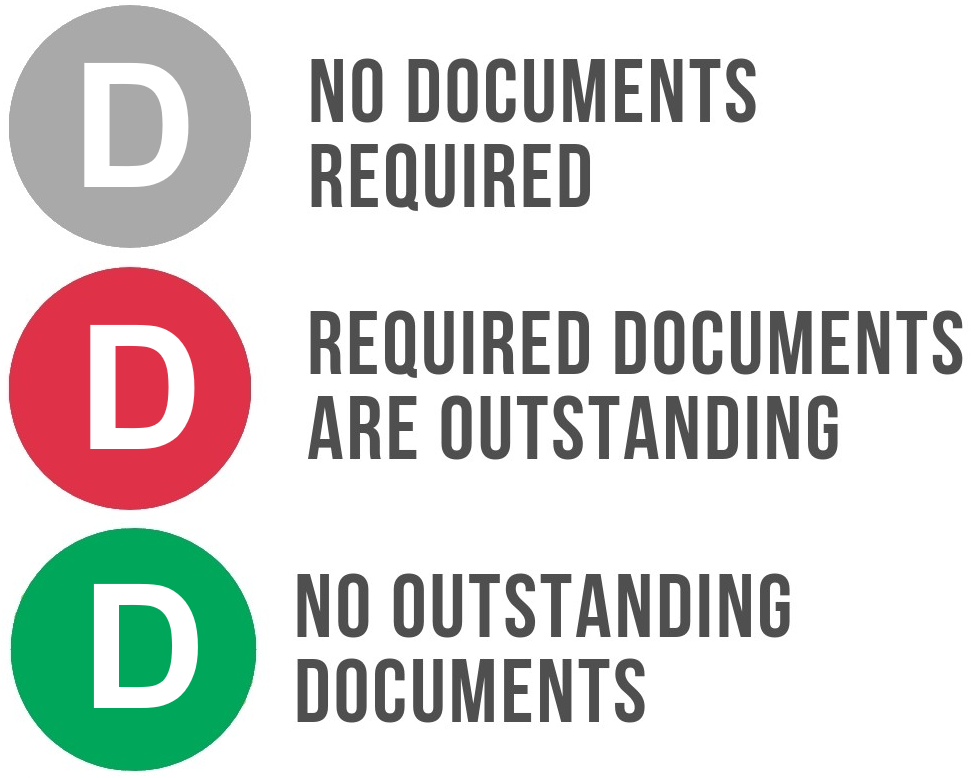
Documents: Classifies digital records by category and type while using required-document settings.
Grey: No documents are required for the patient.
Red: Documents that have been set up as required are outstanding on the patient/debtor's file.
Green: All the required documents have been loaded onto the patient/debtors file.
💡Please Note: Practices can configure which documents patients are required to submit. If this has not been configured, the icon will always be grey. For details, see Document Settings.
Switch
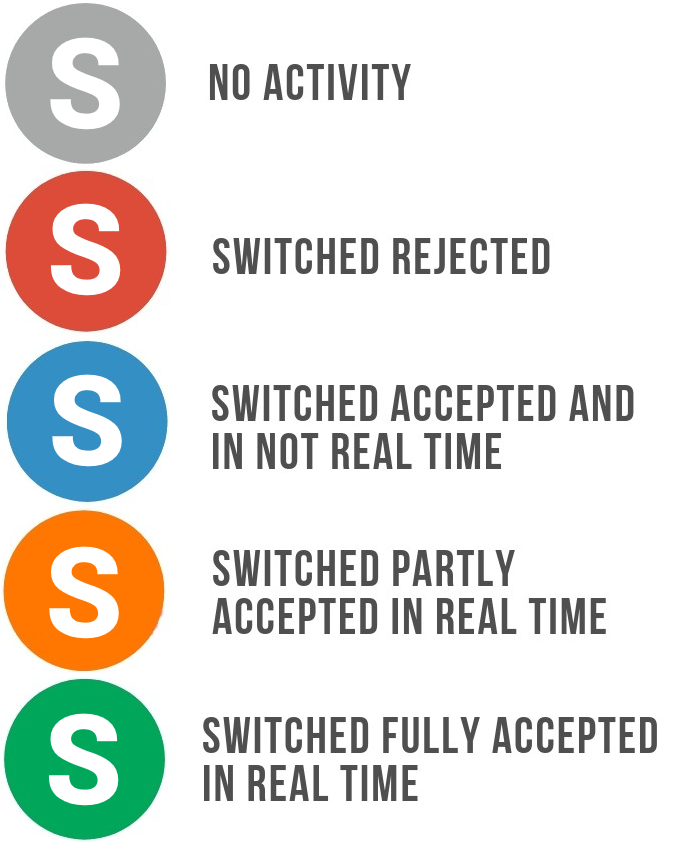
Switch: The real-time process of submitting claims directly to Medical Aid systems and receiving immediate switch responses. For details, see Switch Details Screen Navigation.
Grey: There has been no switch activity; the invoice has not been switched.
Red: The invoice has been switched, but the entire claim was rejected by the medical aid.
Blue: The invoice has been switched to the medical aid. The claim has been accepted, but with a delay in response.
Orange: The invoice has been switched and was partially accepted; only a portion of the claim was accepted by the medical aid.
Green: The invoice has been switched and has been fully accepted by the medical aid.
Invoice
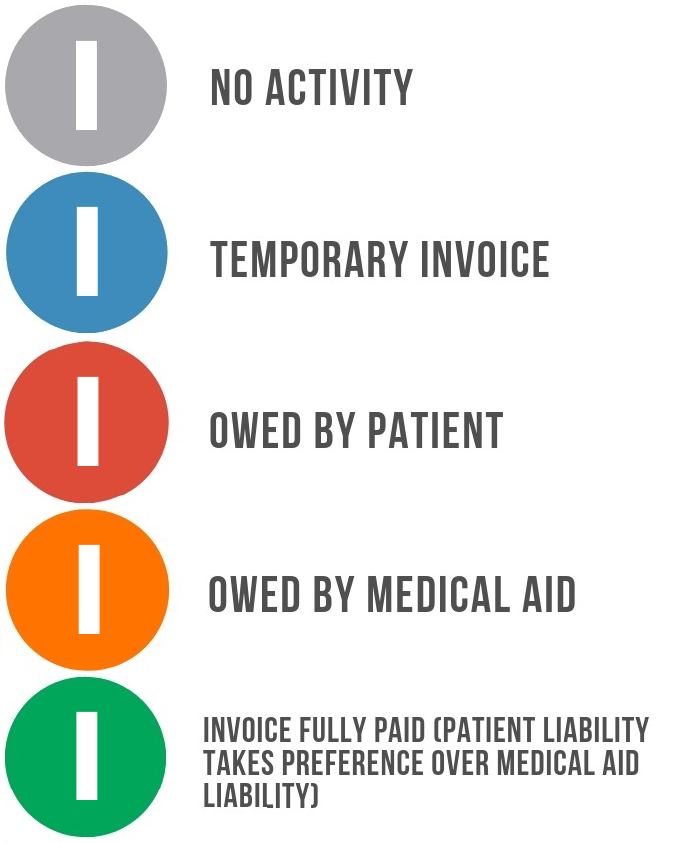
Invoice: A document that details the services, procedures, or products provided to a patient, along with the associated costs and billing information. For details, see Invoice Screen Navigation.
Grey: There is no Invoice activity, and no invoice has been created.
Blue: A temporary invoice (Estimate/Quote) has been created.
Red: An invoice has been created, and the patient is liable for the payment.
Orange: An invoice has been created, and the medical aid is liable for the payment.
Green: The invoice has been settled in full.
💡Please Note: A patient's liability for the account takes precedence over the medical aid's liability. The patient will be liable for the account until the medical aid makes a payment. Some practices require patients to pay for the services rendered and then claim from the medical aid. The I icon will, by default, be red if there are amounts outstanding by both the patient and the medical aid.
Account
Account: A patient’s financial and medical history that integrates billing records, payment statuses, and medical aid claims with treatment and appointment details. For details, see Navigating and Understanding the Account Details Screen.
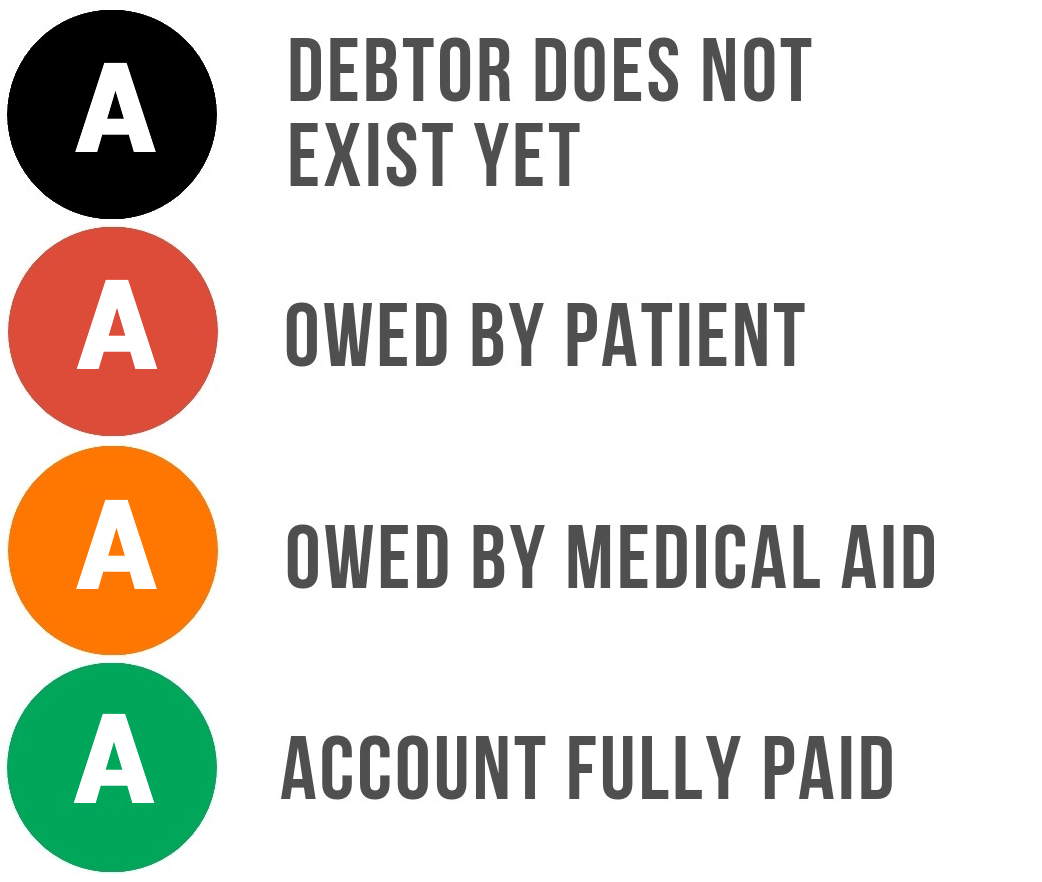
Black: The patient has not been added as a debtor and does not have an account.
Red: An outstanding amount is owed by the patient.
Orange: An outstanding amount is owed by the medical aid.
Green: The patient's account has been settled and fully paid.
💡Please Note: Different colours indicate whether the debtor's balance is outstanding or settled, regardless of whether payment is the responsibility of the patient, medical aid, or both.
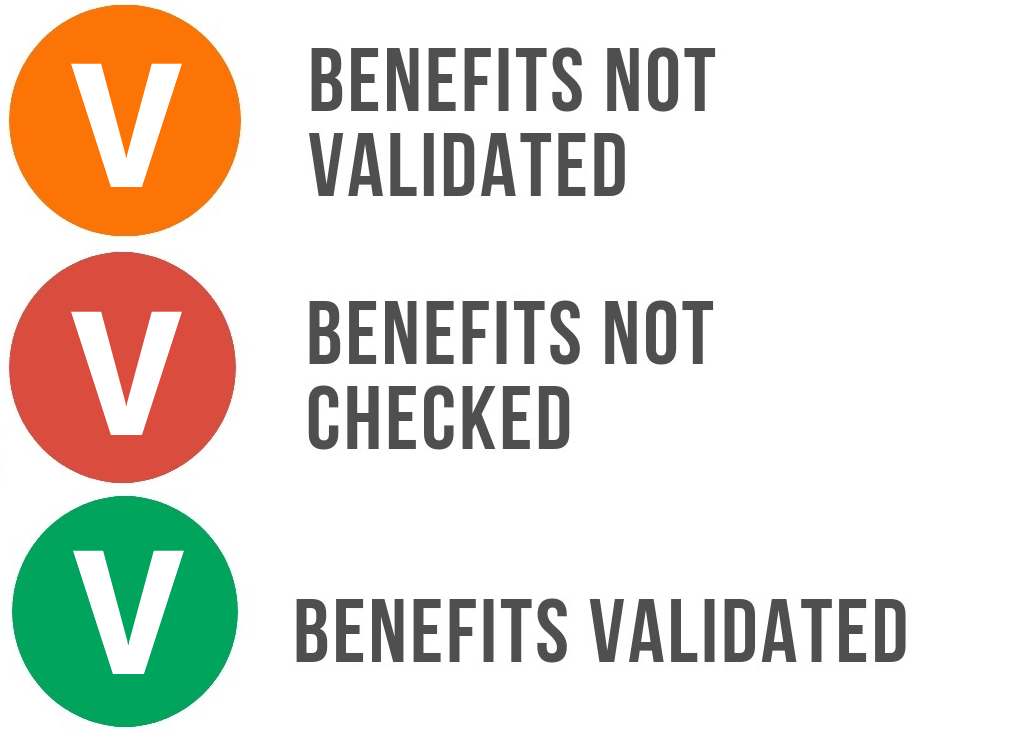
Orange: Medical aid benefits have not been verified.
Red: The system is unable to check whether the patient has benefits. The system can only check medical aid benefits once the patient has been added as a debtor and their demographic details have been saved.
Green: The patient's medical aid benefits have been validated.
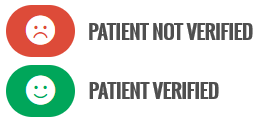
💡Please Note: Patient and main member details are automatically validated when a booking is made.
💡Please Note: The Notebook icon is unavailable for new bookings if the patient does not yet have a file at the practice. For details, see How to Book a New Patient.