Posted Invoices Tab Sidebar: Navigation and Use
Why Use This Function:
The Posted Invoices sidebar provides quick access to all relevant functions and information linked to a Posted Invoice, allowing you to work efficiently without navigating away from the screen. It centralises Debtor details, account actions, workflow tools, communication options, and ERA access in one organised space. Using this sidebar ensures smooth navigation, accurate invoice management, and faster handling of account-related tasks.
The Contents of This User Manual:
- Posted Invoices Sidebar: Bulk Action Buttons
- Debtor Demographic Information
- Sidebar Buttons
- Communication Buttons
- This user manual will start on the Invoice Management tab, Posted Invoices sub-tab.

- For more information on how to navigate to the Invoice Management tab, please refer to the user manual: Reports Segment.
- Select the desired Posted Invoice.
![]()
- Click on the Sidebar Expander to open the Posted Invoices sidebar.
![]()
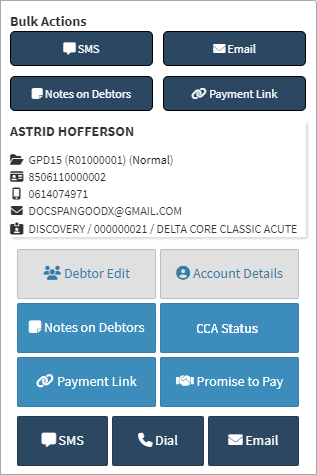
- The Posted Invoices sidebar will open.

- An explanation of the Posted Invoices Sidebar will be given below:
Posted Invoices Sidebar: Bulk Action Buttons
Bulk Actions are additional options that are available to the user for quick and easy access to relevant Workflow Events.
💡Please Note: For the Bulk Actions to work, more than one Posted Invoice should be selected.

- Click on the SMS button to send a Bulk SMS.
![]()
- For more information on how to send a Bulk SMS, please refer to the user manual: Send an SMS.
- Click on the Email button to send a Bulk Email.
![]()
- For more information on how to send a Bulk Email, please refer to the user manual: Workflow Event Template: Send Email.
- Click on the Notes on Debtors button to create a Note.
![]()
- For more information on how to make Notes on Debtors, please refer to the user manual: How to Make a Note on a Debtor/Patient.
- Click on the Payment Link button to create Bulk Payment Links.
![]()
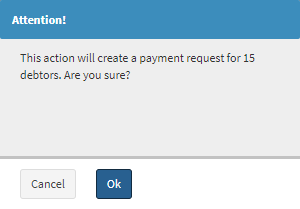
- An Attention pop-up will appear.

- Click on the Ok button to create the payment request.
![]()
- For more information on how the Payment Link button works, please refer to the user manual: Send Payment Request WebApp.
Debtor Demographic Information
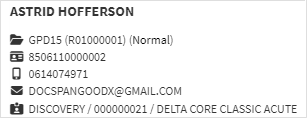
The Debtor Information is the Demographic Information from the Main Member or the person responsible for the payment of the account.

- The fields will be explained below:
- Debtor Number: A Debtor Number is autogenerated by the system and assigned per Debtor.
- File Number: The File Number which are created by the system automatically when the system's file was created.
- ID Number: ID Number of the Debtor.
- Cellphone Number: Cellphone Number of the Debtor.
- Email Address: Email Address of the Debtor.
- Medical Aid Provider, Option and Number: The name of the Debtor's Medical Aid, Plan and Plan Number.
Sidebar Buttons
The Sidebar buttons are a quick way to access the various account and Clinical screens of the Debtor.
- Click the Debtor Edit button in order to Edit the Debtor's Account.

- For more information regarding the Debtor's Screen, please refer to the user manual link: View or Update Debtor and Patient Information.
- Click on the Account Details button to access the Debtor's Account Information.

- For more information regarding the Accounts Details Screen, please refer to the user manual link: Navigating and Understanding the Account Details Screen.
- Click on the Notes on Debtors button to create a Note on the Debtor's file.

- For more information on how to make Notes on Debtors, please refer to the user manual: How to Make a Note on a Debtor/Patient.
- Click on the CCA Status button the activate the CCA protocol.

- For more information on how the CCA Status function works, please refer to the user manual: Credit Control Management (Automated Credit Control) Setup
- Click on the Payment Link button to send a Payment Link to the Debtor.

- For more information on how the Payment Link button works, please refer to the user manual: Send Payment Request WebApp.
- Click on the Promise to Pay button to make a note of when the Debtor will pay for the invoice.

- For more information on how the Promise to Pay function works, please refer to the user manual: Promise to Pay.
Communication Buttons
Communication buttons are also located on the Posted Invoices sidebar in order to make communication easier to the Debtor, either by sending an SMS or Email or Phoning the Debtor directly.

- For more information on how to use the Communication buttons, please refer to the following user manuals: Send an SMS, Making a VoIP Call and Workflow Event Template: Send Email.