Why This Matters?

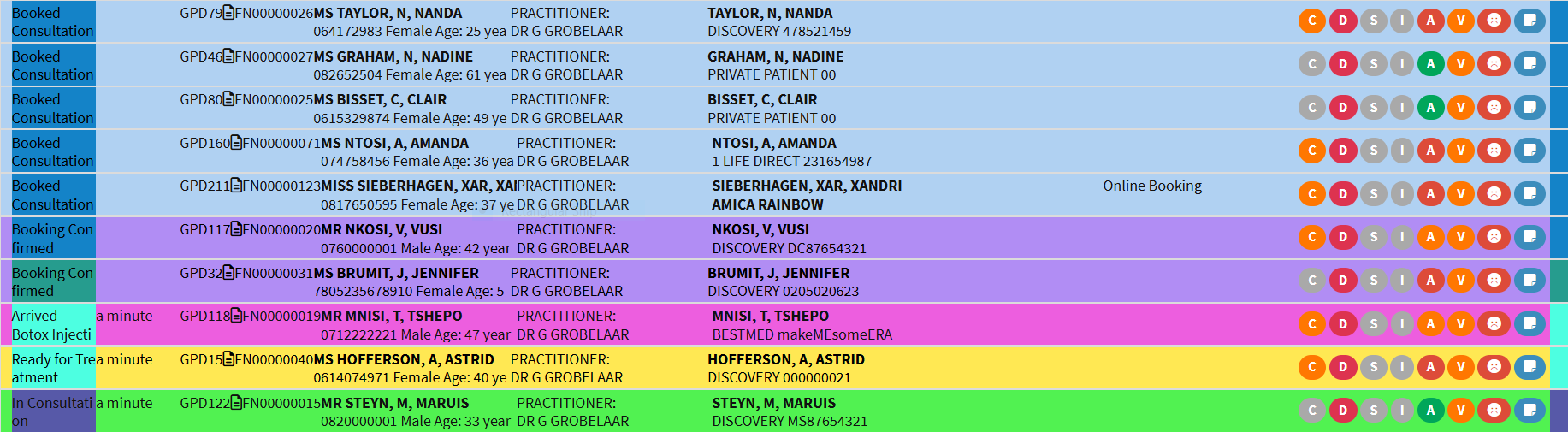
Render Policies change how bookings are displayed in the Diary, allowing you to choose between a detailed Diary view and a more compact list view. This makes it easier to view the information you need in a format that suits your workflow. Using the appropriate Render Policy can reduce clutter, improve visibility, and make it easier to review and manage bookings for the selected day
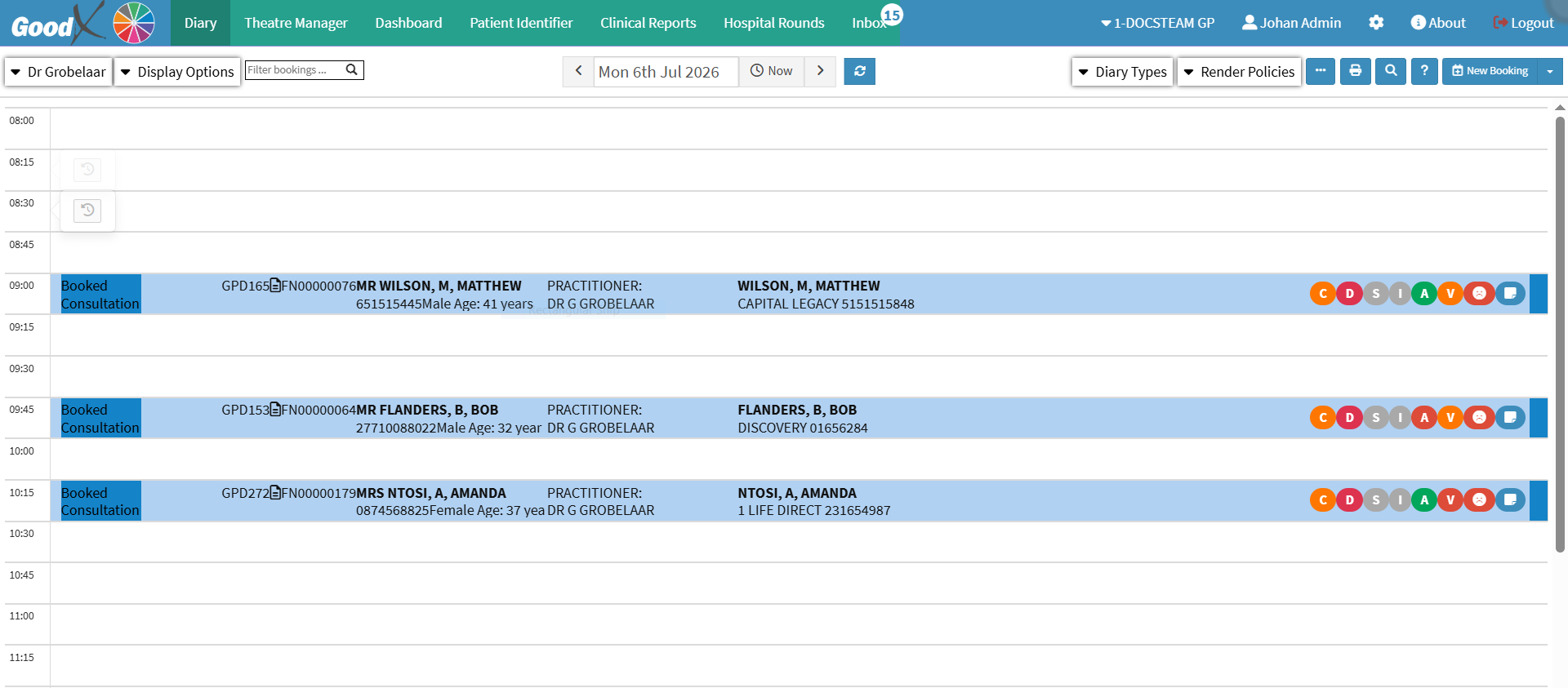
  • Start on the Diary screen.


Sections

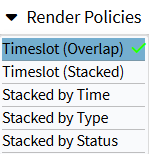
  • Timeslot (Overlap)
  • Timeslot (Stacked)
  • Stacked by Time
  • Stacked by Type
  • Stacked by Status

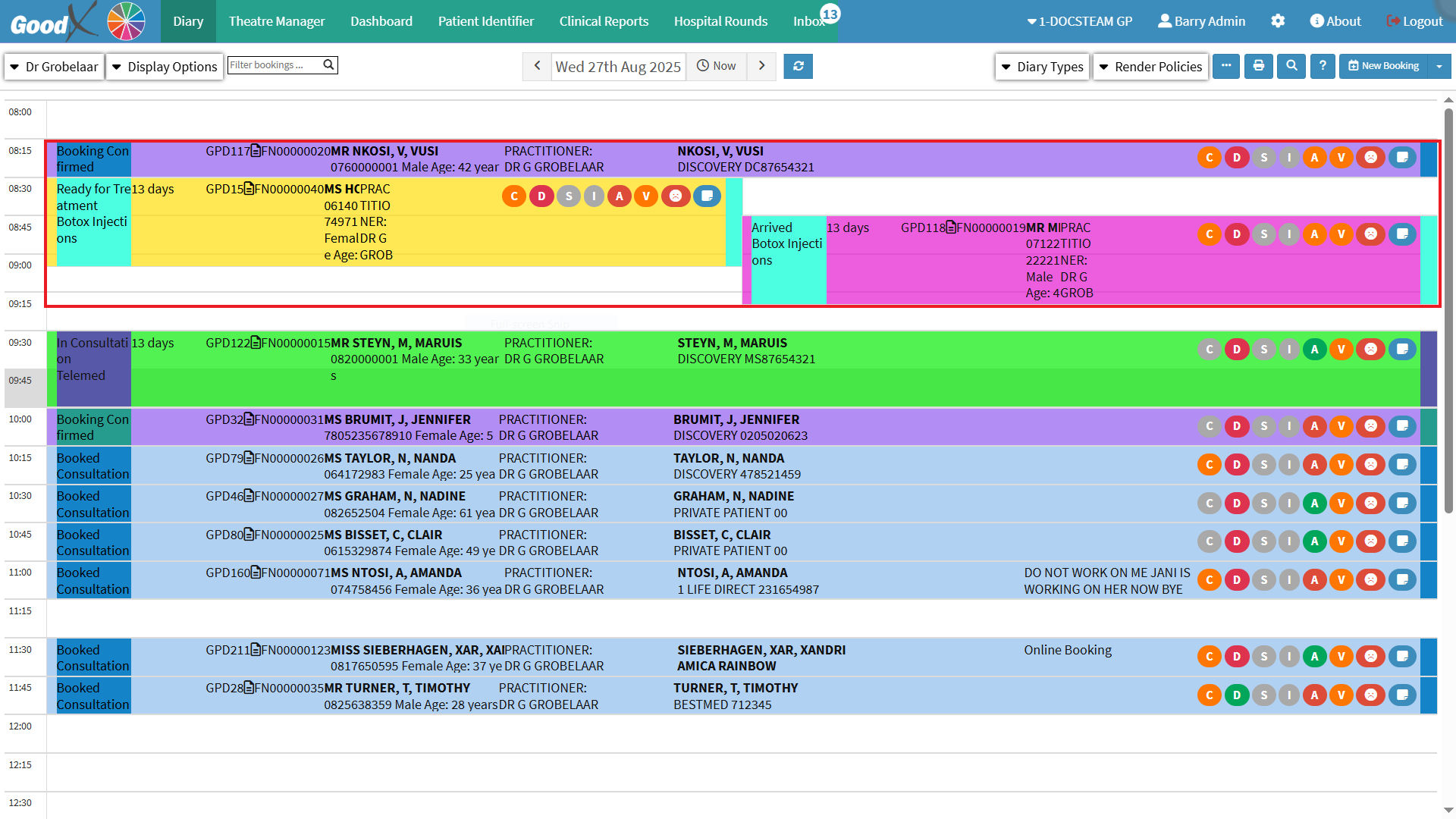
Timeslot (Overlap)

Overlapping bookings appear side by side within the same time slot.

Timeslot (Stacked)

  • Overlapping appointments are arranged vertically, one beneath the other.


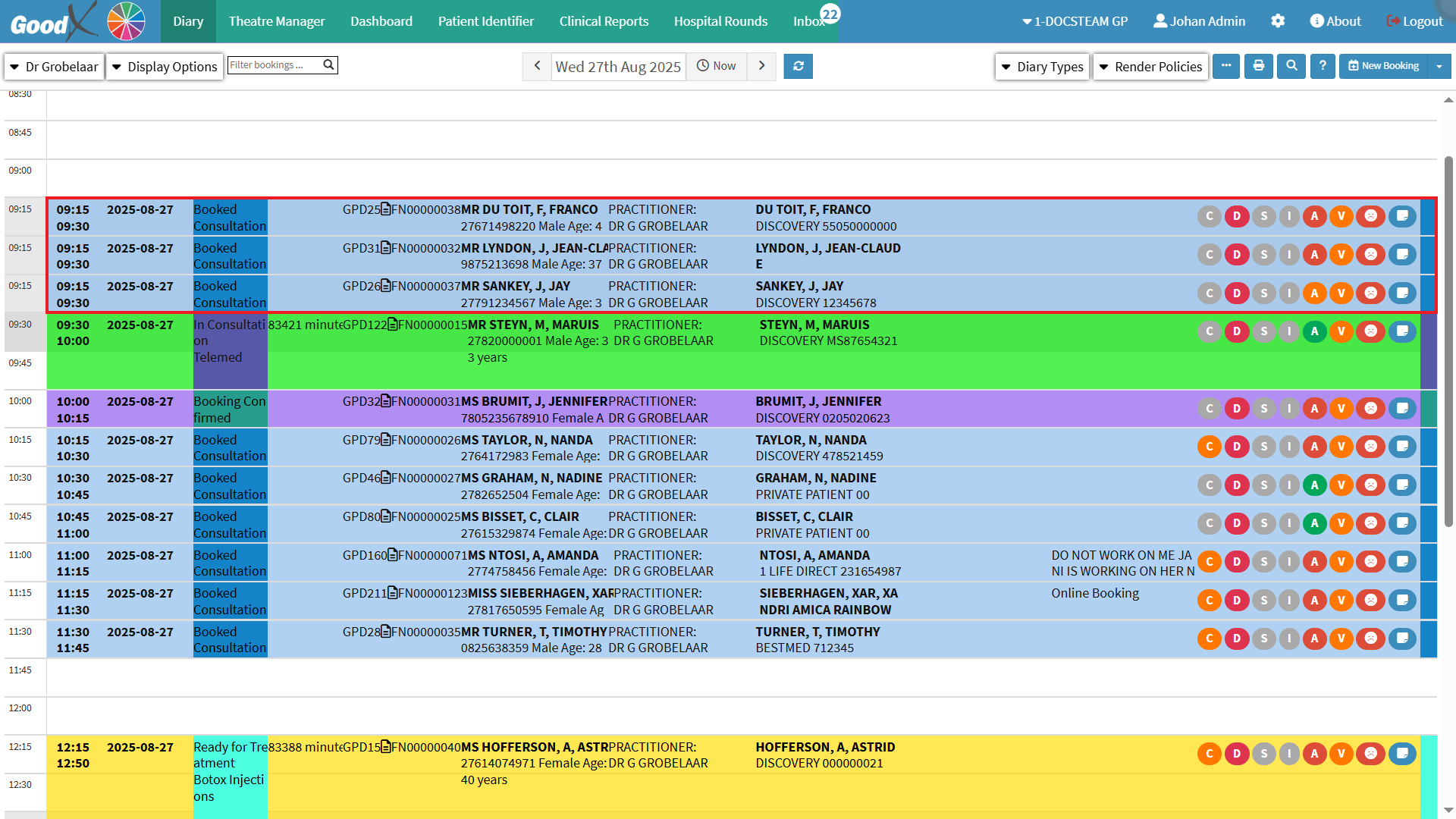
Stacked by Time 

  • Bookings for the selected day are arranged chronologically, providing a clear, concise view that highlights the next appointment.


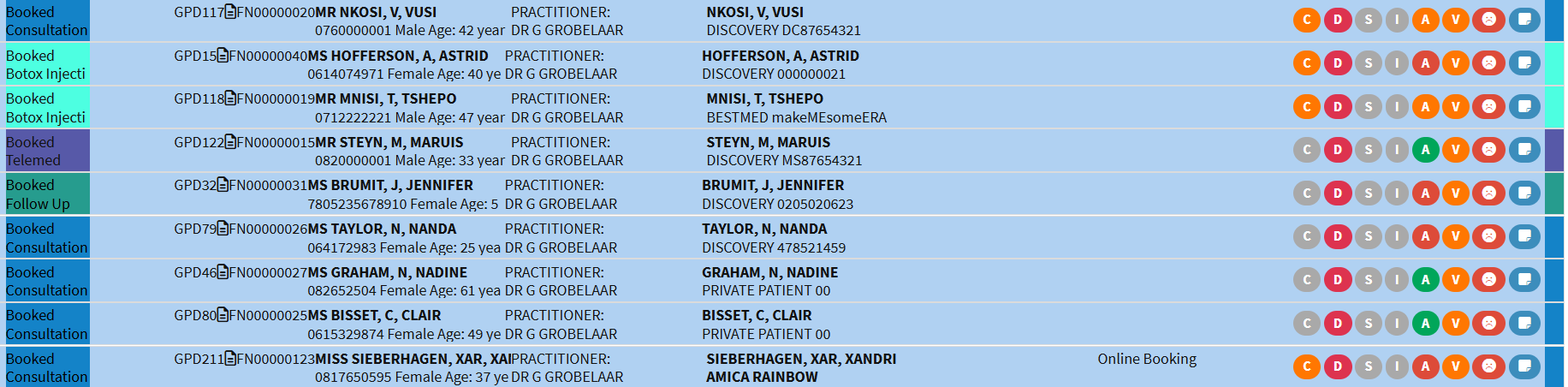
Stacked by Type

  • Bookings are organised by Booking Type, allowing similar appointments to be viewed together in a clear, structured way.

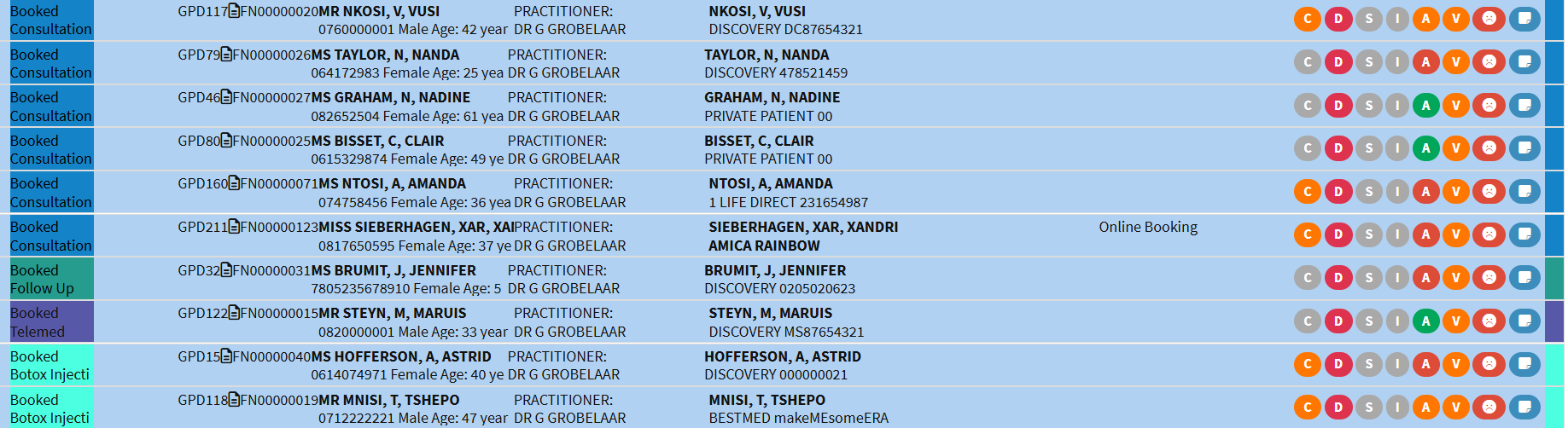
 Stacked by Status

  • Bookings are organised by status, providing a clear overview of confirmed, pending, or cancelled appointments in a structured layout.

💡Please Note: The Status does not initially display for this Diary View. You can enable it through the settings. For details, see: Booking Statuses.

Last modified: Monday, 31 August 2026, 11:57 AM