Communication within a Practice is essential for maintaining efficient workflows and ensuring that Patient care remains a top priority. Managing these communication channels allows you to organise team members into specific categories, such as an Admin or Case Team, which streamlines how information is shared. Organising these groups ensures that the correct Practitioner or staff member receives relevant updates promptly, reducing delays in internal processes.
The Contents of This User Manual:
Filters
Screen Columns Action Buttons
Columns
Page Options
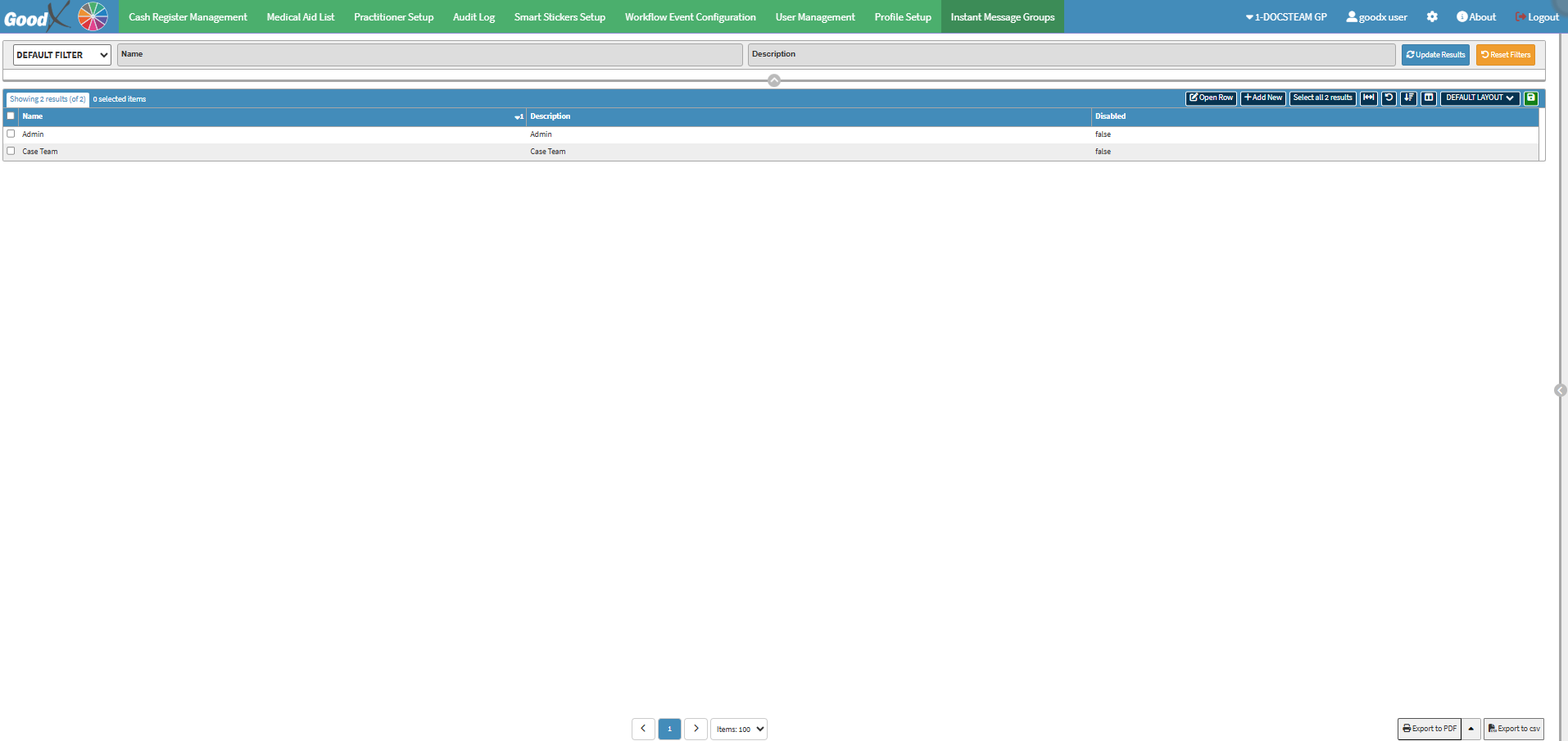
This user manual will start on the Instant Message Groups tab screen.
For more information on how to navigate to the Instant Message Groups screen, please refer to the user manual: Configuration Segment.
Filters
Allows you to narrow down or refine the results displayed on the Practitioners List tab.
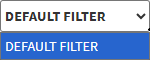
Click on the Default Filter drop-down menu to select how the screen will be filtered.
Click on the Name field to enter the name of the Instant Message Group you want to filter on.
Click on the Description field to enter a description of the Instant Message Group you want to filter on.
Click on the Update Results button to refresh the list after the Filters have been selected.
Click on the Reset Filters button to clear the Filters that have been set.
Screen Columns Action Buttons
Several additional Options are available for the Columns. These additional Options are to help the User adjust the screen, refine the Search and give more specific results.
Click on the Open Rowbutton to edit an Instant Messaging Group.
Click on the Add New button to add an Instant Messaging Group.
All the information on the Workflow Event Config screen is divided into Columns to logically group related information together.
Name: Displays the unique title assigned to the group, such as Admin.
Description: Provides a brief summary of the team or the specific purpose of the group.
Disabled: Indicates if the group is currently inactive or active within the Practice.
Page Options
All the additional Options that are available for the Page.
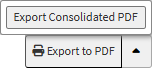
Click on the Export to PDF button to save a PDF file of all the data as a comprehensive report.
Click on the Export to PDF drop-up menu to access the Export Consolidated PDF option that allows you to generate a single document that combines all the data from multiple sources to provide an overview.
Click on the Export to CSV button to save the Report in a CSV format.
Last modified: Friday, 25 September 2026, 11:50 AM