The Audit Diary is used by the Medical billing Bureaus as an admin tool.
- Log in to the GoodX WebApp using your GoodX username and password.
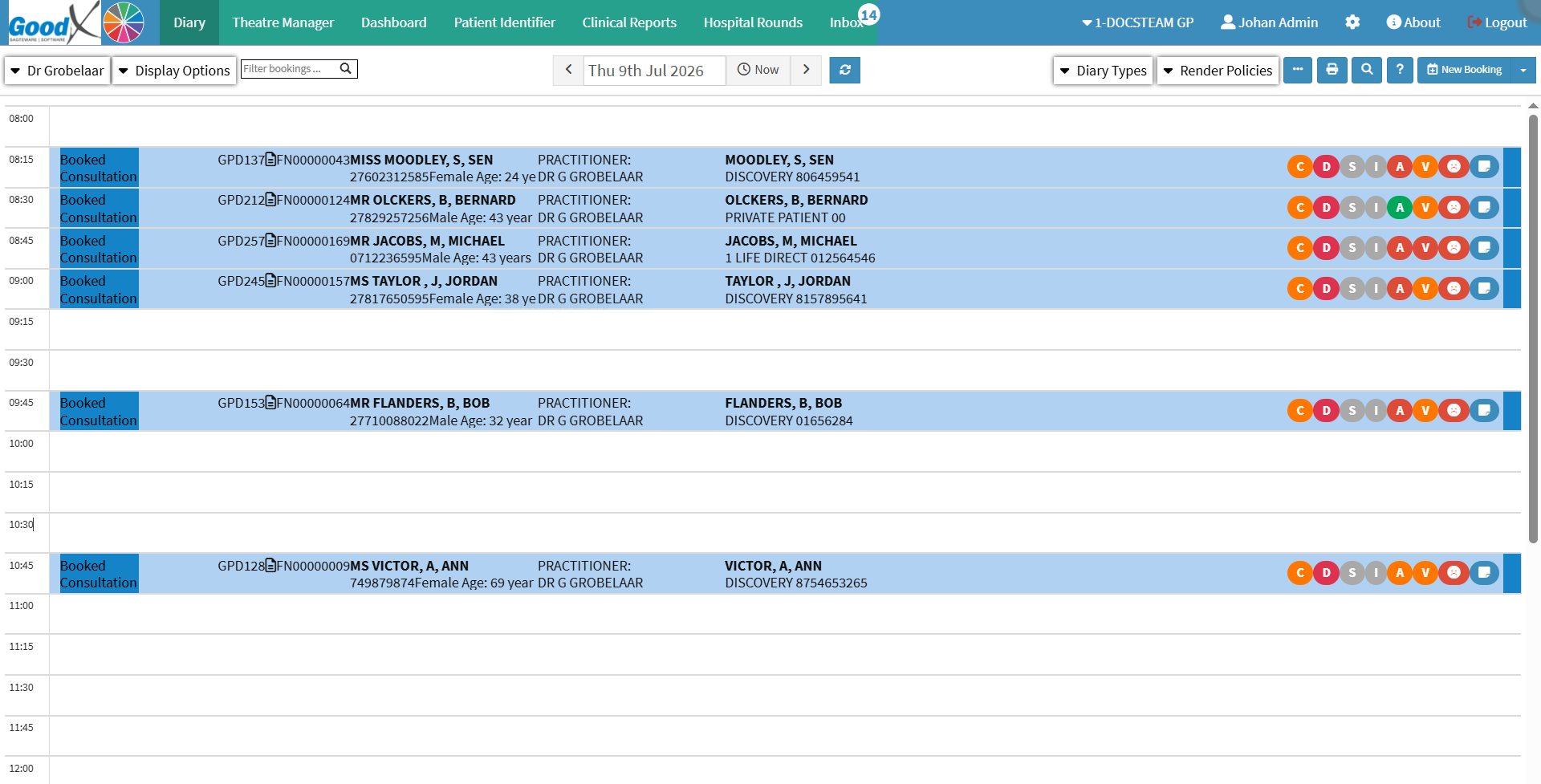
- The Diary screen will open.

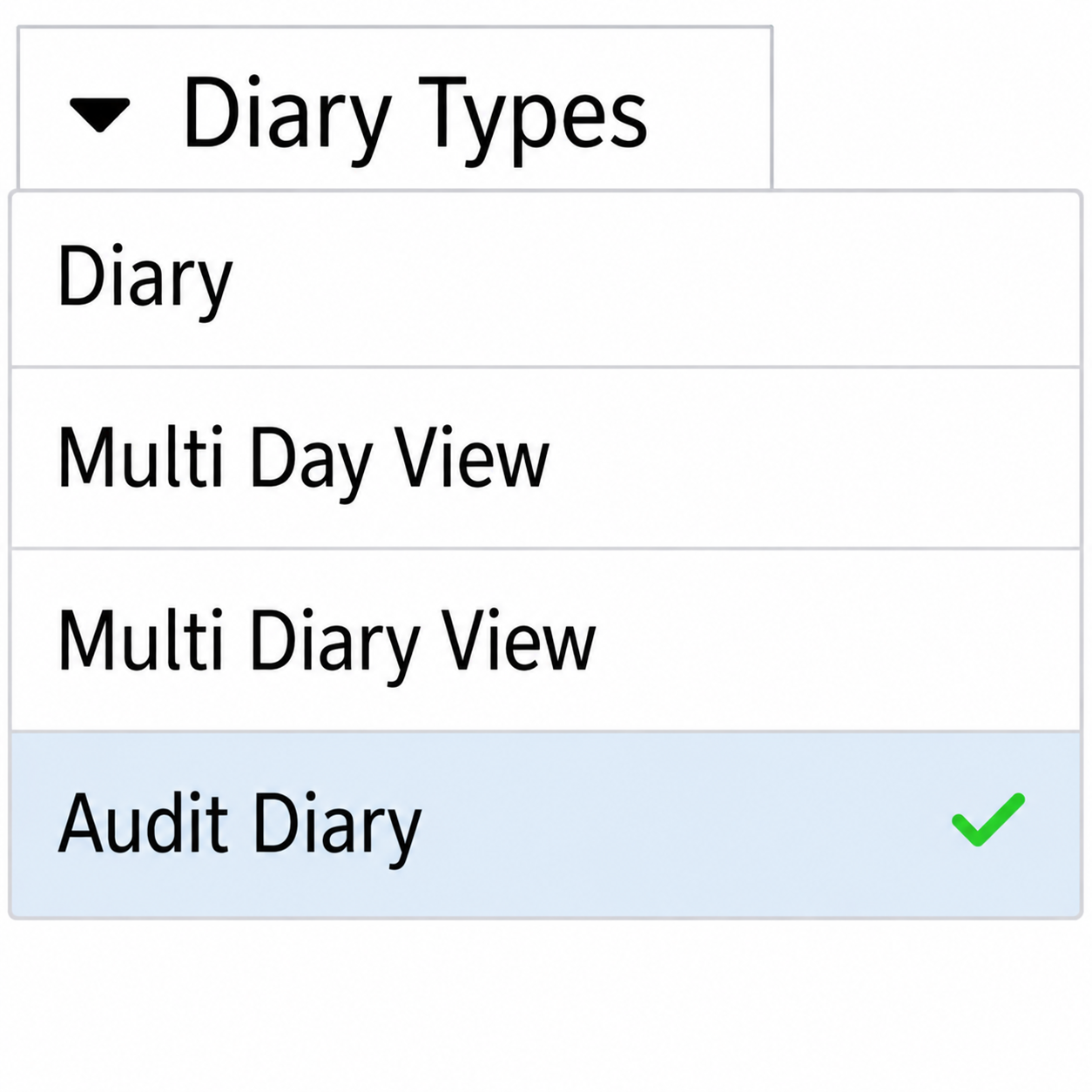
- Click on the Diary Types drop-down in the top right corner to access the different views of the Diary.

- The drop-down menu will open.

- Click on the Audit Diary option.

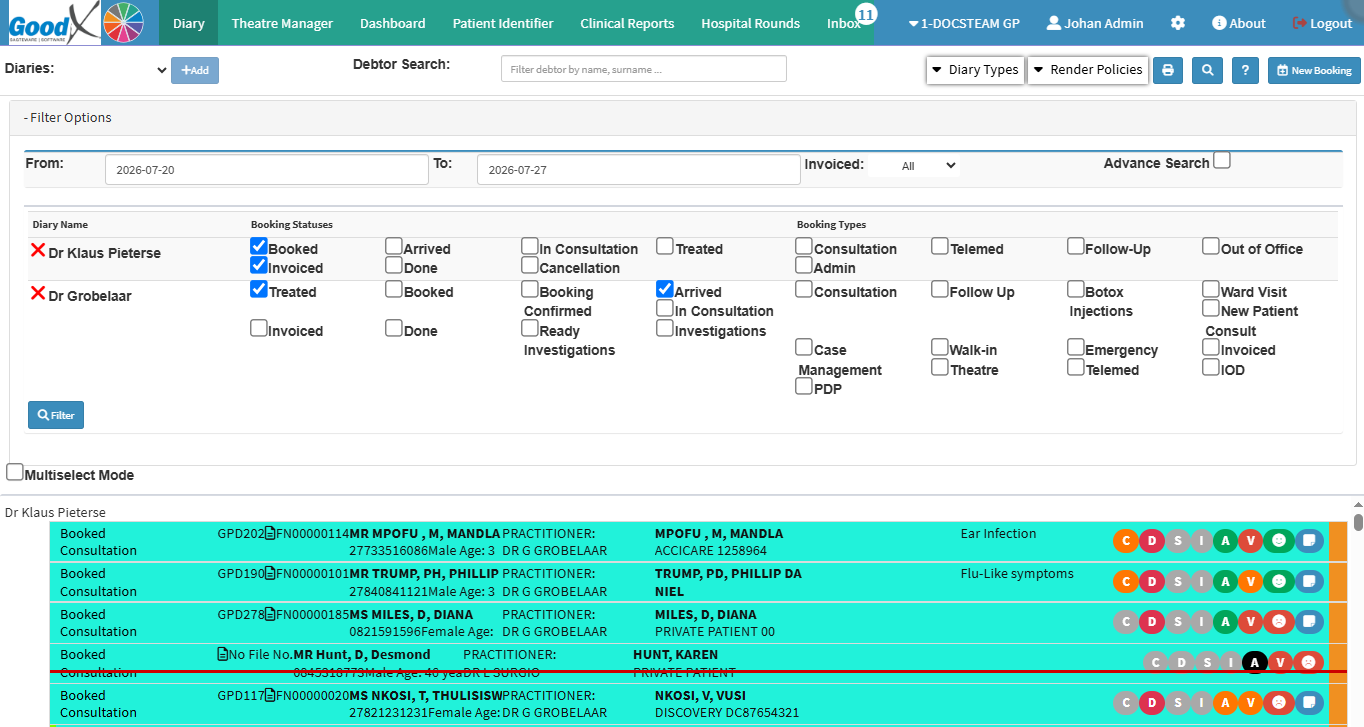
- The Audit Diary screen will open.

- Click on the Filter Options panel.

- The Filter Options panel will expand.

- Additional fields will be explained below.

- Diaries: All diaries available for auditing will be under the Diaries drop-down list.

- Debtor Search: The search function makes it easier for users to locate and access Debtors or Patients instead of having to scroll through the list especially if it's a big Practice with a lot of Debtor files.

- From: The specific date from which the user would like to start the auditing process.
- Click on the From field to open up a Date Picker.

- Choose the relevant date to start the auditing process from.
Please Note: The date in blue is the selected date, and the date in orange is the current date. The default date will always be seven days prior to the current date.

- To: The specific date that the user would like the auditing process to end.
- Click on the To field to open up a Date Picker.

- Choose the relevant date to end the auditing process.

- Invoiced: The current billing status of a booking.
- Click on the Invoice drop-down menu.

- All: The Diary will show all of the bookings regardless of their invoice status.
- Not Posted: The bookings that have not had their invoices posted will be listed.
- Temporary: Only bookings with temporary invoices will be listed.
- Estimate: Bookings that currently only have estimates will be listed.
- Posted: Bookings with posted invoices will be filtered.
-
-
- Choose the relevant invoice status to filter the bookings by.


- Diary Name: The diary linked to a treating Practitioner, which has been selected for an audit.

- Booking Statuses: Group the bookings by the current point at which the booking is running, for example, Booked, Arrived, Ready, etc.

- Booking Types: Group the bookings by the category of the booking, for example, Consultation, Walk-in, Emergency, etc.

Last modified: Monday, 23 March 2026, 2:09 PM