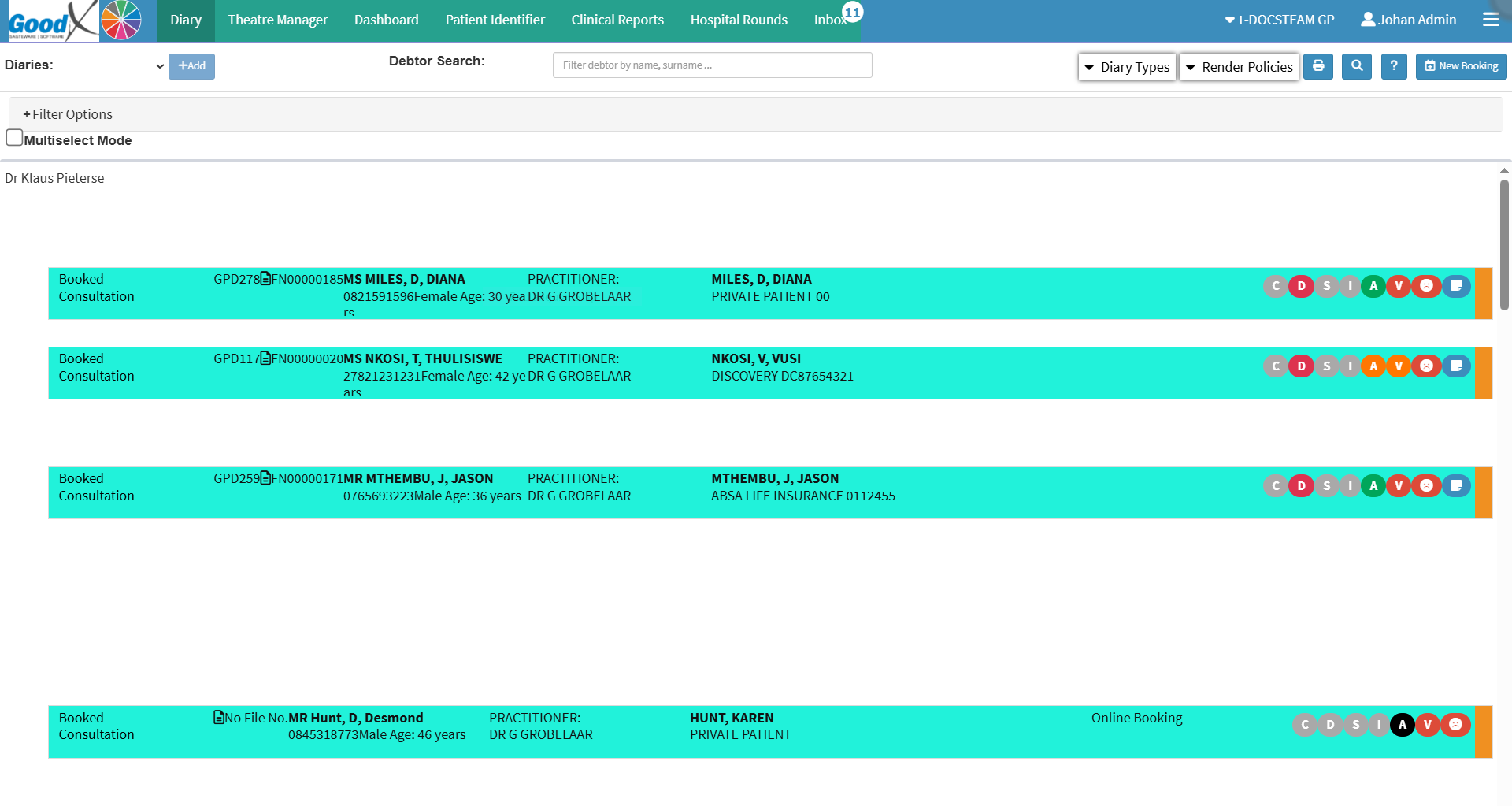
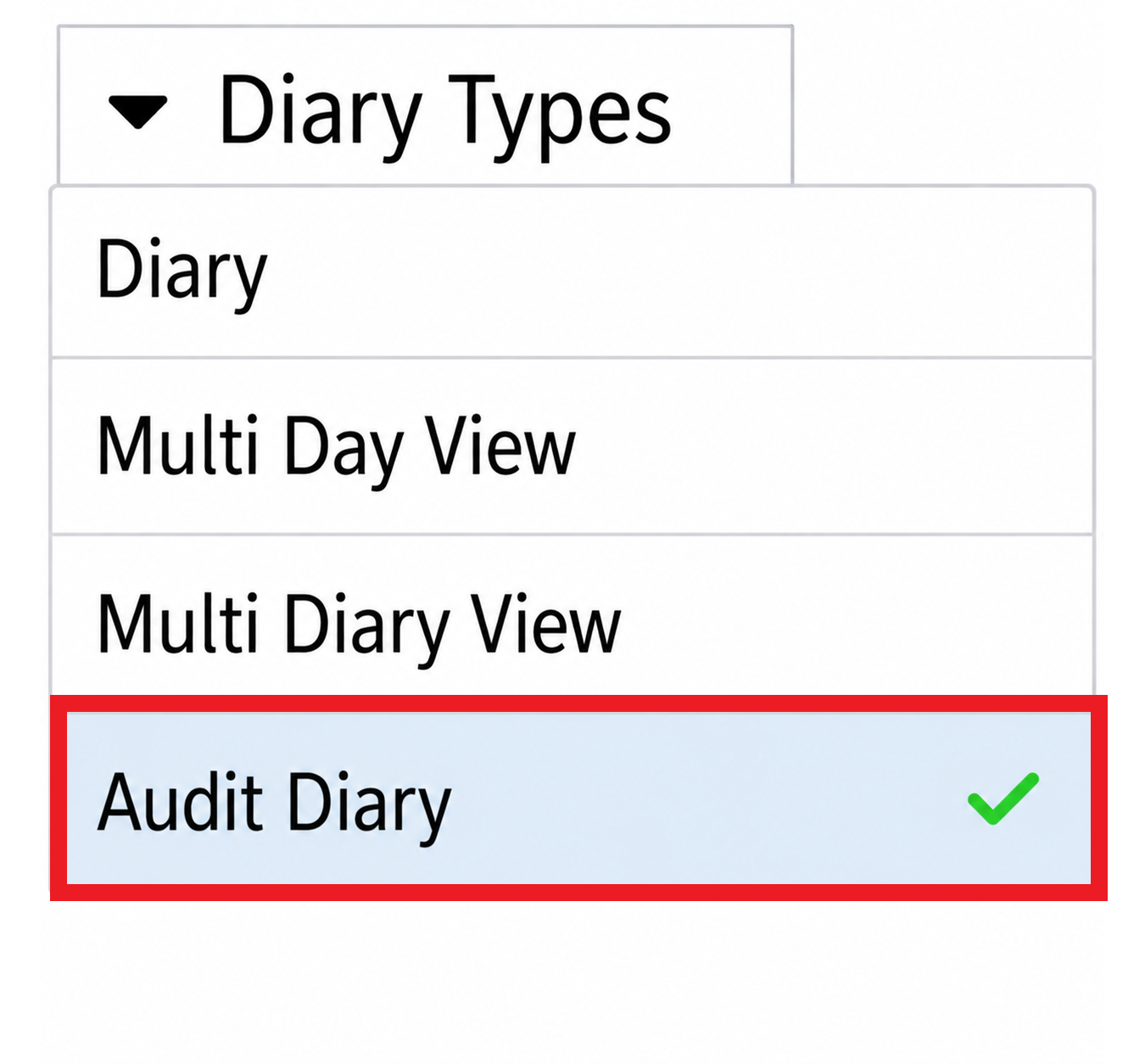
The Audit Diary displays appointment information in a searchable, filterable view, making it easier to review and manage diary activity across one or more practitioners. A range of filters helps you quickly locate specific bookings and monitor their progress without having to manually search through individual diaries.
Using theAudit Diary also helps manage daily administration by providing a clear overview of the actions and processes associated with each booking. This makes it easier to identify outstanding actions, confirm that required tasks have been completed, investigate queries, and monitor booking activity. It improves visibility, supports better follow-up, and helps ensure that no important administrative steps are overlooked.
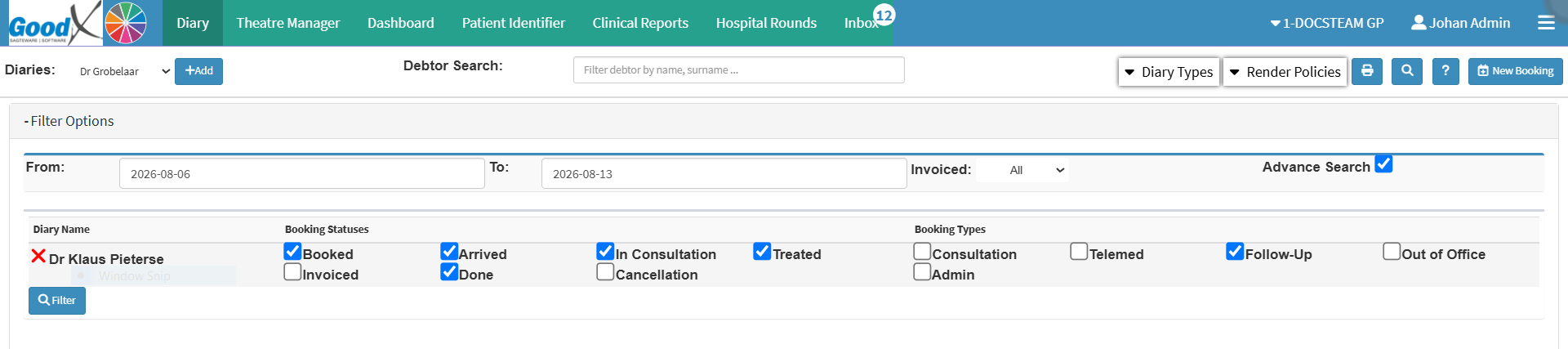
Diaries: All diaries available for auditing will be under the diaries drop-down list.
Debtor Search: Quickly locates debtors or patients without manual scrolling, saving time for large practices.
Add: The Add button adds all remaining available Diaries to your filter selection. Your system disables the Add button automatically once all available diaries appear under the filter options.
Filter Options
From: The specific date from which the user would like to start the auditing process.
To: The specific date that the user would like the auditing process to end.
Invoiced: The current billing status of a booking.
Advanced Search: Allows you to filter by specific conditions or search parameters.
Diary Name: The diary linked to a treating Practitioner, which has been selected for an audit.
Booking Statuses: Group bookings by their current status, for example, Booked, Arrived, Ready, etc.
Booking Types: Group bookings by category, for example, Consultation, Walk-in, Emergency, etc.
Multiselect Mode: Enables selecting multiple items at once across the filter categories.
💡Please Note: The available options and choices displayed under each filter column depend on the specific configuration and setup of your practice.