Booking Event Template Setup allows you to create personalised communication events using Workflow Event Templates, which can be scheduled to go out before or after a booking, or at a specific time that suits your workflow. These messages are automatically triggered when a booking is made in the diary, saving you valuable time and ensuring nothing is missed. Patients can complete necessary forms before their visit, receive surveys after appointments, or get timely reminders, all without you having to manually follow up.
This setup helps the Practice provide seamless, professional, and consistent communication, while keeping processes smooth, efficient, and truly Patient-focused.
💡Please Note: Booking Event Templates are set up on multiple levels, allowing each Practice to tailor these communications to their unique workflow, operational needs, and Patient engagement approach. For more information regarding the different levels at which they are set up, please refer to the user manual: Understanding the use of Booking Event Template Setup
The Contents of This User Manual:
Creating a New Booking Event
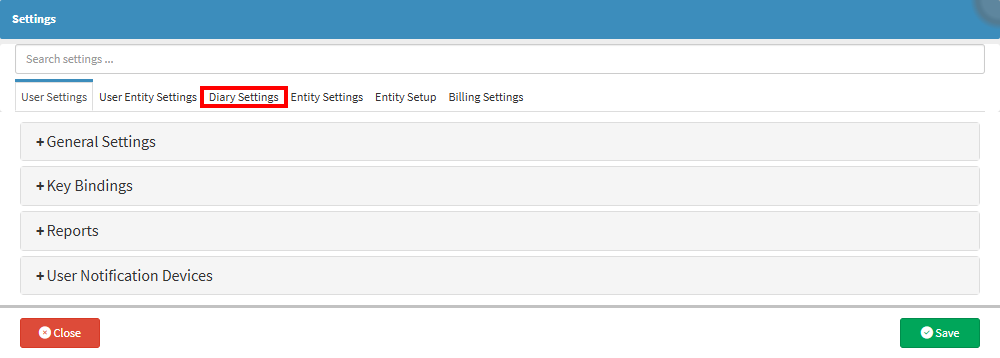
This user manual will start on the Settings screen, User Settings tab.
For more information regarding the Diary Settings screen, please refer to the user manual: Diary Settings (General).
💡Please Note: If a Practice has multiple Diaries, each Diary and its settings must be configured to meet the specific needs of the Practitioner.
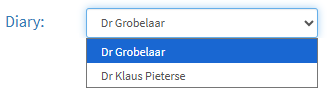
Select the desired Practitioner'sDiary from the drop-down menu.
Click on the Booking Events Template Setup panel.
The Booking Events Template Setup panel will expand.
Click on the Choose drop-down menu to select a new document.
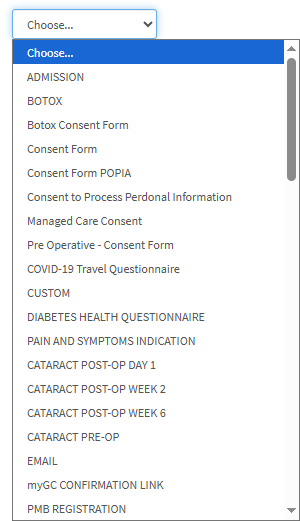
The Choose drop-down menu will expand.
Select the desired Booking Event.
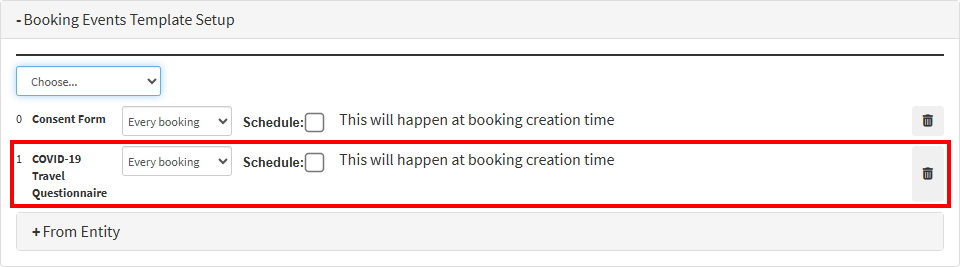
The new Booking Event will now be listed in the panel.
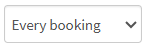
Click on the Frequencydrop-down menu.
The Frequency drop-down menu will open.
An explanation will now be given of the options in thedrop-down menu:
Once per Debtor: The selected communication will be sent only once to the Debtor linked to the booking. The system records whether the communication has already been sent and will not send it again.
Once per Patient: The selected communication will be sent only once to the Patient linked to the booking. The system records whether the communication has already been sent and will not send it again.
Every Booking: The selected communication will be sent with every booking made on the Dairy.
Tick the Schedule checkbox if you wish to arrange a specific timeframe for the communication to be sent out.
Additional Scheduling options will become available.
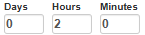
Enter the desired Days, Hours, and Minutes in the corresponding fields.
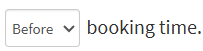
Click on the Send Timingdrop-down menu.
The Send Timingdrop-down menu will open.
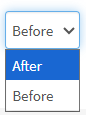
Select whether the Booking Event communication will be sent before or after the chosen timeframe.
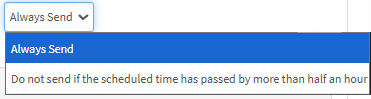
Select from the Send Condition drop-down menu whether the communication will be sentwithin the set timing rules or not.
Click on the Change to Specific Scheduled Time button to switch between Specific Scheduled Time and Relative Scheduled Time.
The Change to Specific Scheduled Time options will become available.
Click on the Day field.
Enter the desired number of days in the Day field.
Click on the SendTiming drop-down menu.
The Send Timing drop-down menu will open.
Select an option from the SendTiming drop-down menu.
Click on the Time field.
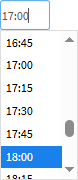
Select the desired time from the drop-down menu.
💡Please Note: Communication will be sent at 17:00 for bookings happening tomorrow. If a booking for tomorrow is created after 17:00, it will be sent immediately. Bookings made for the same day don't trigger this event unless no schedule has been set.
Click the Trashcan icon next to the Booking Event to remove that event.
Click on the Save button to finalise any changes made.
💡Please Note: Booking Events are set up at the Entity level; the From Entity panel will appear. This panel shows all Booking Events defined in the Entity Settings. These events can be disabled at the Diary level if needed.