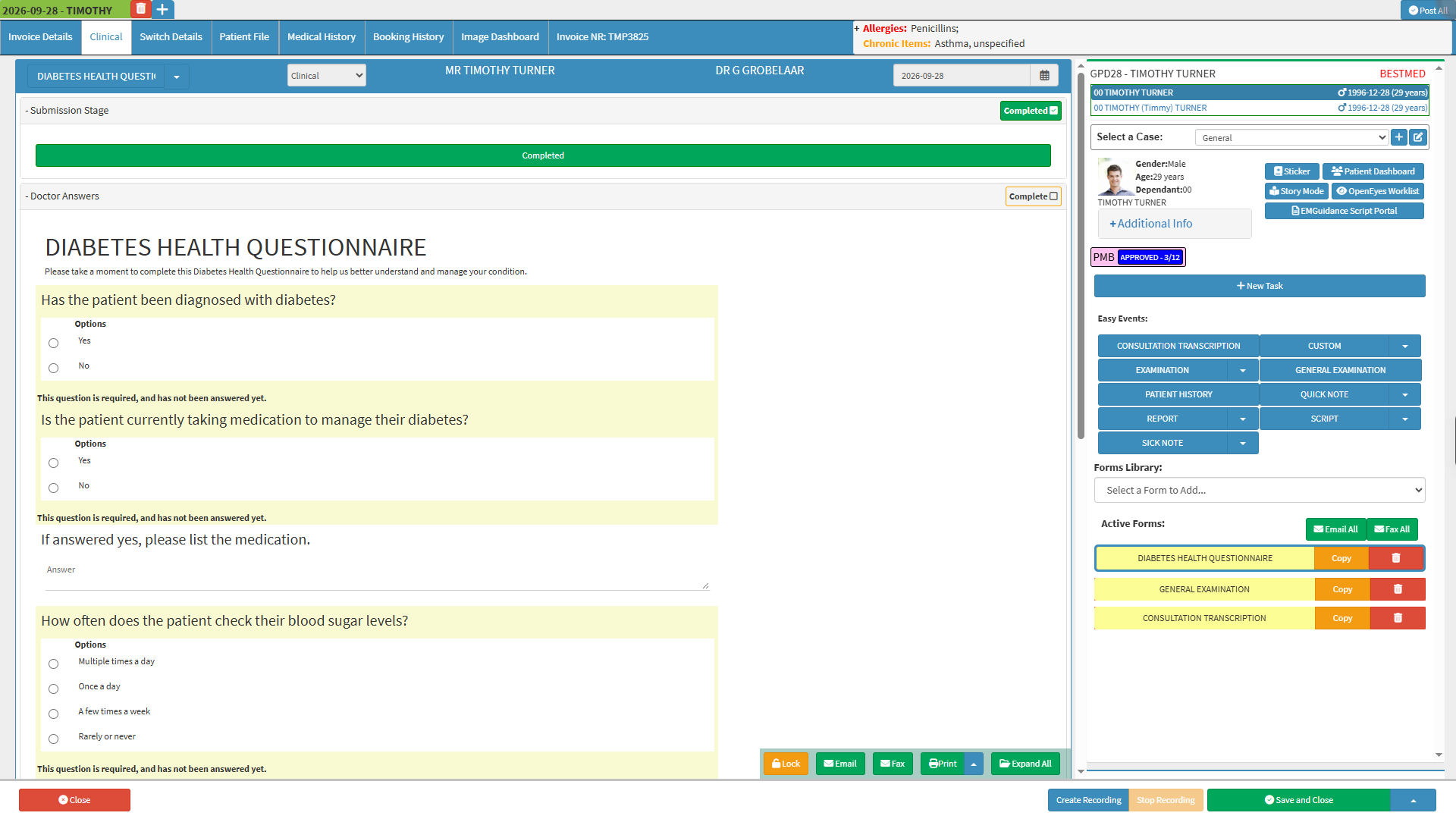
The Clinical screen is the central workspace for managing and documenting the patient's clinical care. It brings together the information, clinical documentation, and tools a practitioner needs to assess the patient, record findings, manage treatment, and maintain a comprehensive record of the patient's care.
The Clinical screen supports the practitioner throughout the patient's clinical journey. Clinical information such as medical history, symptoms, examinations, diagnoses, clinical findings, treatment, procedures, and clinical notes can be documented and managed from one central location. It also includes functions for creating important clinical documents, such as scripts, sick notes, and referral letters, as part of the patient's care.
Having these clinical tools and information together makes it easier to manage the patient's care without having to navigate between different areas of GoodX. This helps the practitioner maintain complete and organised clinical documentation, supports continuity of care, and makes the Clinical screen an important part of the day-to-day clinical workflow.
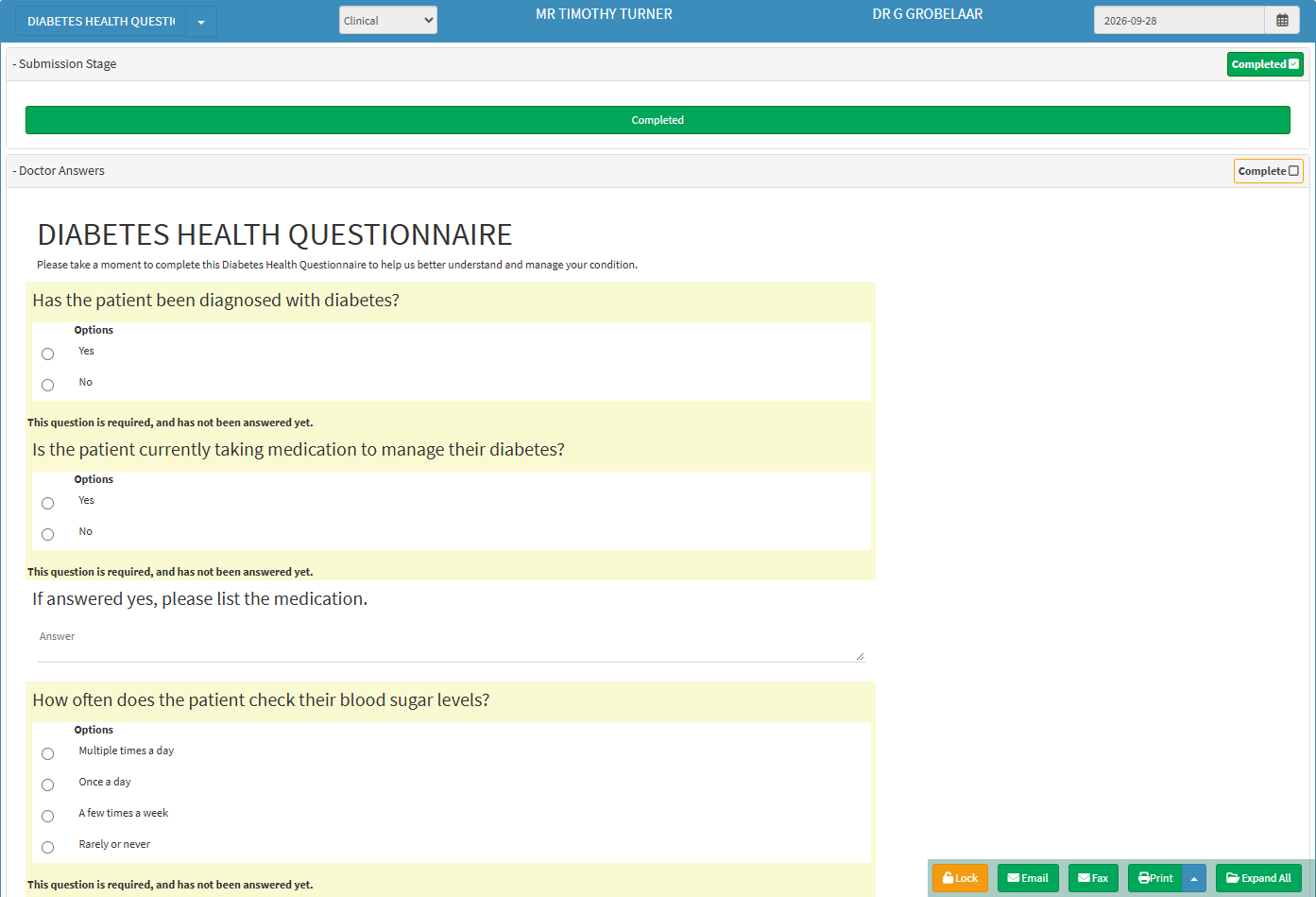
Select Form: Select a form from the template list. This drop-down is inactive when no templates are available for the selected form.
Form Status (Clinical/Admin): Indicates whether the form contains clinical or administrative information and determines access based on user privileges and permissions.
Patient Name: The name of the patient the form is for.
Practitioner: The treating practitioner's initials and surname.
Expand All: Expand all panels in the clinical form.
Collapse All: Collapse all panels in the clinical form.
💡Please Note: The screen and available options may vary depending on the clinical form being used. You cannot edit the Form Status and Date fields.
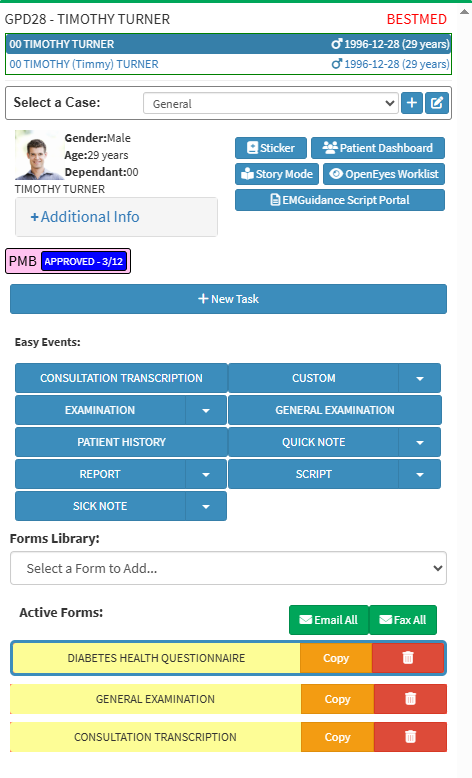
Clinical Sidebar
Clinical Sidebar: Provides tools and information to support the efficient management of the patient’s clinical case. For details, see Clinical Screen Sidebar Navigation.