Glossary: Clinical Screen Sidebar
VIDEO
Why This Matters? The Clinical Screen Sidebar provides quick access to information and functions related to the patient's clinical care. It brings the relevant options together alongside the Clinical Screen, making them readily available while working with the patient's clinical information.
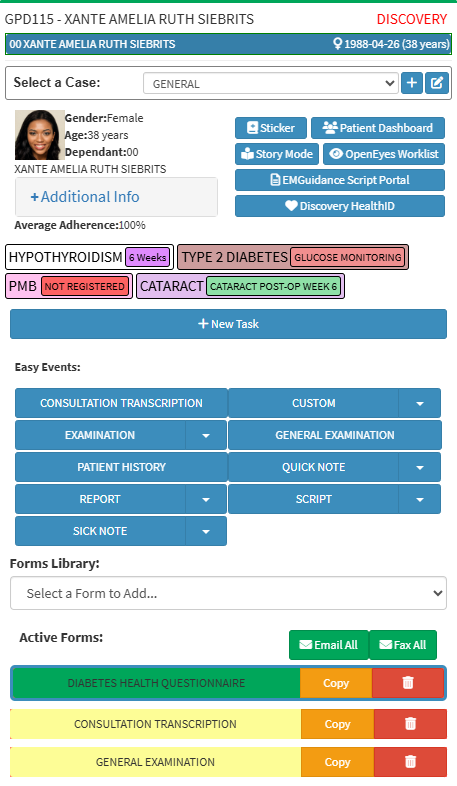
Start on the Clinical screen sidebar.
Sections
Debtor and Patient Information
Select a Case
Patient Demographic Information
Quick Access Buttons
Smart Stickers
New Task
Easy Events
Forms Library
Active Forms
Debtor and Patient Information
Debtor Number: System-generated account number of the debtor.Debtor Name and Surname : Name and surname of the debtor.Medical Aid : Medical aid provider of the debtor.Dependant Number: Patient’s Medical Aid dependant number.Patient Name: Full name and surname of the patient.Gender, Date of Birth and Age: Medical gender, date of birth and age of the patient.
Select a Case
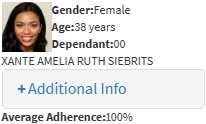
Patient Demographic Information
Profile Picture: Image that identifies the patient.Gender: The patient's medical gender.Age: The patient's current age . Dependant: Patient’s medical aid dependant number.Patient Name: The full name and surname of the patient.Additional Info: Expandable panel displaying patient information from the Patient’s file, which can be updated as needed. For details, see How to View/Edit Debtor and Patient Information .
Address Line 1 : Displays the house number and street name.Address Line 2 : Suburb of the residential address. Address Line 3 : Province of the residential address.Cell No. : Mobile number where the patient can be reached. Email : Patient's email address.Medical Aid Number : Medical aid membership number of the patient.
Average Adherence: The percentage that shows how consistently a Patient follows their prescribed medication regimen.
💡Please Note: GoodX is integrated with Health Window, which receives data from Dis-Chem pharmacies when patients collect their medication. For details, see Script: Health Window Integration - Medical Adherence
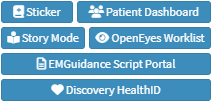
Quick Access Buttons 💡Please Note: The availability of these buttons depends on the practice setup, activated features, and applicable subscriptions.
Smart Stickers
Smart Stickers: Create medical guidelines and treatment plans for specific conditions, guiding Patients through required tasks and care processes. For details, see Add a Smart Sticker Protocol to a Patient .
💡Please Note: When the Patient has been registered for a PMB condition or has a Chronic medical condition, the Smart Stickers can be used as an indicator. Smart Stickers can also remind staff of upcoming appointments or tasks that need to be completed. For details on this function, see PMB Registration Workflow - Step 1: Register Patients for PMB with Smart Sticker Protocols and Smart Stickers .
New Task
New Task: Create a new task or to-do item linked directly to the selected patient or booking. For details, see Create A New Task .
Easy Events
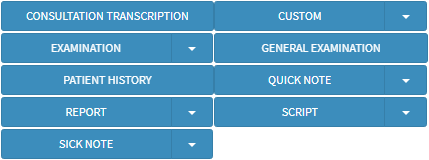
Easy Events: Pre-set, quick-access buttons to the forms you use most. For details, see Easy Events .
Forms Library
Forms Library: A list of all forms available to you.
💡Please Note: The forms that appear on the list are the ones that have been loaded for your Practice.
Active Forms
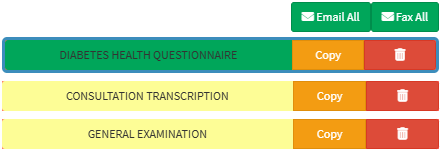
Active Forms: Forms that have been added to the patient's clinical file for this appointment.Email All: Attach all forms in the Active Forms section to an email. For details, see Send an Email .Fax All: Fax all forms in the Active Forms section.Copy: Duplicate the selected form.Delete: Remove the selected form from the Active Forms list.