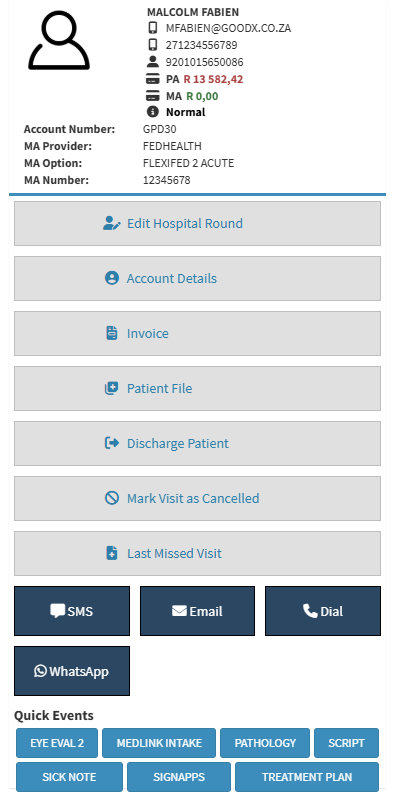
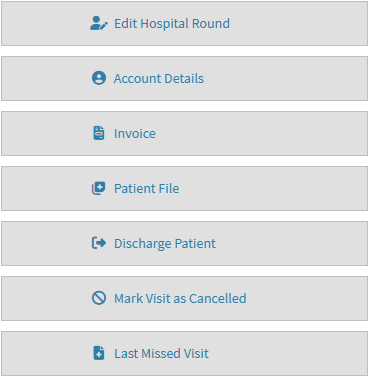
The Hospital Round Management Sidebar is an extended screen on the right-hand side where more functions and information are shown about the patient who is currently in Hospital awaiting a visit from the Practitioner. The Hospital Round Management is mainly used to navigate to the different screens quickly via the buttons. The Hospital Round Management can be minimised when not in use.
Discharge Patient: Mark the patient as discharged from the Hospital Round Case and update the case status to Discharged.
Mark Visit as Cancelled: Indicates that the scheduled visit did not take place and changes the visit status to Cancelled. A reason must be provided when cancelling a visit.
Last Missed Visit: Provides access to actions for managing the patient's most recent missed Hospital Round visit.
Capture Clinical Event: Add a Clinical Event to the patient's most recent missed visit. For navigation, see Clinical Screen: Navigation and Use.
Mark as Cancelled: Mark the patient's most recent missed visit as Cancelled. A reason must be provided when cancelling a visit.
Communication Buttons
SMS: Send a text message to the patient. For navigation and details, see Send an SMS.
Email: Deliver an email directly to the patient. For navigation and details, see Send an Email.
Dial: Place a call to the patient and log the interaction. For navigation and details, see Making a VoIP Call.
WhatsApp: Send a WhatsApp message to the Patient. For navigation and details, see How to Send A WhatsApp.
💡Please Note: Some features will have to be set up by your practice. For details, see Services.
Quick Events
💡Please Note: The options that are available under the quick events section will be determined by the setup of the practice. For details, see Easy Events.