Debtor Edit - Add Address Screen: Navigation and Use
Completion requirements
Why Use This Function:
Understanding how to navigate and use the Addresses screen is important for ensuring that every Debtor has accurate and up-to-date Address information linked to the correct person. The features on the screen make it easy to filter results, view or edit specific Addresses, adjust the Columns for clearer analysis, and export the information when needed. Using these tools helps maintain reliable records and supports efficient communication, billing, and account management.
The Contents of This User Manual:
Filters
Screen Columns Action Buttons
Columns
Page Options
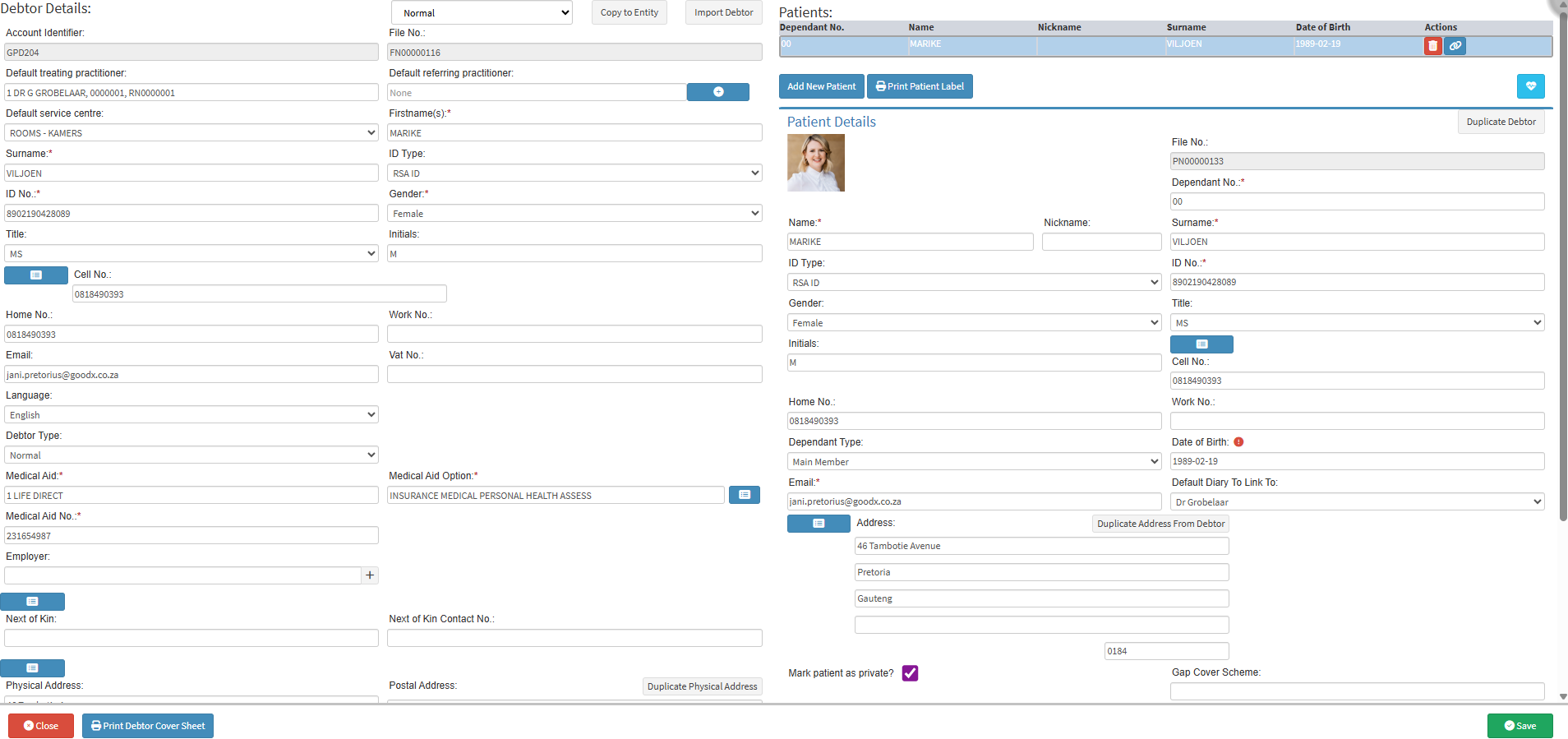
This user manual will start on the Debtor Details screen.
Filters are tools or functionalities that allow you to narrow down or refine the results displayed on the Addresses screen.
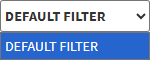
Click on the Default Filter drop-down menu to select the filter that will be used.
Click on the Person field to search for the related person you wish to filter on.
Click on the Type field to select the type of address it is from the drop-down menu that becomes available.
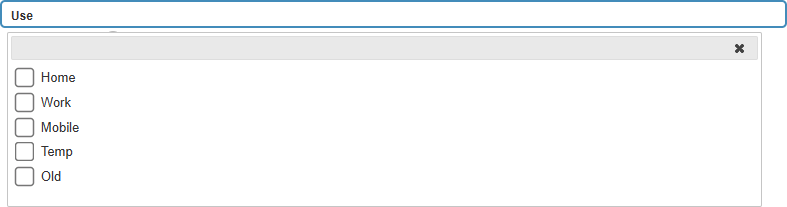
Click on the Use field to select where the address information is used from the drop-down menu that becomes available.
Click on the Update Results button to refresh the Addresses List after the filters have been selected.
Click on the Reset Filters button to clear the filters that have been set.
Screen Columns Action Buttons
Several additional Options are available for the Columns. These additional Options are to help you adjust the Address List, refine the Search and give more specific results.
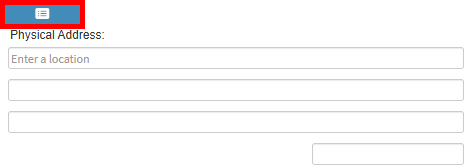
Click on the Open Row button.
?Please Note: If you have not selected an Address, the Open Row button will not be available.
The Add/Edit Address screen will open.
For more information on the Add/Edit Address screen, please refer to the user manual: Add/Edit Address Screen.
Click on the Select All Results button to select all the results currently displayed on the list.
Click on the Expand Widths button to auto-fit the Column Width to the information within all columns.
Click on the Reset Widths button to restore the original Widths after any modifications were made.
Click on the Sort Columns button to sort the Columns in the order that you desire.
Click on the Default Layout drop-down menu to select the type of layout that will be used for the screen.
?Please Note: You are able to create and save personalised layouts by using the Save Layout feature. For more information on how to create your own customised layouts, please refer to the user manual: How to Save Column Layouts on List Screens.
Columns
All the information on the Address screen is divided into Columns to logically group related information together.
Person Type: Indicates the category of the person linked to the Address, such as Debtor, Dependant, or Next of Kin.
Person Name: The full name of the person associated with the Address entry.
Type: Specifies the Address type, such as Residential, Postal, or Business.
Use: Describes the purpose of the Address, such as Billing, Delivery, or Home.
Start Date: The date when the Address became active on the Debtor’s profile.
End Date: The date the Address was deactivated or replaced, if applicable.
Unit: The unit, flat, or apartment number of the Address.
Street: The street name and number where the person resides or receives mail.
Suburb: The suburb or neighbourhood of the Address.
City: The city or town linked to the Address.
District: The district or local municipal area of the Address.
State: The province or state where the Address is located.
Postal Code: The postal code used for mail delivery to the Address.
Country: The country where the Address is located.
Page Options
All the additional options that are available for the page.
Click on the Previous button to navigate to the previous page.
Click on the Page Number button to navigate to the desired page.
Click on the Next button to navigate to the next page.
Click on the Items drop-down menu to select the number of items that will be displayed on the screen.
Click on the Export to PDF button to save a PDF file of all the data as a comprehensive report.
Click on the Export to PDF drop-up menu to access the Export Consolidated PDF option that allows you to generate a single document that combines all the data from multiple sources to provide an overview.
Click on the Export to CSV button to save the Report in a CSV format.
Last modified: Wednesday, 21 January 2026, 2:30 PM