Multi Disciplinary Practitioner Role Screen: Navigation and Use
Completion requirements
Why Use This Function:
The Multi-Disciplinary Practitioner Role screen is used to set up and assign roles within a multi-disciplinary team involved in a Patient’s care. Each Practitioner, such as a General Practitioner, Surgeon, or Physiotherapist is clearly designated within the team for a specific clinical case type. This facilitates effective communication, coordination, and collaboration, ensuring that all team members understand their roles in delivering comprehensive Patient care.
The Contents of This User Manual:
Filters
Screen Columns Action Buttons
Columns
Page Options
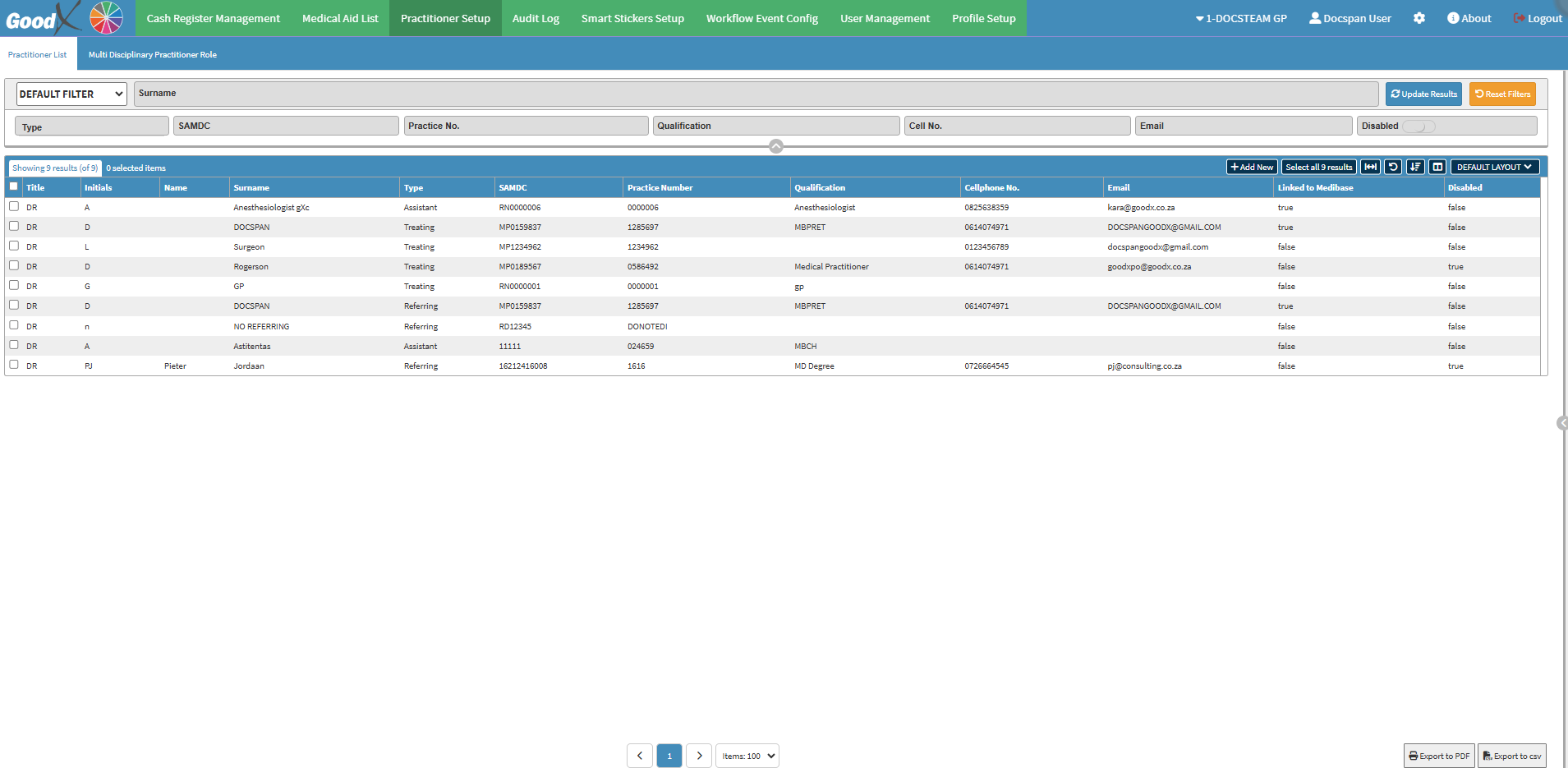
This user manual will start on the Practitioner Setup screen.
For more information on how to navigate to the Practitioner Setup screen, please refer to the user manual: Configuration Segment.
Click on the Multi-Disciplinary Practitioners Role tab.
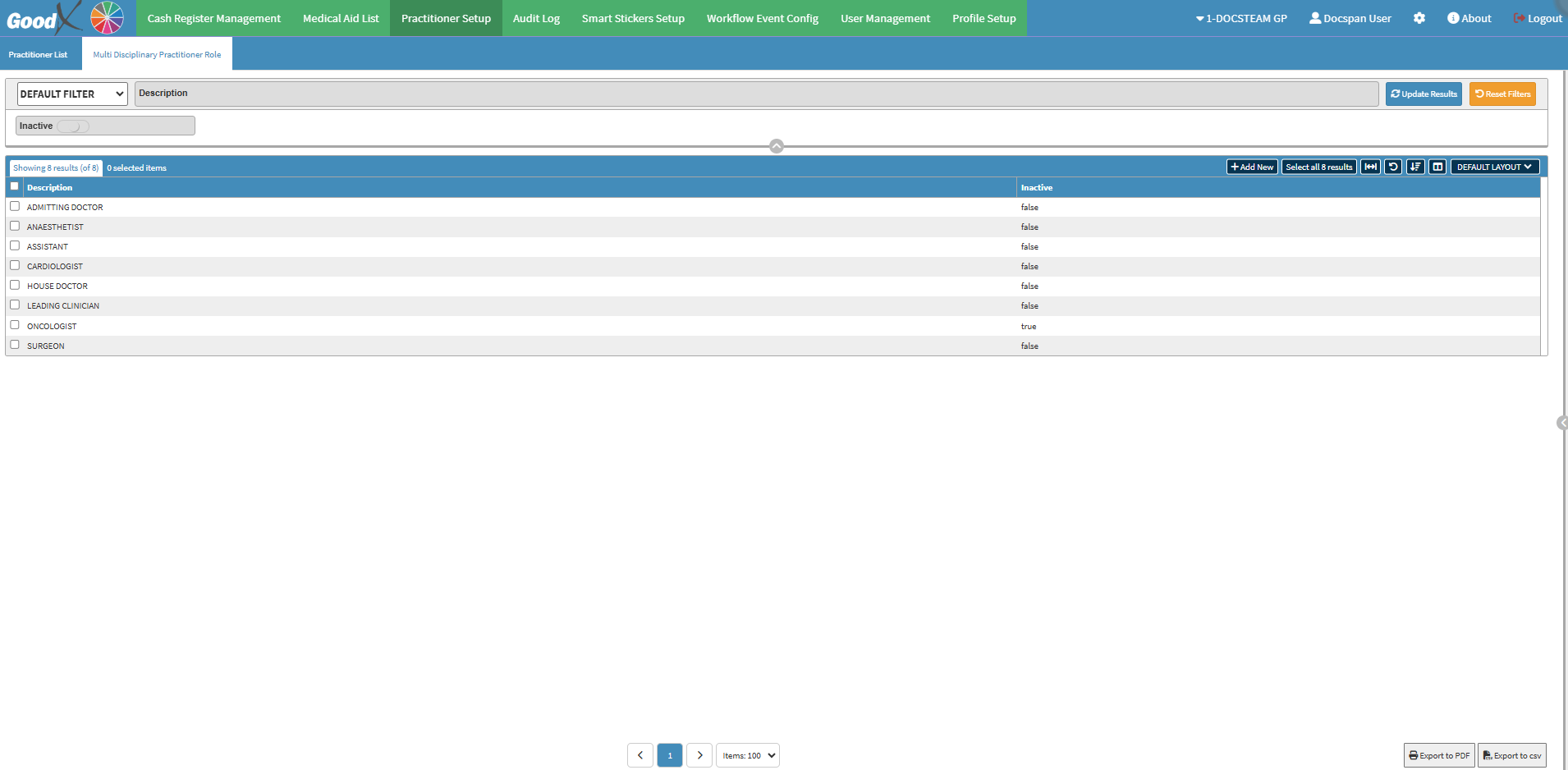
The Multi-Disciplinary Practitioner Role screen will open.
Filters
Allows you to narrow down or refine the results displayed on the Practitioners List tab.
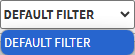
Click on the Default Filter drop-down menu to select how the screen will be filtered.
Click on the Description field to enter the description of the Practitioner who you are searching for.
The Disabled slider is set by default to show all the Practitioners that are active and inactive.
Click on the Disabled slider to show Enabled Practitioners.
Click on the Disabled slider a second time to show the Disabled Practitioners.
Click on the Update Results button to refresh the results.
Click on the Reset Filters button to erase all the filters inserted.
Screen Column Actions Button
Several additional Options are available for the Columns. These additional Options are to help the User adjust the List, refine the Search and give more specific results.
Click on the Add New button to add a New Practitioner Role.
Click on the Default Layout drop-down menu to select the type of layout that will be used for the screen.
?Please Note: The Multi-Disciplinary Role screen only has the option to be displayed using the Default Layout and no other options are available for the layout of the Multi-Disciplinary Role screen.
Columns
All the information on the Multi-Disciplinary Practitioner Role screen is divided into Columns to logically group related information together.
Description: The description is the role.
Inactive: The Inactive column indicates whether the role is Active/Inactive at the Practice.
Page Options
All the additional Options that are available for the Page.
Click on the Export to PDF button to save the contents on the list as a PDF file.
Click on the Export to CSV button to save the contents on the list in a CSV format.
Last modified: Thursday, 20 February 2025, 10:25 AM