Text size
Line height
Text spacing
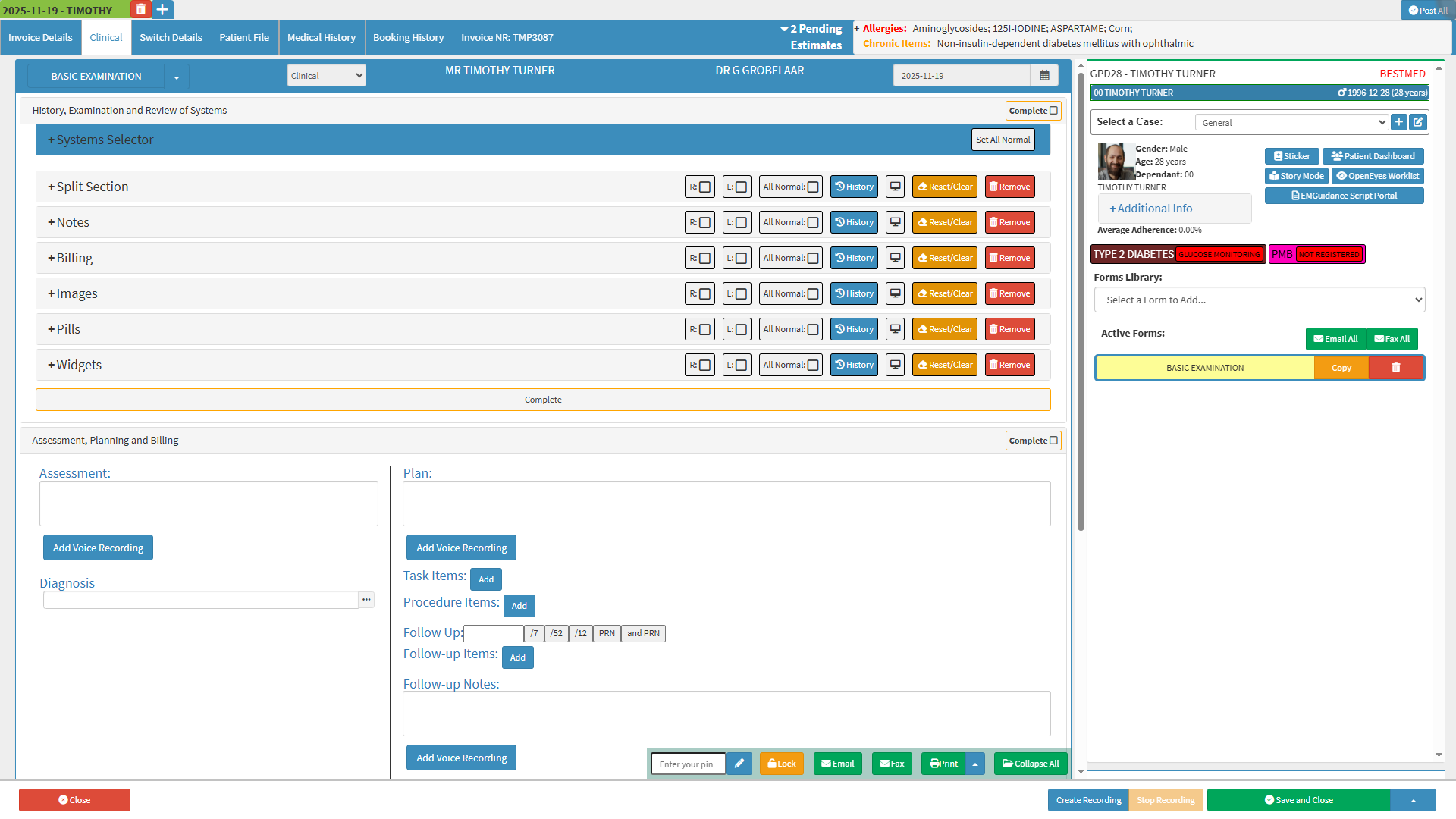
Clinical and Medical Information is a central point of access to all clinical data related to a Patient. Through the Clinical button, you can easily navigate between various tabs containing essential details such as the Patient’s medical history, past clinical information, completed forms, and newly created clinical documentation.
This streamlines access to the Patients' clinical records, enabling Practitioners to review previous treatments, update medical notes, and capture current clinical information with ease. The intuitive layout and organised structure support efficient navigation, ensuring that all relevant medical information is available at a glance, ultimately enhancing workflow, accuracy, and the overall delivery of Patient care.
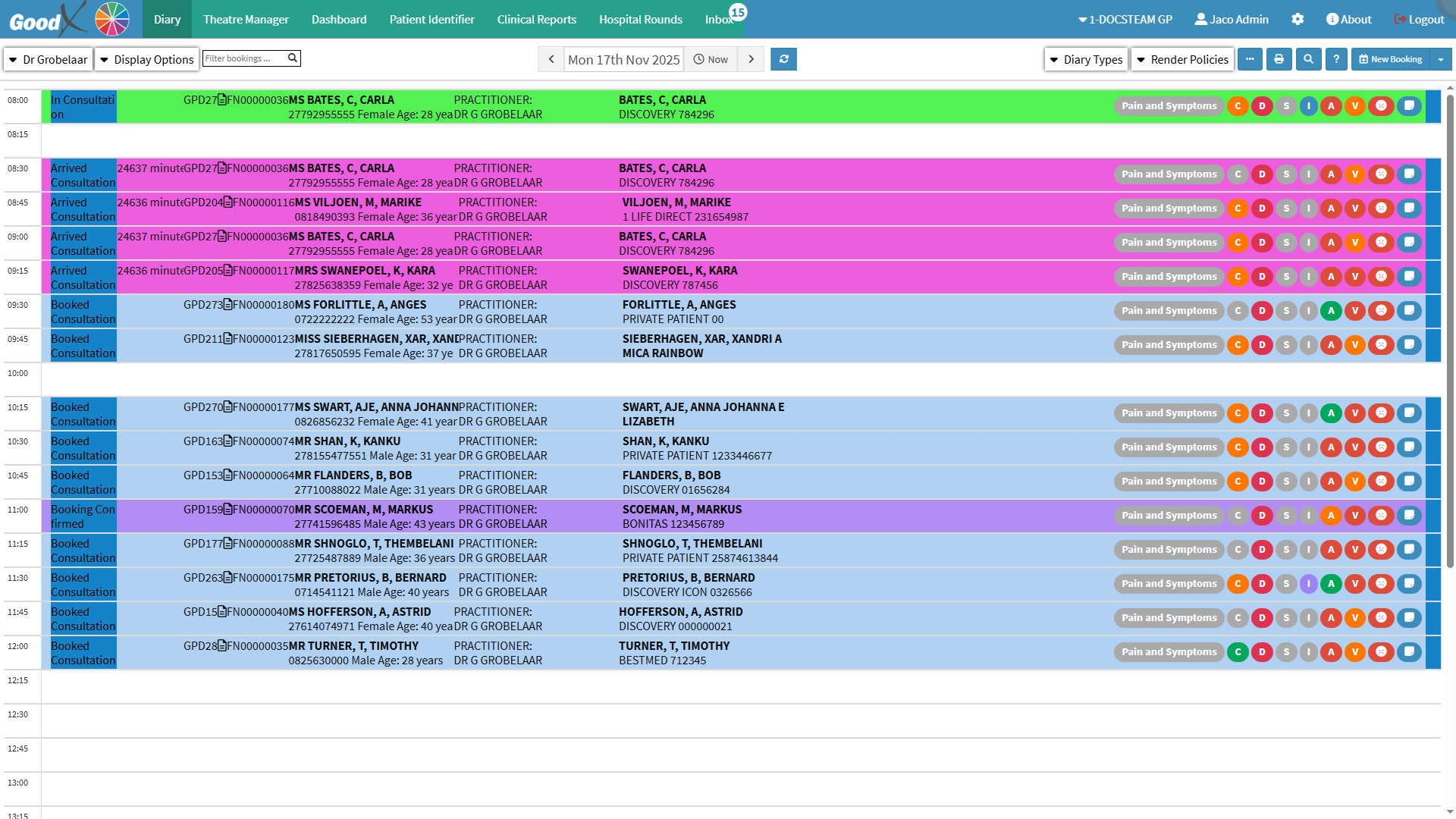
?Please Note: You can access Patient Clinical Information from various locations within the system, but for the purposes of this user manual, we will be using the Clinical button from the Diary screen.
Having quick access to a wide range of your Patients' clinical and medical information needed for their appointment allows you to review essential details efficiently while managing their bookings.



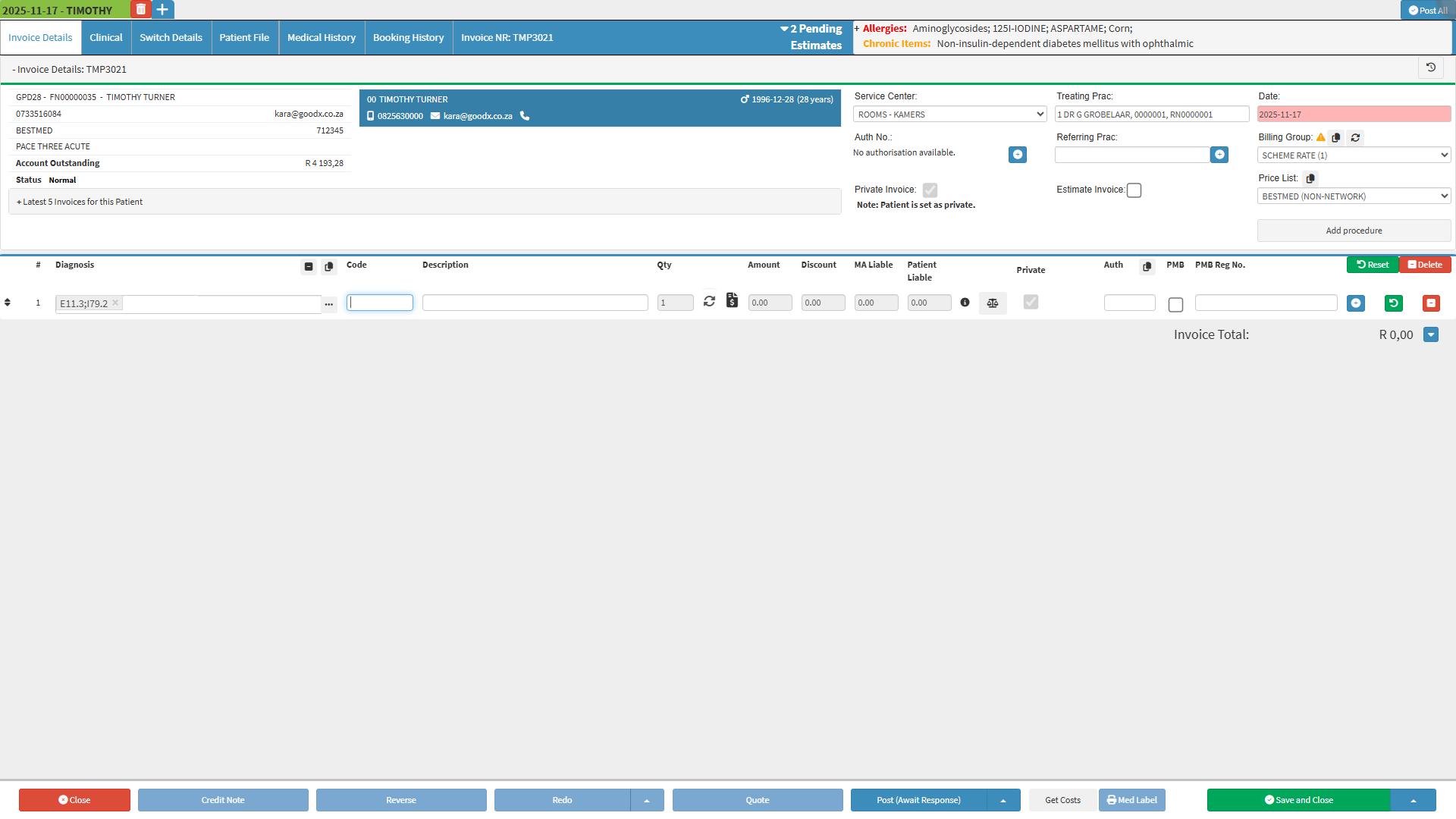
When a Patient is examined or treated by a Practitioner, the Practitioner will bill the Patient for services rendered. The Practitioner will use an Invoice to bill the Patient accordingly. The Invoice will be made out to the main member or the person who is responsible for the account payment. The Patient's details will also appear on the Invoice. An Invoice will be generated for each visit, detailing all consultations, procedures, medications, and consumables provided to the Patient. An Invoice will have an amount per line and a total for all the line items. An Invoice can be used for tax purposes. The Invoice can also be used to show the Patient how much they need to pay for the visit. An Invoice is also known as a Tax Invoice, which will indicate the VAT rate and the VAT amount.

Switching is the process that allows the Practice to submit claims directly and in real-time to all major Medical Aid computer systems. In return, the Practice will receive a Switch Response to their request to indicate whether the claim has been approved or rejected. Switch responses assist the Practice with the Claim Administration process.

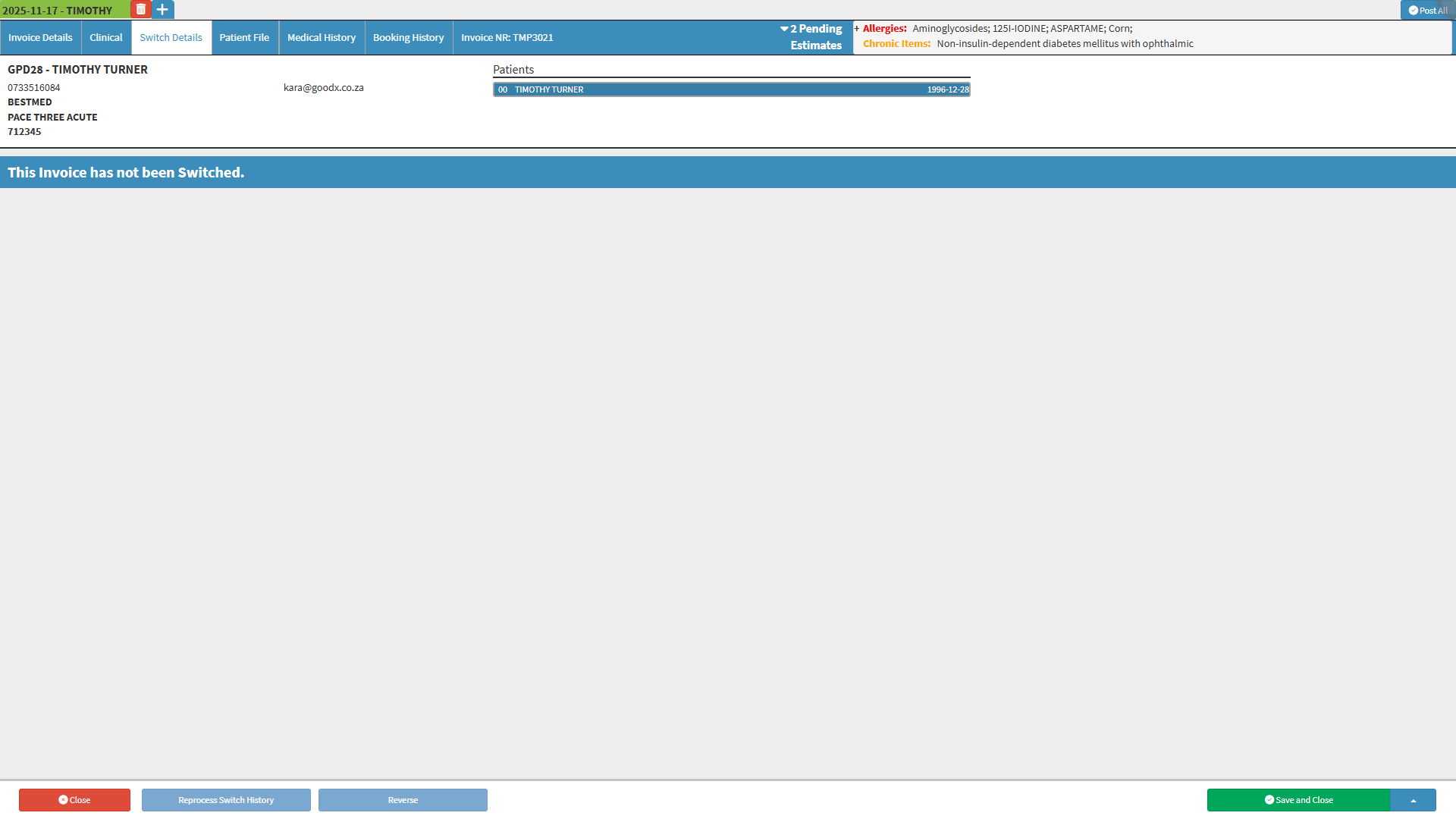
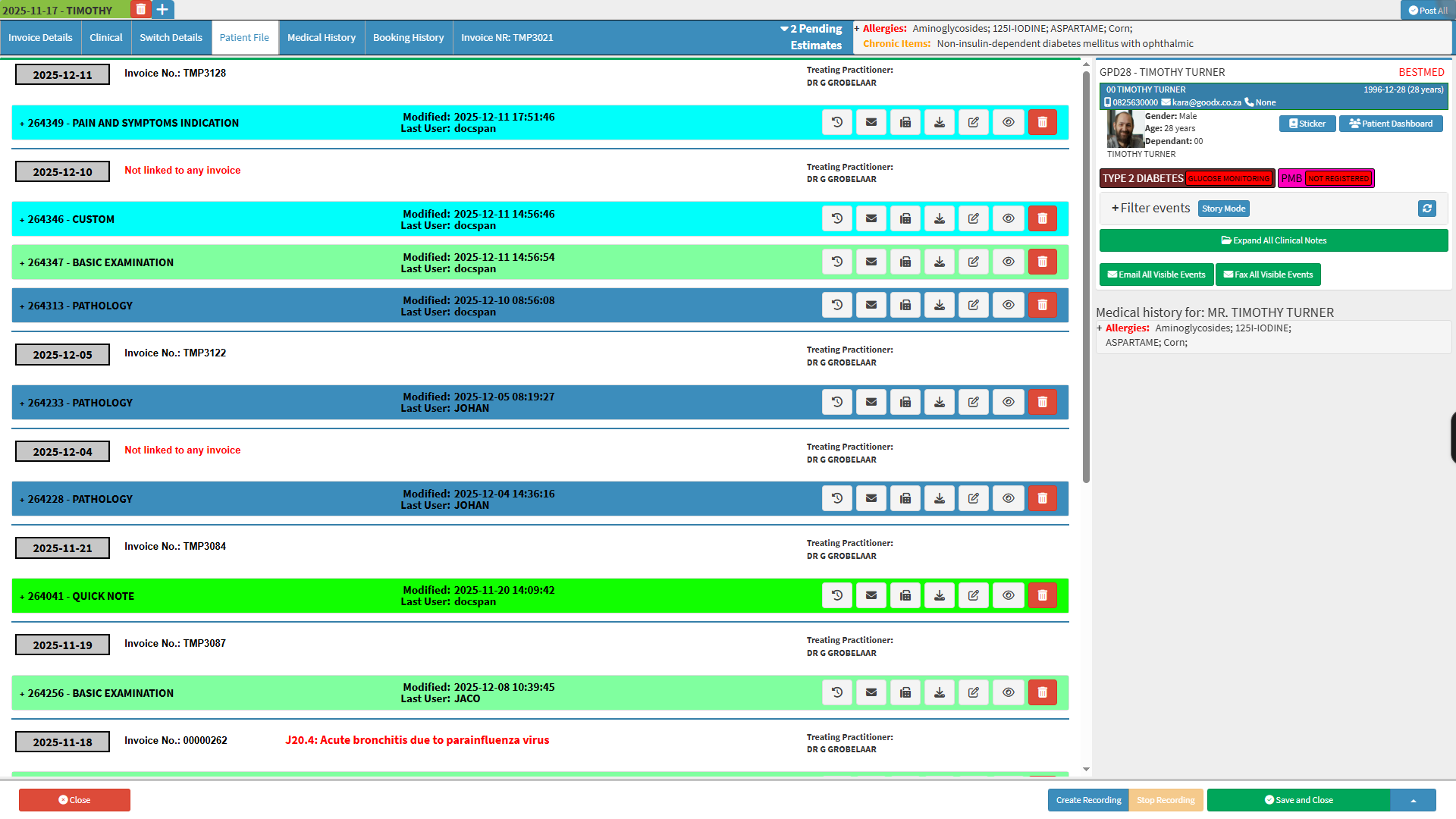
The Patient File serves as a comprehensive record of the Patient’s Clinical History, containing all relevant medical information and Clinical Events. Within the file, Practitioners can access the Patient’s previous Scripts, Sick Notes, Investigation Forms, and other essential documents. Having access to this information provides Practitioners with a clear overview of the Patient’s medical background, supporting accurate diagnosis and effective treatment planning.