Glossary: ERA Batch Details Add New Payment
Why This Matters? Adding a New Payment to an ERA Batch captures a medical aid payment received but not yet included in the ERA batch. You can add the payment details to the batch so it matches the relevant claims and accounts.
Adding the payment ensures that the ERA Batch reflects the actual payment received, making it easier to reconcile the medical aid's payment with the claims submitted and keep the Practice's financial records accurate.
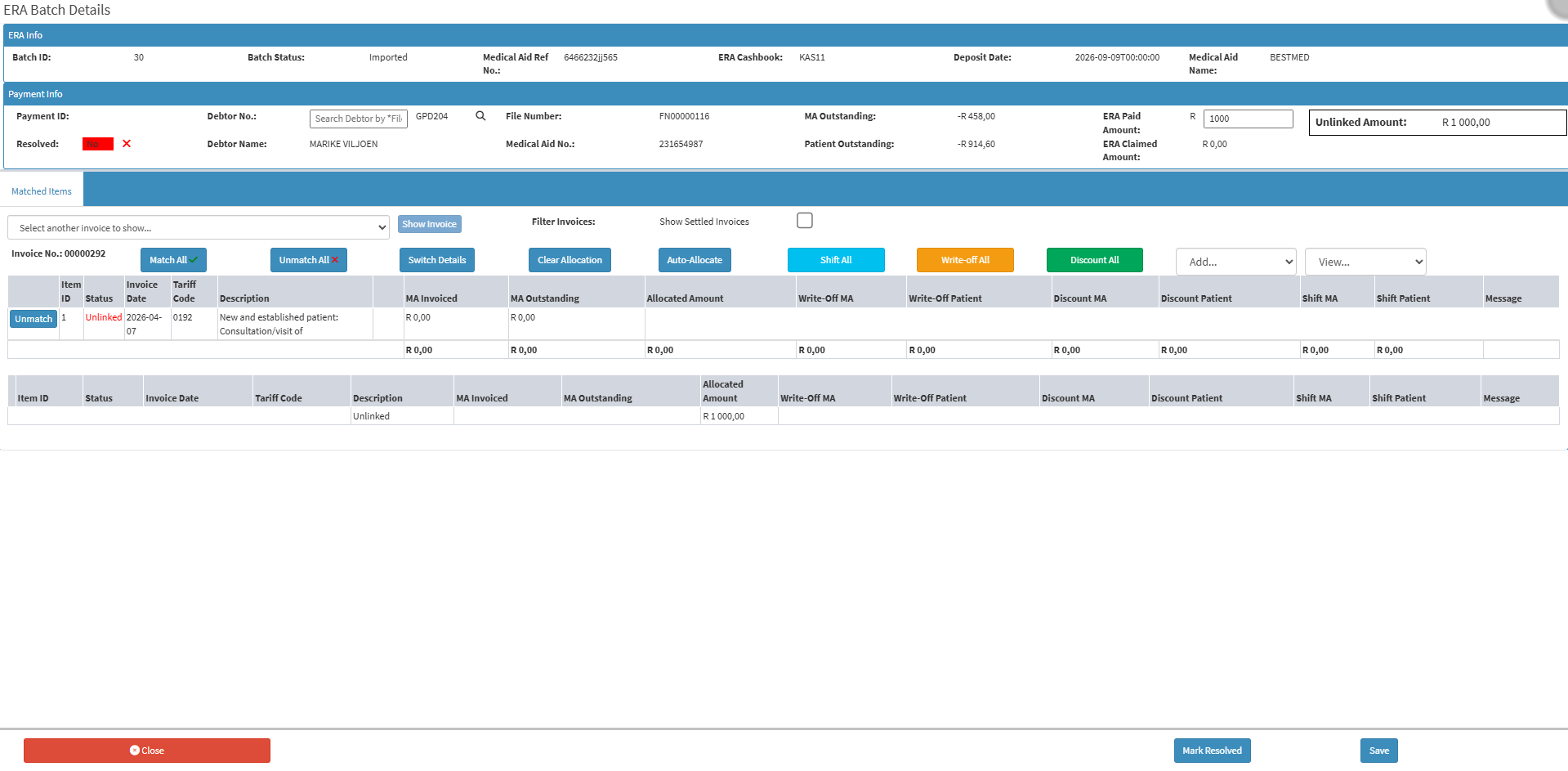
Start on the ERA Batch Details New Payment screen.
ERA Info
Payment Info
Matched Items
Screen Buttons
ERA Info
Batch ID: A unique number used to identify and track the remittance batch.Batch Status: Shows the current status of the ERA file.Medical Aid Ref No.: The reference number provided by the medical aid for the payment.ERA Cashbook: The cashbook account used to record the payment.Deposit Date: The date and time the payment was deposited.Medical Aid Name: The name of the medical aid or insurer that sent the payment.
Payment Info
Payment ID: A unique number used to identify and track the payment.Resolved: Shows whether the payment has been fully processed.Debtor No.: The account number of the person responsible for the bill.
💡 Please Note: You can search for a debtor using the Debtor Number field. Once you select a debtor, the outstanding amounts fill in automatically.
Debtor Name: The full name of the person responsible for payment.File Number: The patient’s medical record or reference number.Medical Aid No.: The membership number of the main member on the medical aid.MA Outstanding: The amount still owed by the medical aid.Patient Outstanding: The amount still owed by the patient.ERA Paid Amount: The amount paid by the medical aid as shown on the ERA.ERA Claimed Amount: The amount originally claimed from the medical aid.Unlinked Amount: The amount that has not yet been matched to specific invoice line items.
Matched Items
Select another Invoice to Show...: Search for and select a different invoice to view or reconcile.Show Invoice: Displays the selected invoice in the matching window.Filter Invoices: Option that includes or excludes fully paid and settled invoices from the display view.Invoice No.: Displays the specific invoice number currently being processed or matched.
Action Buttons
Match All: Links all available remittance line items to the matching invoice line items.Unmatch All: Removes all existing links between remittance items and invoice line items.Switch Details: Changes the layout to show more detailed information about the invoice items. For more information, see Switch Details Screen: Navigation and Use .Clear Allocation: Removes any entered or calculated allocation amounts without unlinking the items.Auto-Allocate: Automatically distributes the available payment amount across outstanding invoice items.Shift All: Moves the remaining balance between the medical aid and the patient.Write-Off All: Cancels all remaining outstanding amounts on the displayed invoice.Discount All: Applies a discount to all listed invoice items.Add: Provides additional invoice actions.View: Switches between different table views.
Columns
Item ID: The number used to identify this line on the invoice.Status: Shows whether the charge is linked to a medical aid claim.Invoice Date: The date the service was billed.Tariff Code: The standard code used for the treatment or service.Description: The treatment or service provided.MA Invoice: The total amount charged to the medical aid for this item.MA Outstanding: The amount still owed by the medical aid.Allocated Amount: The amount paid towards this charge.Write-Off Amount: The total amount cancelled and no longer owed.Write-Off MA: The amount owed by the medical aid that was cancelled.Write-Off Patient: The amount owed by the patient that was cancelled.Discount MA: The discount given to the medical aid.Discount Patient: The discount given to the patient.Shift MA: The amount moved from the medical aid balance.Shift Patient: The amount moved to or from the patient balance.Message: Notes from the medical aid about a payment or rejection.
Screen Buttons
Close: Closes the screen without saving.Mark Resolved: Marks the payment as resolved.Save: Saves the payment details.
Last modified: Thursday, 8 October 2026, 7:39 PM