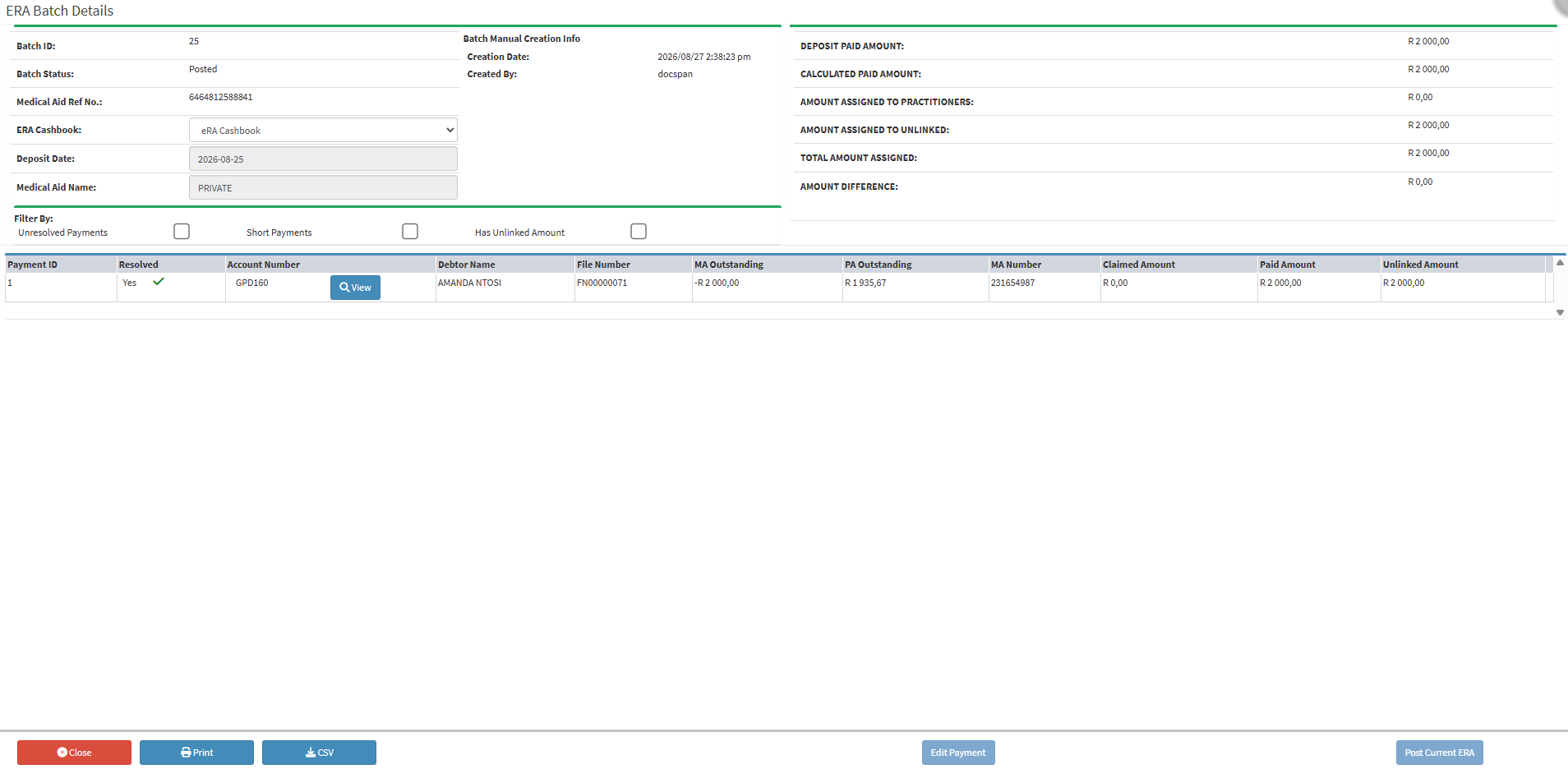
The ERA Batch Details Screen brings your incoming payment information and submitted claims together into one clear, interactive view, giving you complete visibility over what medical schemes have actually paid versus what you claimed.
Instead of jumping between paper statements and system records, this screen acts as your safety net. It allows you to check bank deposit details, review individual claim responses, and catch underpayments or rejections before anything is finalised. By taking a moment to review and reconcile these line items here, you prevent billing errors, keep your practitioner accounts accurate, and ensure your practice's financial records reflect reality every single day.
Batch ID: The unique reference number assigned to a specific payment batch for tracking and identification.
Batch Status: The current state of the batch within the processing workflow (e.g., pending, posted, or reconciled).
Medical Aid Reference No.: The unique tracking or payment reference number provided by the medical scheme for the remittance advice.
ERA Cashbook: The designated cash book where the Electronic Remittance Advice payment entries are posted and allocated.
Deposit Date: The official date on which the payment amount was deposited into the practice's bank account.
Medical Aid Name: The name of the medical scheme that issued the payment remittance.
Deposit Paid Amount: The total lump-sum payment amount received and deposited into the bank account.
Calculated Paid Amount: The total calculated sum of all individual payment line items processed within the batch.
Amount Assigned to Practitioners: The portion of the total payment amount successfully allocated to specific treating practitioners.
Amount Assigned to Unlinked: The portion of the payment that has not yet been linked or allocated to a specific patient or practitioner account.
Total Amount Assigned: The combined total of all funds allocated across practitioners and unlinked entries.
Amount Difference: The variance between the deposited amount and the total assigned/calculated amount, highlighting any discrepancies that need reconciliation.
Batch Manual Creation
Creation Date: The date and time the ERA was created.
Created By: The logged-in user who created the ERA.
Filter By
Unresolved Payments: Payments that have not been resolved.
Short Payment: A payment received that is less than the total claimed amount.
Has Unlinked Amount: Payments that are not linked to an account.
Columns
Payment ID: The unique identification number assigned to the payment transaction within the system.
Resolved: Indicates whether the payment or line item has been fully reconciled and processed.
Account Number: The primary account number associated with the billing record.