Text size
Line height
Text spacing
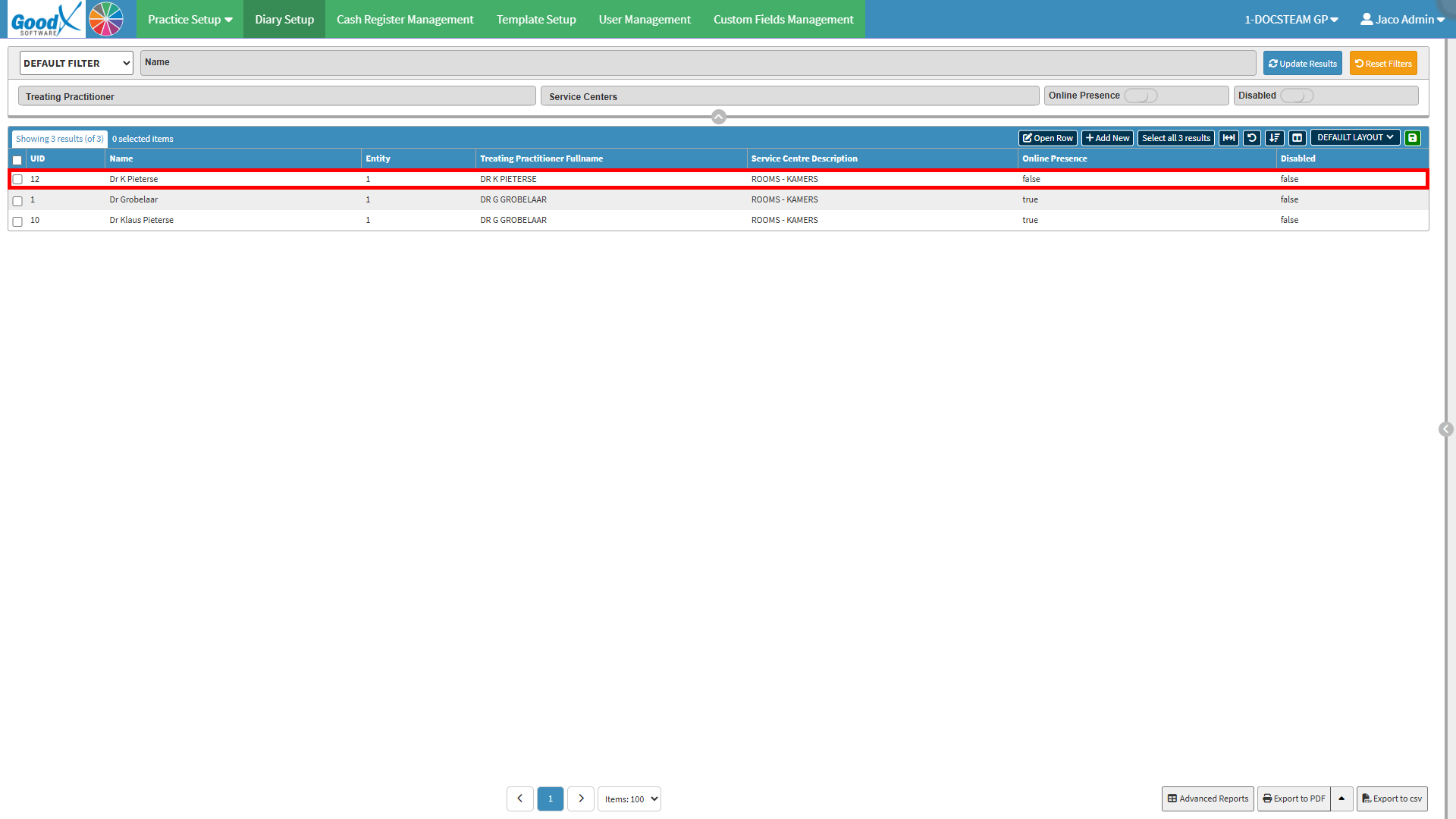
Setting up a Diary configures the Diary to match the practice's scheduling requirements. This includes setting up the information and options needed to manage practitioner availability and appointments correctly.
A correctly configured Diary provides a consistent structure for scheduling and helps ensure that appointments can be managed according to the practice's workflow.
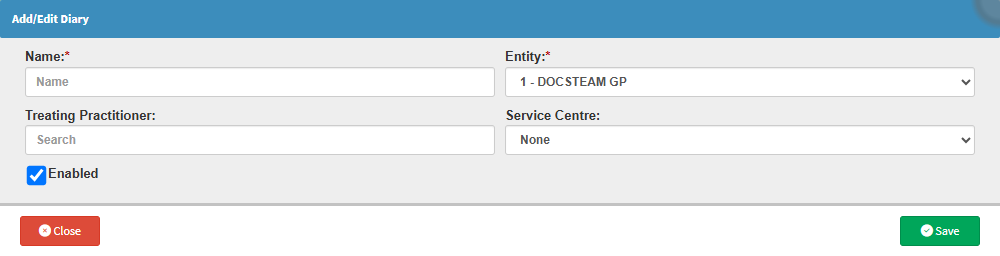
💡Please Note: Entities can only be set up in the Desktop App. For details, see Entity Setup.