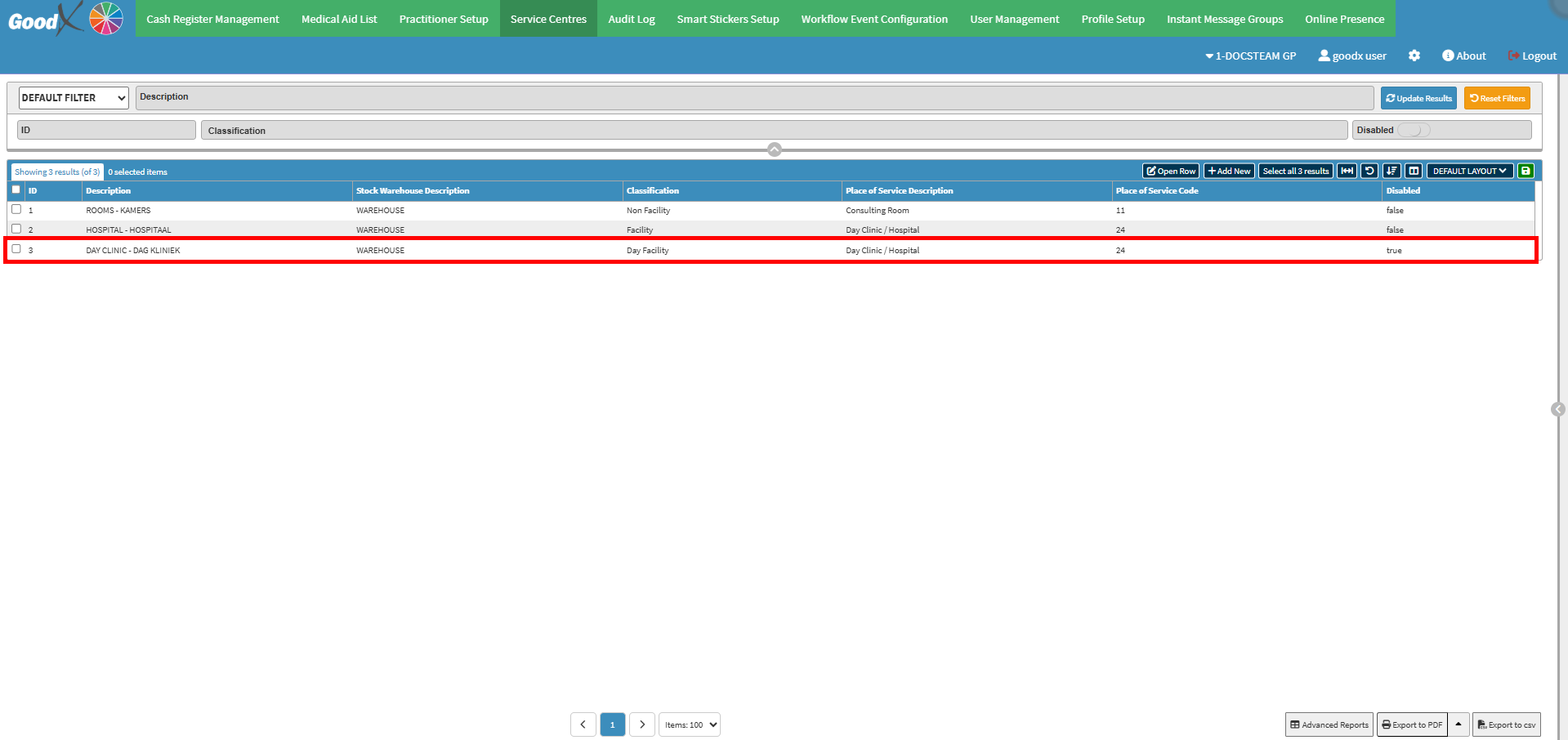
Text size
Line height
Text spacing
Why This Matters:
Adding or editing a Service Centre allows you to configure and maintain the locations where patients receive medical care or treatment, such as a hospital, consulting room, theatre, ward, or ambulance. Each Service Centre can be configured with its own operational, billing, inventory, and booking settings to ensure that services are recorded and processed correctly.
Accurately maintaining Service Centres is essential, as they determine the applicable billing rates, Price Lists, Medical Aid benefits, and inventory source based on where treatment is provided. They also determine how Medical Aid claims are processed and whether the Medical Aid or the patient is liable for the account. Selecting the correct Service Centre helps ensure accurate billing, correct claim processing, effective stock management, and appropriate patient liability, while reducing the risk of claim rejections, billing errors, and unnecessary costs to the patient.
💡Please Note: A Service Centre can be linked to a booking type, allowing the appropriate Service Centre to be selected automatically when an appointment is created. Multiple Service Centres can be linked to the same warehouse; however, each Service Centre can only be linked to one warehouse.
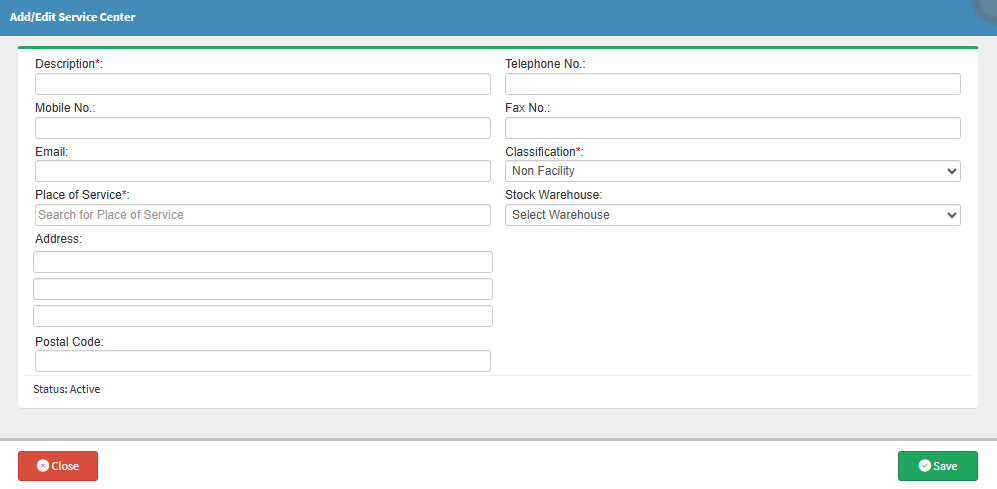
💡Please Note: Fields marked with an * (asterisk) are compulsory.
💡Please Note: A Disable button will become available if you edit a service centre, where you can disable or enable that specific service centre.