Why This Matters?

The Print Diary function allows you to print a copy of your GoodX Diary, providing a reliable backup of your appointment schedule. A printed diary ensures continued access to your bookings during internet or power outages and makes it easy to review, plan, or share your schedule when needed.

  • Start on the Print Diary screen.

Sections

  • Filters
  • Action Buttons

Filters

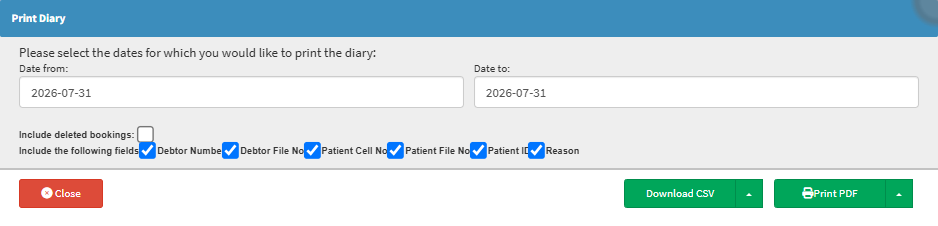
  • Date From: Enter or select the start date for the date range you want to include in the report or search.
  • Date To: Enter or select the end date for the date range you want to include in the report or search.
  • Include Deleted Bookings: This option will display the deleted booking on the Diary printout too.
  • Include the following fields: This option will allow you to filter and choose the fields you would like to display on the Diary printout.
  • Debtor Number: The unique number assigned to the Debtor's account.
  • Debtor File No: The reference number used to identify the Debtor's file or record.
  • Patient Cell No: The Patient's primary mobile phone number.
  • Patient File No: The unique reference number assigned to the Patient's file.
  • Patient ID: The Patient's South African ID number or passport number used for identification.
  • Reason: The reason for searching or accessing the Patient's or Debtor's record.

Action Buttons

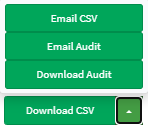
  • Click on the Download CSV drop-down arrow for all available export options.


    • Download CSV: Downloads the selected diary information as a CSV file for use in spreadsheet applications such as Microsoft Excel.
    • Email CSV: Sends the selected diary information as a CSV file to the specified email address.
    • Email Audit: Sends an audit report of the selected diary entries to the specified email address.
    • Download Audit: Downloads an audit report of the selected diary entries as a file for review or record-keeping.

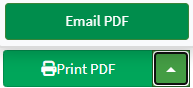
  • Click on the Print PDF drop-down arrow for all available print options.

    • Print PDF: Generates and opens the selected diary information as a PDF, ready for printing or saving.
    • Email PDF: Sends the selected diary information as a PDF attachment to the specified email address.

Last modified: Friday, 7 August 2026, 8:13 AM