Adding a new Script Line Macro lets you create predefined prescription lines that can be reused during Script creation, streamlining workflows and improving prescribing consistency. Each macro can include important prescription details such as diagnosis, medication, dosage, frequency, quantity, repeats, and directions for use, reducing repetitive manual entry and minimising the risk of prescribing errors.
Script Line Macros are especially useful for commonly prescribed medications or treatment plans associated with specific diagnoses, enabling practitioners to quickly generate accurate, tailored prescriptions. This supports clinical efficiency, prescription consistency, billing accuracy, and prescribing compliance.
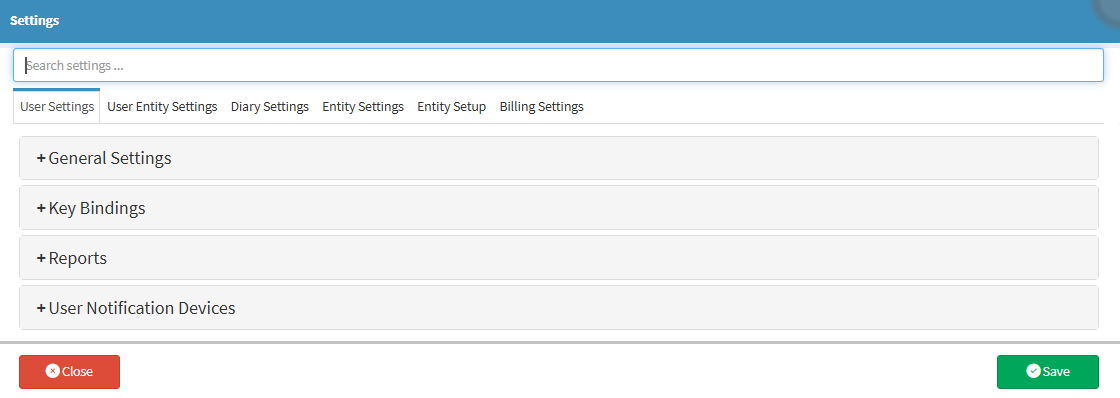
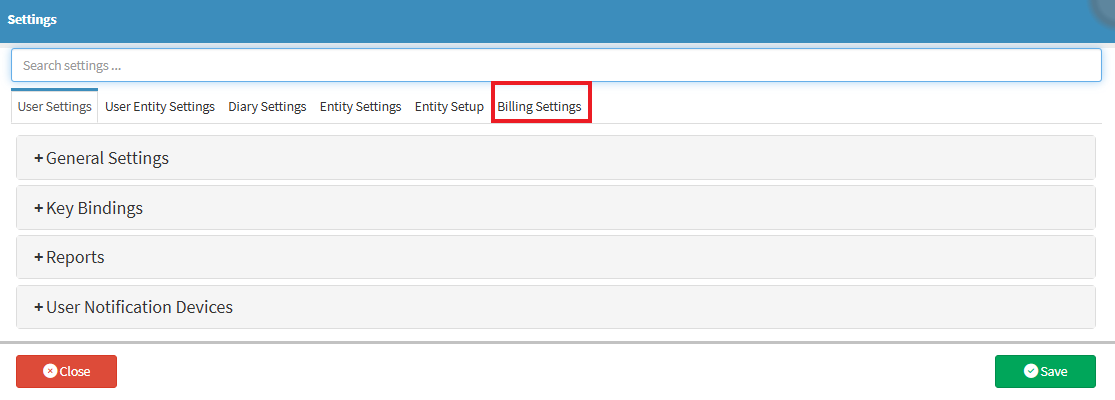
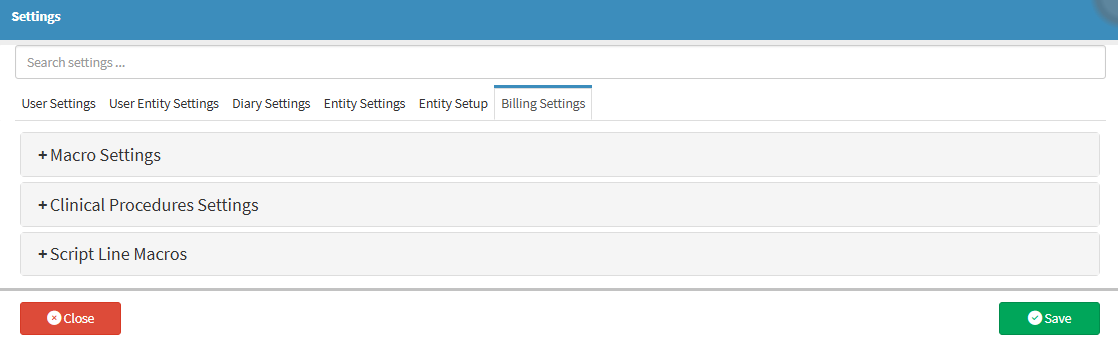
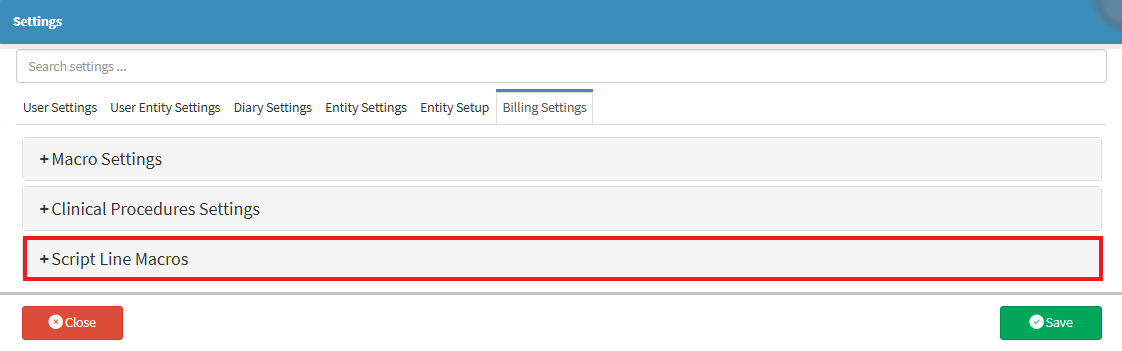
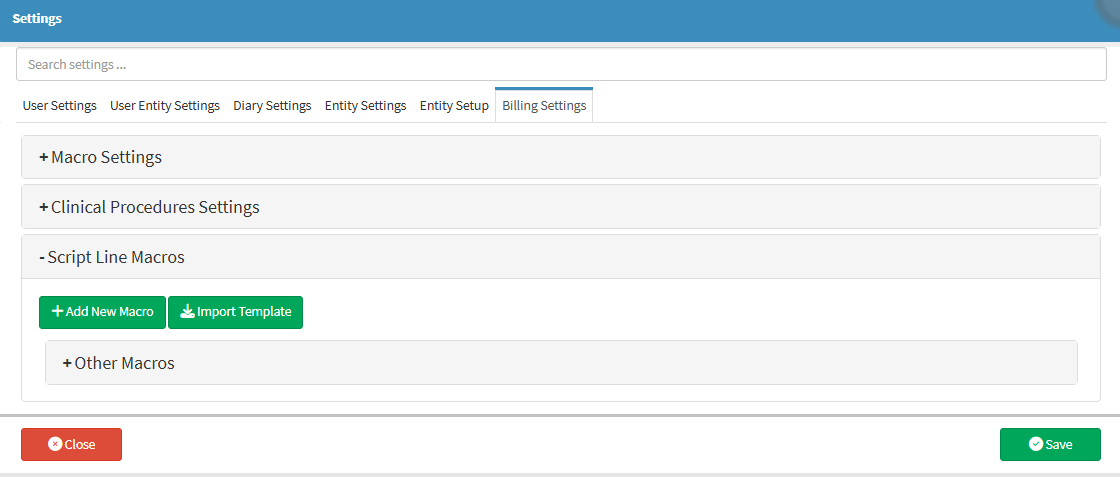
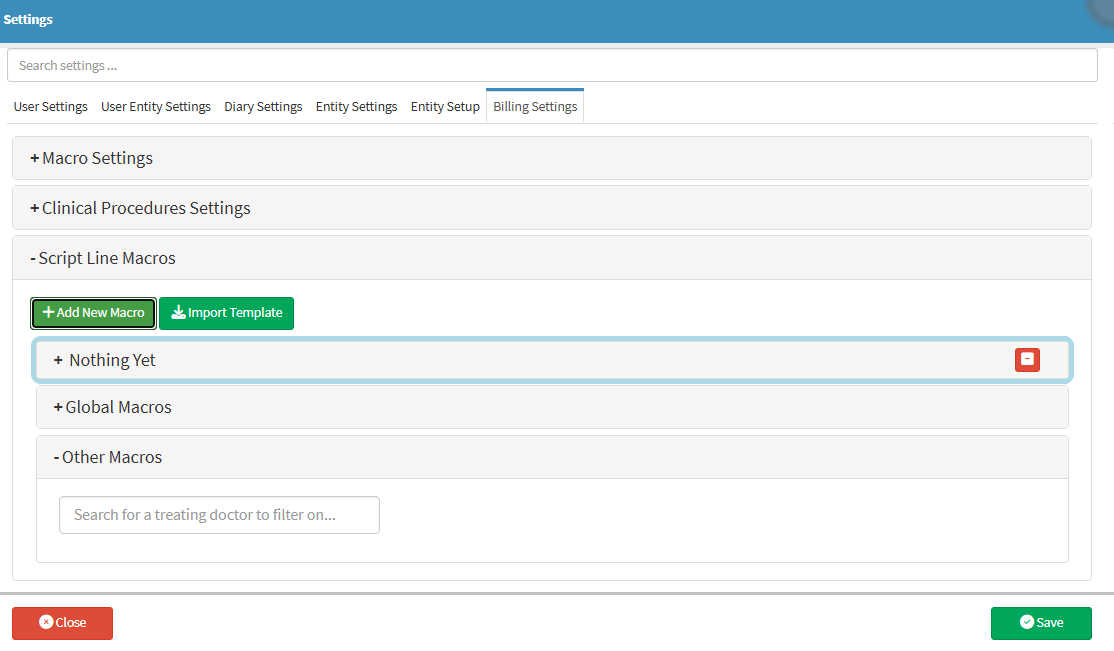
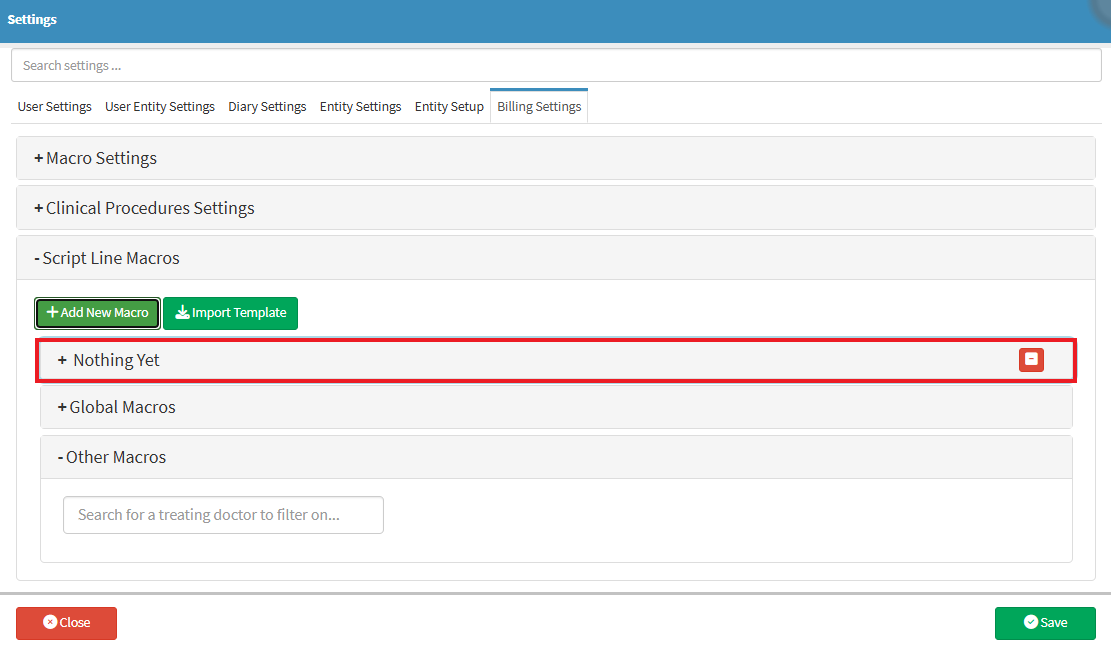
This user manual will start on the Settings screen.
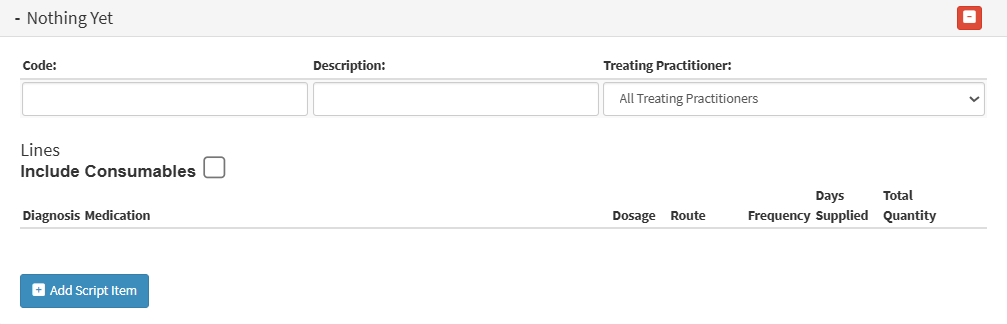
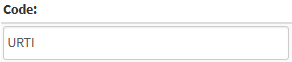
Enter a unique identifier for the macro in the Code field.
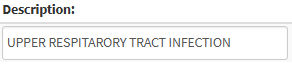
Enter the name of the macro in the Description field.
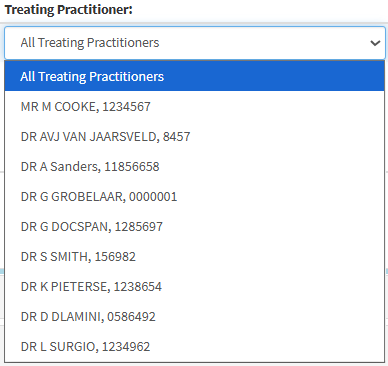
Select a treating practitioner in the drop-down menu.
The macro will be available only to that specific practitioner.
Include consumables in the macro by ticking the checkbox.
Click Add Script Item.
A new script line will be added, allowing a new item to be added to the macro.
Click on the Diagnosis field and enter the diagnosis for the condition to which this macro applies.
Click on the Medication field and start typing the medication that you want to add.
Click on the Dosage field and enter the dosage of the added medicine.
Click on the Route drop-down menuand select the route by which the medication should be administered.
Click on the Frequency field and enter how often the medication should be used.
Click on the Days Supplied field and enter the number of days for which the medication should be supplied.
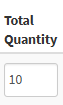
💡Please Note: The Total Quantityfield will be automatically calculated and populated based on the dosage, frequency, and number of days entered.
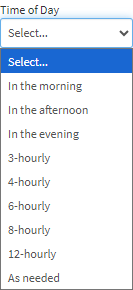
Click on the Time of Day drop-down menu and select when the medication should be used.
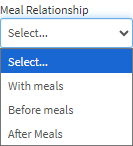
Click on the Meal Relationship drop-down menu and select how the medication should be used in relation to meals.
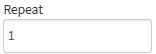
Click on the Repeat field and enter the number of times the script should be repeated.
💡Please Note: The directions for use will be automatically generated based on your selections for the Time of Day field, Meal Relationship field, and Repeat field.