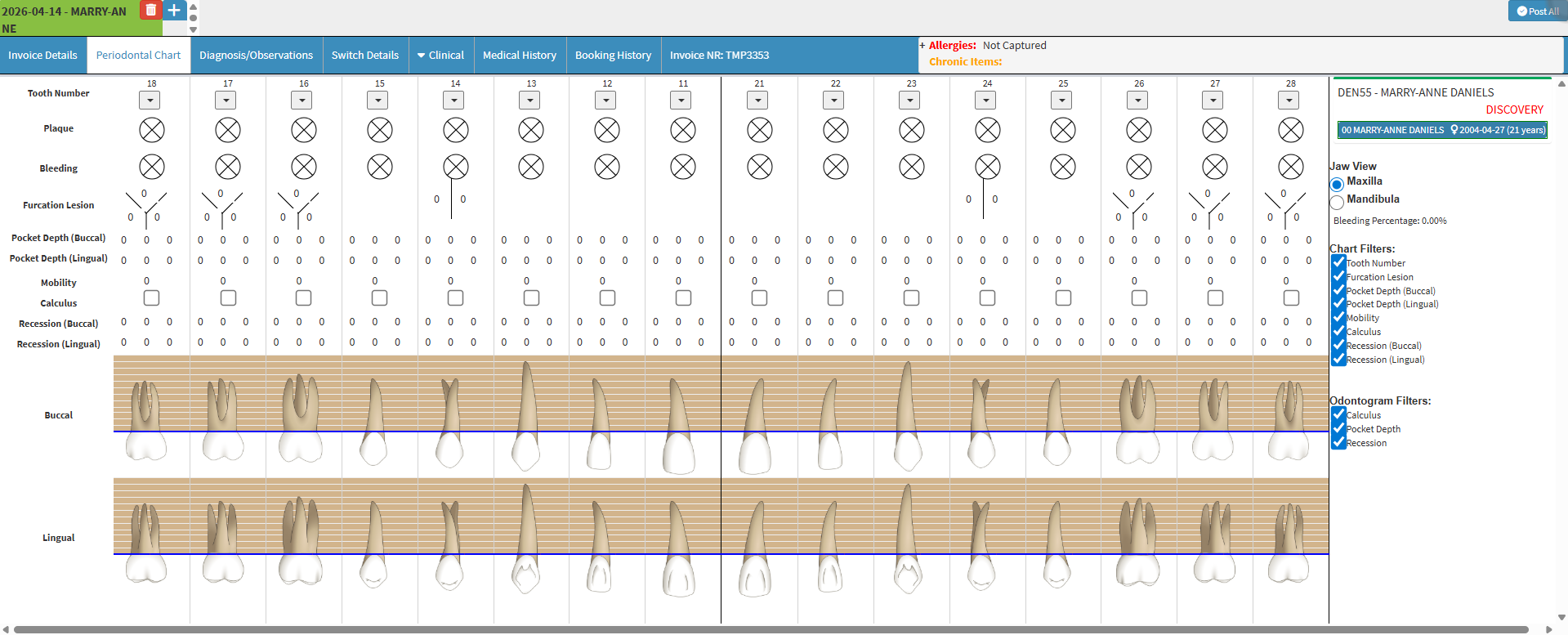
The Periodontal Chart is a diagram that displays all the essential information about the Patient's teeth and gums (Plaque, Bleeding, Furcation Lesion, Pocket depths, Mobility, Calculus, Recession) in the form of images. That allows Periodontists, Dental Surgeons, Orthodontists, and Dentists to see what is going on within a Patient's mouth in a simplified manner and create a treatment plan by studying the Periodontal Chart.
The Contents of This User Manual:
Views
Findings
Save and Close
This user manual will start on the Periodontal Chart screen.
The Periodontal Chart allows a Practitioner to select one of two Jaw Views when examining a Patient.
Click on the Maxilla to view the top jaw.
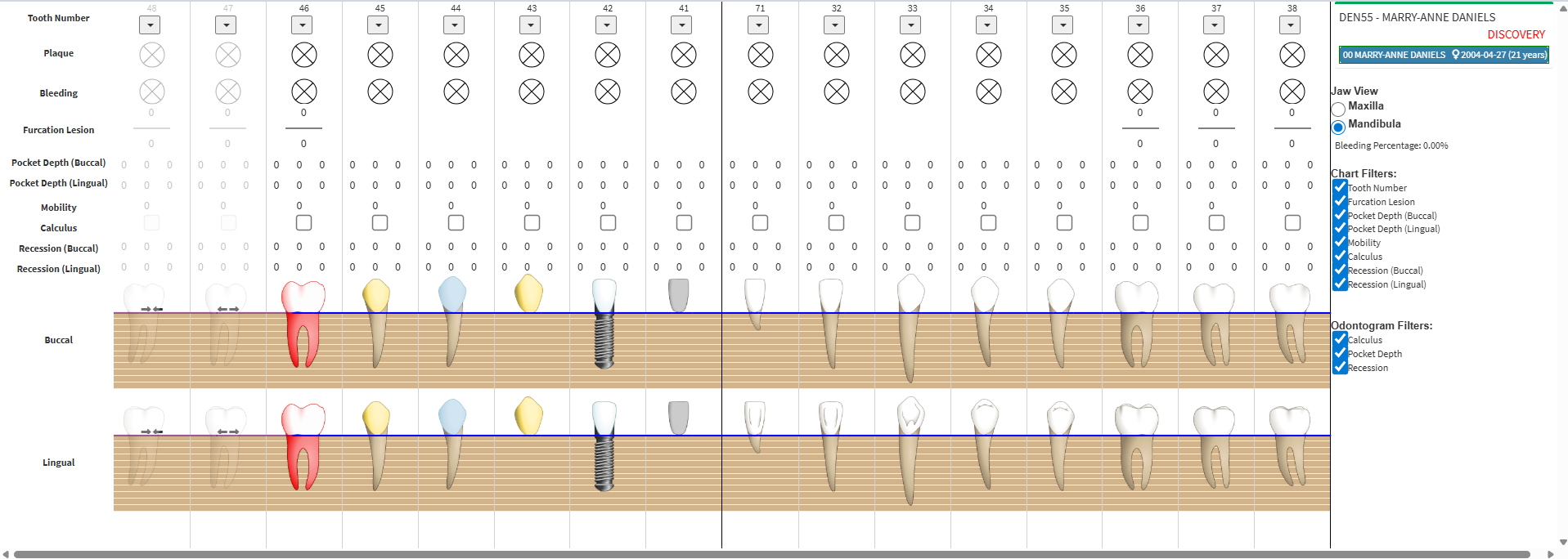
Click on the Mandibula to view the bottom jaw.
Findings
Findings are what the Practitioner discovers within the mouth of the Patient related to the condition of the Patient's teeth. When the Practitioner is examining a Patients mouth the Practitioner is able to indicate the findings on the Periodontal Chart.
Click on the Tooth Number drop-down arrow to select the appropriate criteria or procedure performed on the specific tooth.
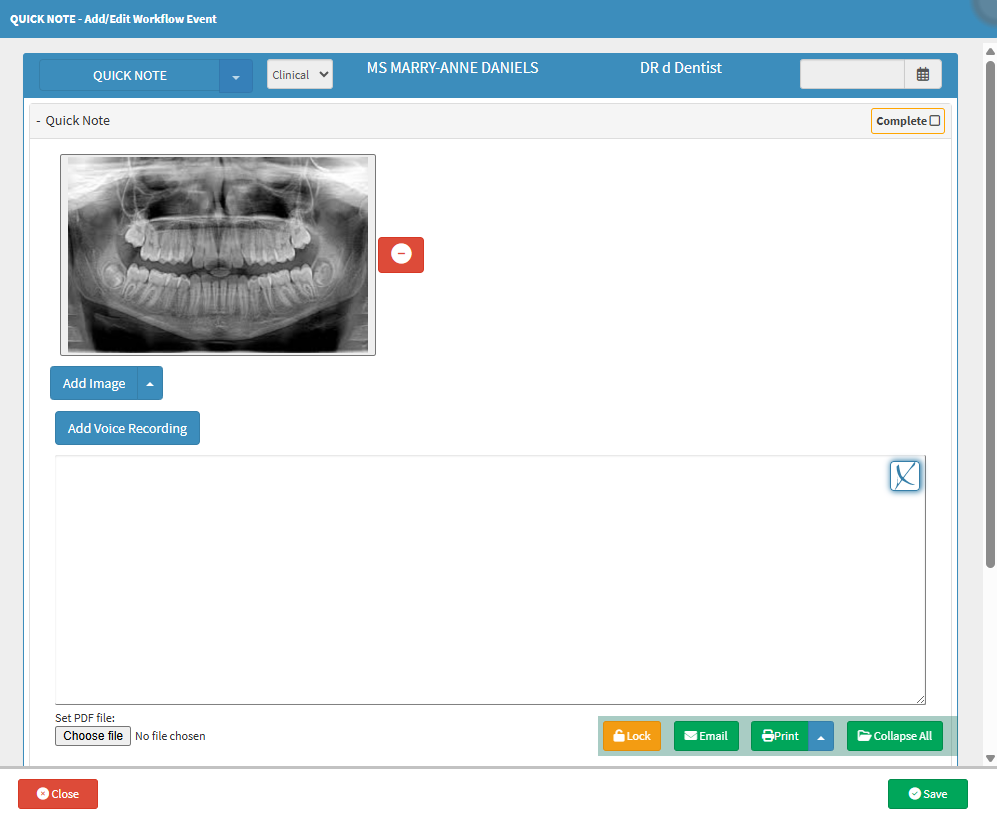
Click on the Add Note button to open the Quick Note - Workflow Event screen, allowing the Practitioner to capture general notes or upload photos for the specific Patient.
For more information on how to use the Quick Note - Workflow Event screen, please refer to the user manual: How to Make Quick Notes.
Click on the Save button when done with the clinical note.
Mark as missing with a gap: Indicates the tooth is absent and the space between adjacent teeth remains open.
Mark as missing without gap: Indicates the tooth is absent, but the surrounding teeth have shifted or been closed to leave no space.
Mark as impacted: Identifies a tooth that has failed to fully erupt through the gum line.
Mark Gold Crown: Records that the tooth has been restored with a gold-alloy cap.
Mark Porcelain Crown: Records that the tooth has been restored with a tooth-colored ceramic cap.
Mark Pontic Crown: Indicates a prosthetic tooth used in a bridge to replace a missing tooth.
Mark Implant: Identifies a permanent surgical fixture placed into the jawbone to replace a tooth root.
Mark Denture: Indicates that the tooth is part of a removable prosthetic appliance.
Change to Primary: Replaces the permanent adult tooth with its deciduous ("milk tooth") equivalent and updates the tooth numbering accordingly (e.g., changing Tooth 31 to 71).
💡Please Note: The screenshot below will indicate how each of the above options is displayed on the Periodontal Chart.
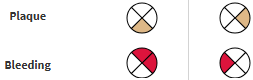
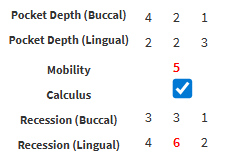
Click on the Plaque or Bleeding sections of the gums on the Periodontal Chart to indicate specific areas of concern for the Patient.
Click on the desired sections to record any changes.
💡Please Note: Any number above 4 will be marked red and slightly bolded to indicate an abnormality.
Save
The Practitioner is able to either close the Periodontal Chart without saving and deleting the notes and findings or a Practitioner is able to save and close the Periodontal Chart to revisit at a later date.
Click on the Periodontal History drop-up menu to open any previous charts for this Patient.
Click on the Print button to print a hard copy of the Periodontal Chart or create a pdf of the Periodontal Chart.
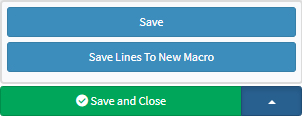
Click on the drop-up menu next to the Save and Close button for more saving options.
Save: The user is able to save the changes made to the form without closing the form.
Save Lines To New Macro: This allows the user to create a new Macro.
For an extensive explanation of the New Macro feature, please refer to the user manual: Macros (Billing Combinations).
Click on the Save and Close button to save the Periodontal Chart and exit the Periodontal Chart screen.