How to Move an Appointment
Why This Matters?
Moving an appointment allows you to reschedule an existing appointment to a different time or date without cancelling and creating a new booking. This is useful when a patient requests a different appointment time, a practitioner becomes unavailable, or an unexpected scheduling conflict occurs.
Moving the appointment keeps the existing booking information intact while ensuring that the Diary reflects the updated schedule. This saves time, reduces unnecessary administration, and helps maintain an organised schedule while making it easier to accommodate changes to patient and practitioner availability.
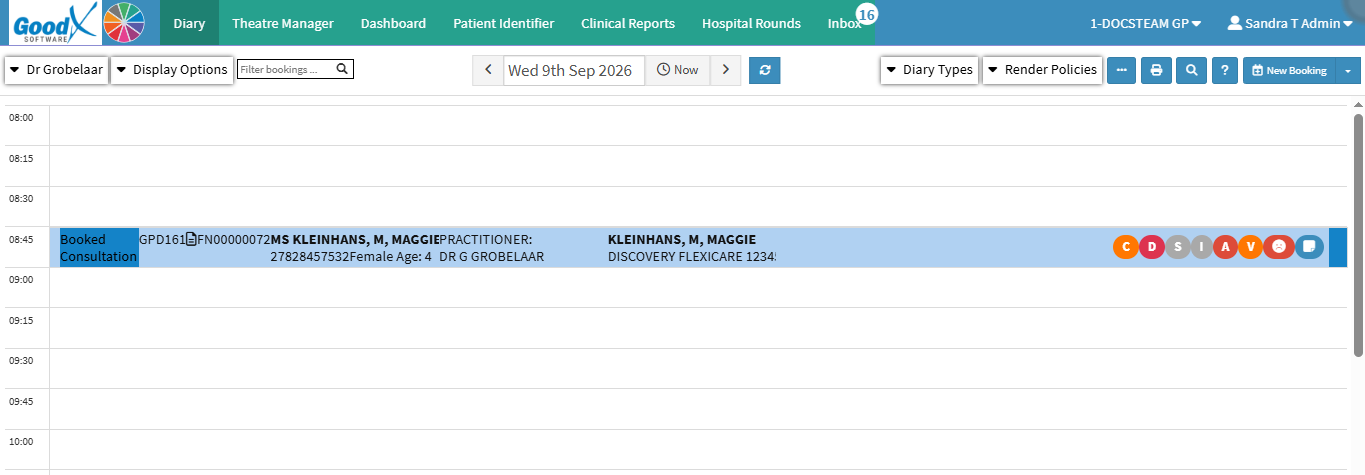
- Start on the Diary screen.

-
- For details and navigation, see Diary Screen Navigation.
Let's Follow These Steps
Drag and Drop
- Click, hold, and drag the booking to the desired time slot.
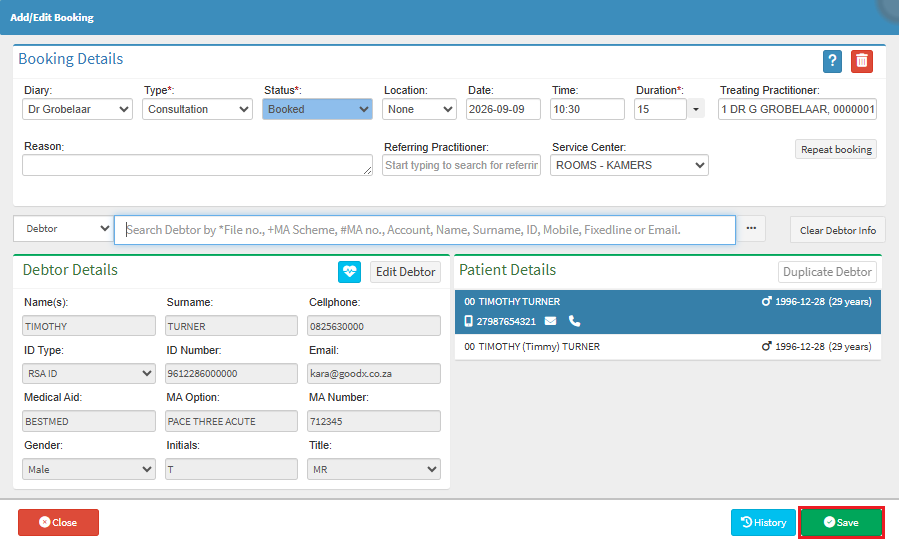
- Click the Save button.

-
- For details and navigation, see Add/Edit Booking Screen Navigation.
💡Please Note: When using Drag-and-Drop, an appointment can only be moved to a different time slot on the same day. To change the date, refer to the next section, Change Timeslot, of this user manual.

Change Timeslot
- Double-click on the desired appointment. For details and navigation, see Add/Edit Booking Screen Navigation.
- Click on the Date drop-down menu and select the desired date.
- Click on the Time drop-down menu to select the desired time slot.

- Click on the Save button.
Copy and Paste
- Click on the desired booking.
- Press Ctrl + C.
- Select the desired time slot.
- Press Ctrl + V.
- Click on the Save button.
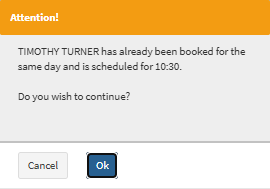
- An Attention! pop-up appears when copying to the same day.

Result
- The desired booking has been moved to a new time slot.
![]()
-
- For details and navigation, see Booking Timeslot Navigation.