Text size
Line height
Text spacing
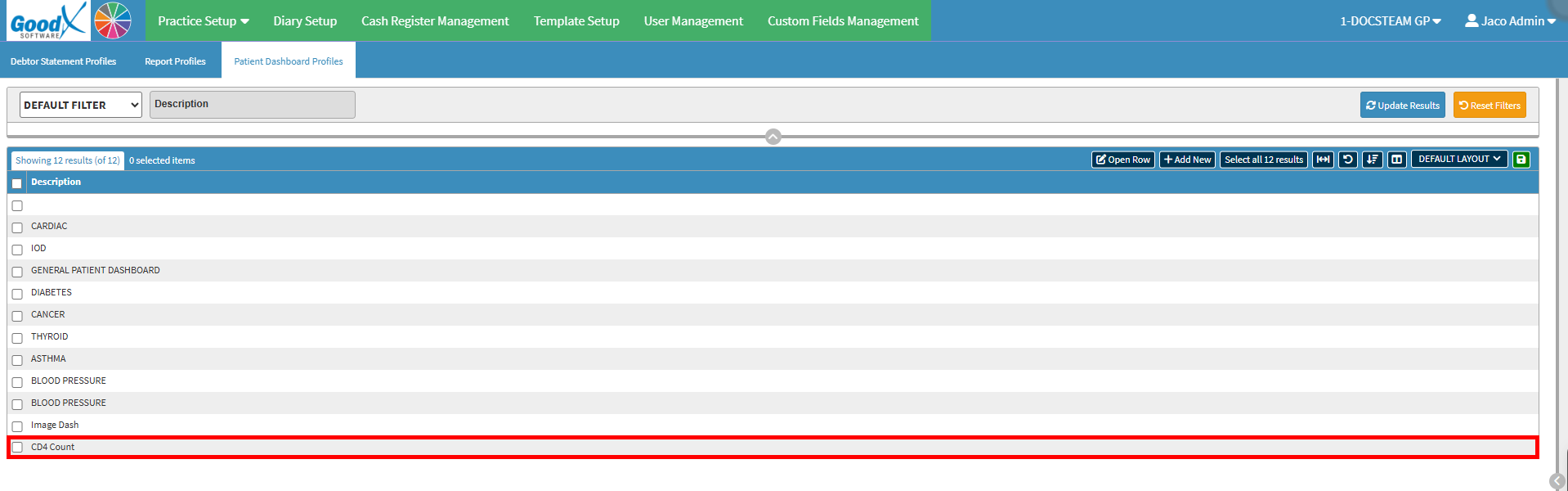
Setting Up Patient Dashboard Profiles is used to create and configure profiles for different clinical focuses, such as diabetes or heart disorders. This makes the appropriate profiles available for practitioners to select when working with patients, providing a focused view of the clinical information relevant to their care.
Setting up these profiles ensures that the Dashboard options are configured consistently and are ready for use. It also gives the practice greater control over how clinical information is organised and presented, helping practitioners work with a Dashboard that supports their specific workflow.
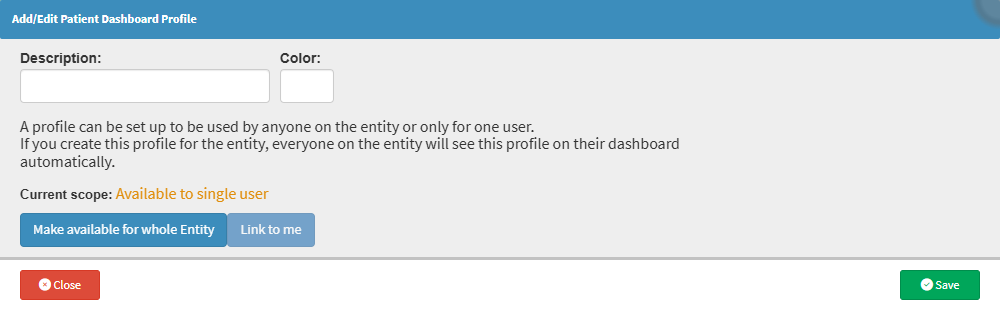
💡Please Note: Link to Me is selected by default, so the Patient Dashboard Profile is only available to the user who created it. Select Make Available for Whole Entity to make the profile available to all users in the Entity.