Text size
Line height
Text spacing
Logging in to the GoodX Web App serves as the secure, centralised gateway to your practice management system, authenticating identity while tailoring user access to individual permissions. To accommodate diverse clinical environments, the system supports multiple authentication methods, including standard credentials, facial recognition, and physical keyfobs, which can be combined for multi-factor security.
This flexible entry process minimises administrative friction and optimises daily workflows by allowing staff to choose the quickest method for their specific environment, such as hands-free biometric login for clinical spaces. Ultimately, this customisable feature balances robust data security with operational agility, ensuring sensitive patient records remain fully protected without compromising quick, seamless access during busy shifts.
💡Note: To run the GoodX Web App, the device must be connected to the Internet.

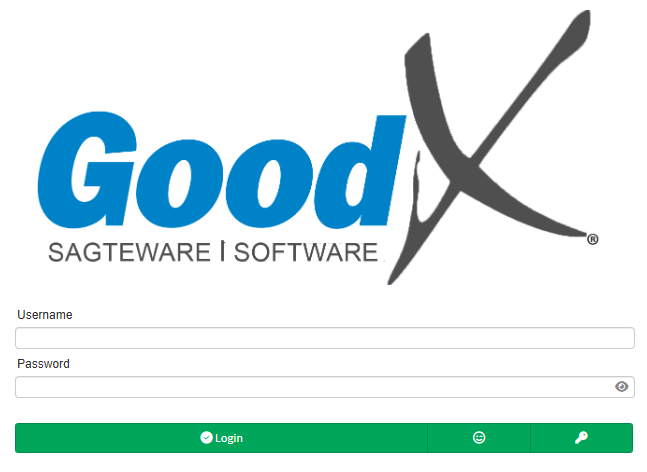
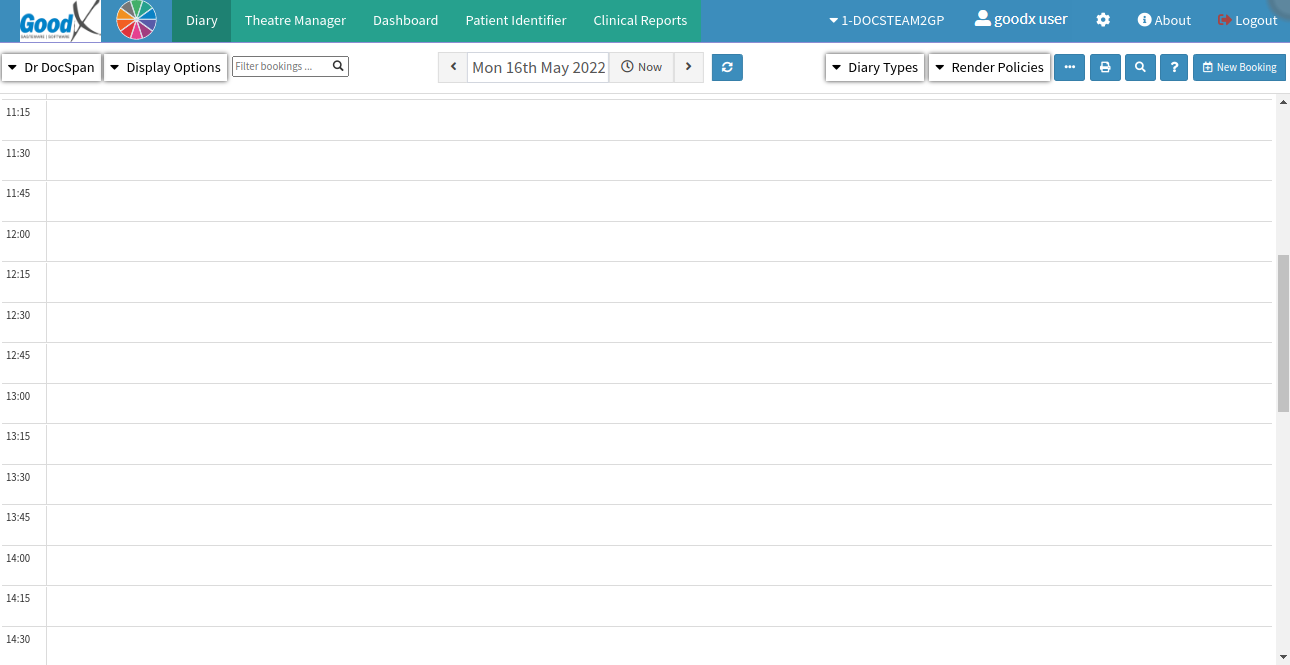
Once you are registered on the GoodX Web App, you are given a unique username and password. With these credentials, you can access the GoodX Web App.

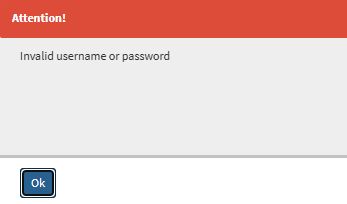
❗Attention!: If the username or password is incorrect, a pop-up message will display.
A facial recognition system works by pinpointing and measuring facial features from an image and matching them against a database of faces.

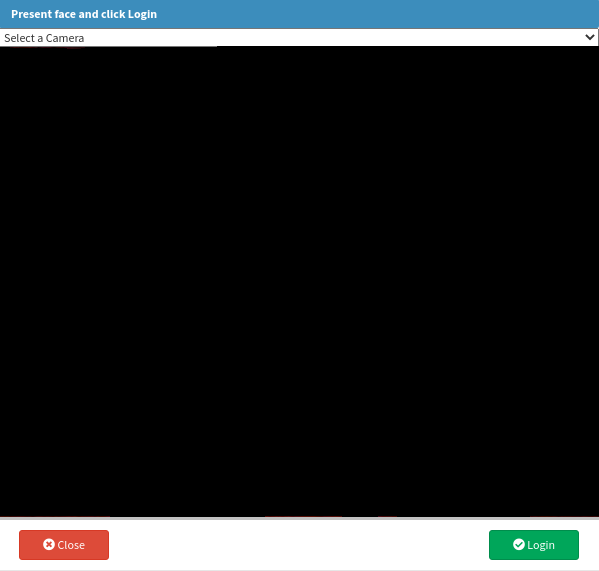
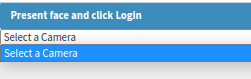
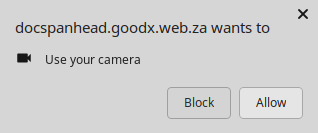
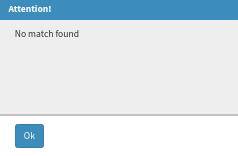
❗Attention!: If the facial recognition fails to find a match, a pop-up message will display.
A fob, also known as a key fob, is a small security hardware device with built-in authentication that can be used to control and secure access to mobile devices, computers, network services, and data.

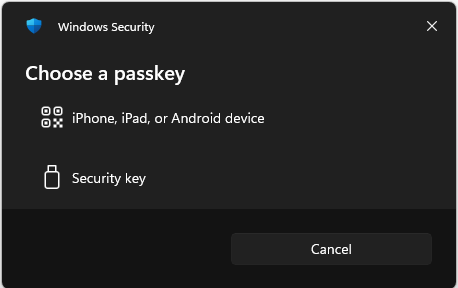
You can log in via login combinations. A Login Combination always consists of a username and password with additional authorisation factors within the GoodX Web App, such as a pin, facial recognition, and a keyfob.
Logging out of the GoodX Web App completely terminates your active session, instantly securing the workstation when you step away. This simple action maximises patient data privacy by preventing unauthorised personnel from viewing sensitive electronic health records in a bustling medical environment.

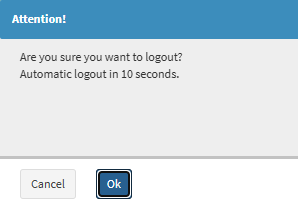
❗Attention!: A confirmation pop-up will display, starting an automatic logout timer.