Why Use This Function:

Customising your clinical workflow allows for a more streamlined and efficient data entry process tailored specifically to your Practice needs. Configuring these interactive elements ensures that only relevant clinical fields are displayed, which reduces clutter and minimises the risk of capturing incorrect information for a Patient. By mastering the setup of these tools, you empower your Practice to record clinical findings with greater precision and speed during a consultation.

  • This user manual will start on the Basic Examination screen.

  • Click on the Widgets Panel to expand more options.

  • Click on the Unchecked button.

  • The Widgets will become available.

  • Click on the Text Input field to enter text regarding the Patient's examination.

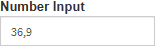
  • Click on the Number Input field to enter numerical values, such as a heart rate or temperature, where only digits are required.

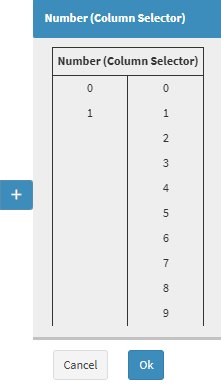
  • Click on the Number (Column Selector) field designed to record a value that is part of a calculated score or a specific column in a clinical table.

    • Click on the Add button to view and select the Number from the Colomn Selector that becomes available.

  • Click on the Drop-Down arrow to select a predefined option from the list.

  • The Panel will expand with all the available options.

  • Click on the Unchecked panel for more options to become available to add your findings.

  • Your Setup Widgets for this panel will appear, complete them according to your Findings.

Last modified: Monday, 9 March 2026, 9:19 AM