How to Link Referral Letters to Tasks
Why Use This Function:
Linking Referral Letters to Tasks ensures that every Referral Letter received through the GoodX Web Communication segment is actioned correctly and never overlooked. When an external sender submits a Referral Letter to a Practitioner who uses the GoodX Web, the letter becomes available directly inside the Task Bar, allowing the Practice to manage it immediately within their existing workflow.
Using this function creates a clear and reliable process for handling incoming Referral Letters. Instead of relying on separate systems, emails, or manual checks, the Referral Letter is automatically delivered to the correct Practitioner’s Task list, where it can be reviewed, linked, and managed alongside all other operational tasks. This helps maintain an organised Communication workflow, supports accurate record-keeping, and ensures that clinical and administrative follow-up happens without delay.
By linking the Referral Letter to a Task, the Practice gains a structured, trackable method to ensure that every Referral Letter is acknowledged, processed, and stored correctly. This improves response times, enhances internal communication, and helps the Practitioner maintain continuity of care while keeping all related information within the GoodX Web environment.
- This user manual will start on the Tasks screen.

- For more information on how to navigate to the Tasks screen, please refer to the user manual: Communication Segment.
- Filter on the Week the reference letter was sent from grandXchange.

- All Tasks for that week will appear.

- For more information on Sending a Referral Letter, please refer to the user manual: Submit Referral Letters Through grandXchange.
- Click on the Link button on the desired Referral task.

- The Clinical Link screen will open.
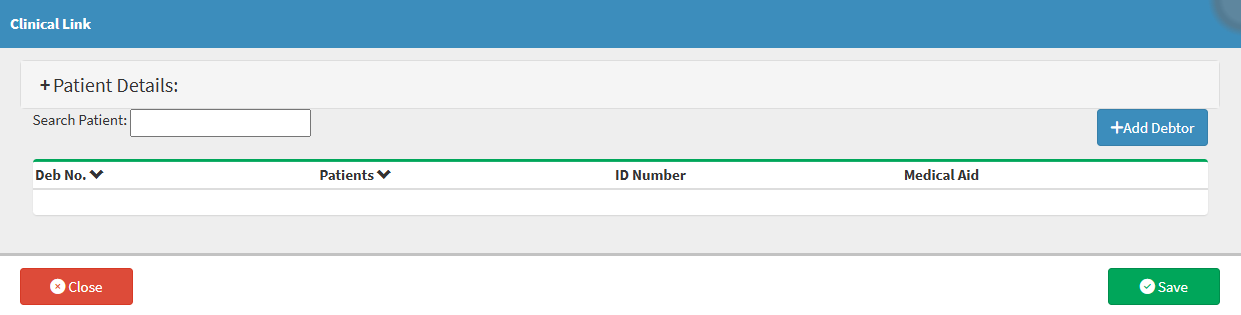
- Click on the Search Patient field to link an existing Patient in the system.
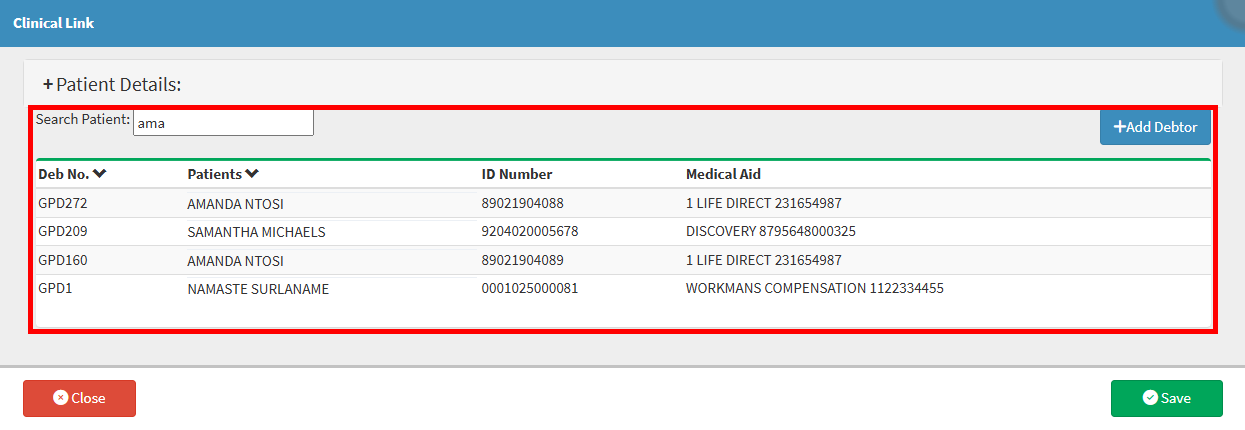
- Alternatively, Click on the Add Debtor button.

- The Debtor Details screen will open to confirm all the details are correct and up to date.

- Click the Save button once the information is confirmed.

- The Debtor will now be linked to the referral.
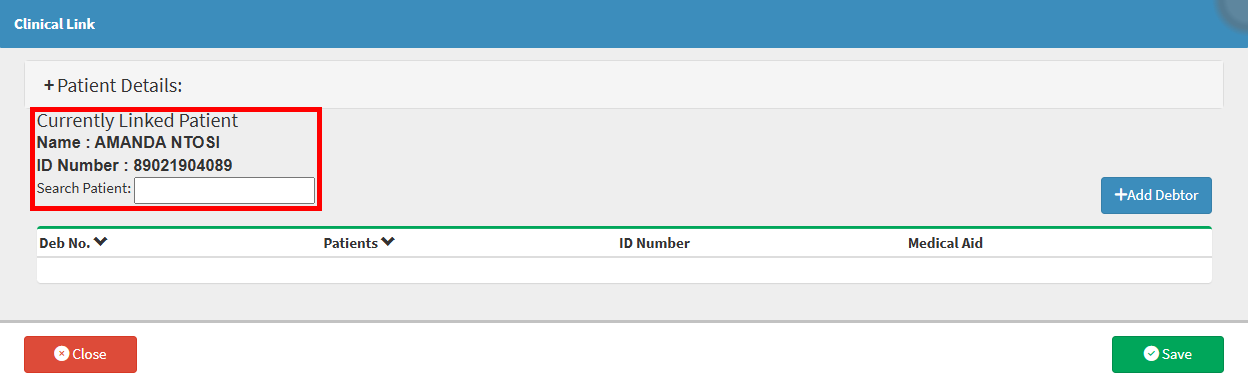
- Click the Save button.

- The Patient will be linked to the referral.
