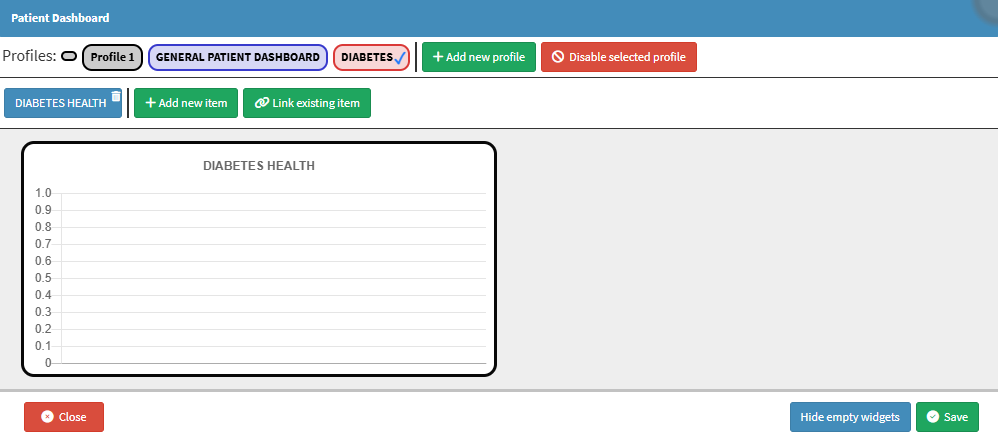
Setting up Patient Dashboard Profiles from the Diary segment allows the Practice to create condition-specific dashboards, such as profiles for diabetes or heart disorders. This setup ensures that Practitioners can easily select the most relevant profile for a Patient based on their condition, helping streamline clinical decision making, reduce information overload, and provide focused, condition-appropriate care.
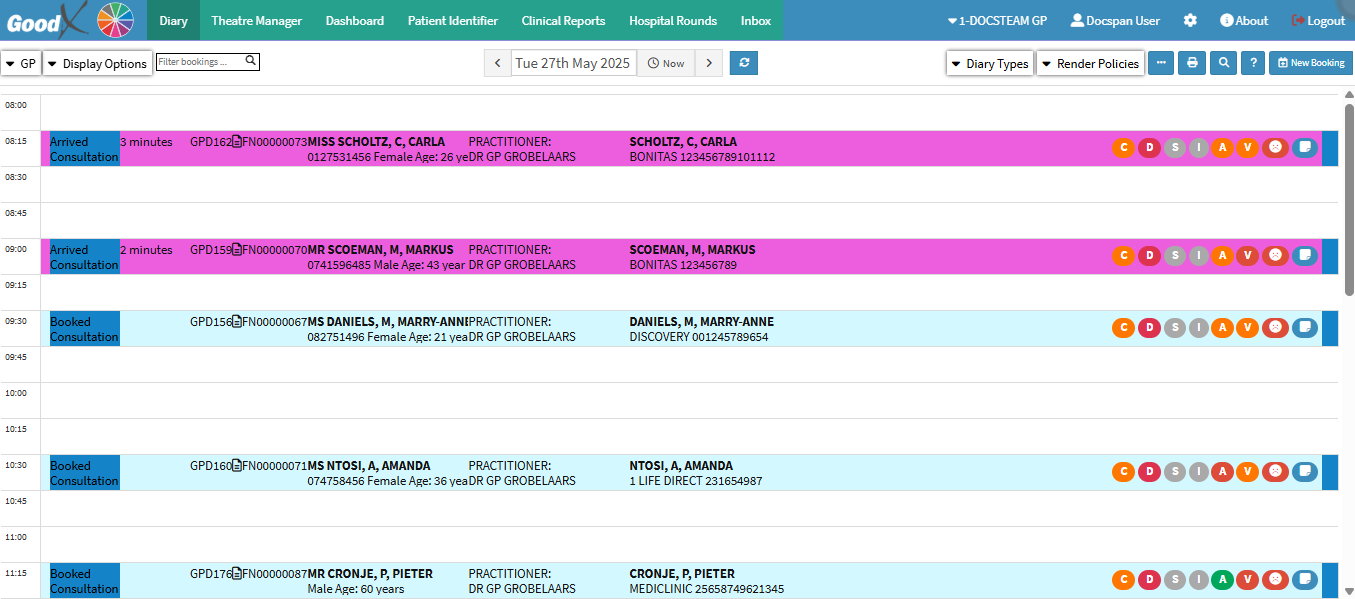
This user manual will start on the Diary screen.
Click on the desired Booking to add a Patient Dashboard Profile.
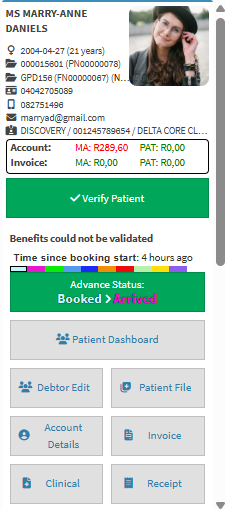
The Diary sidebar will open.
Click on the Patient Dashboard button.
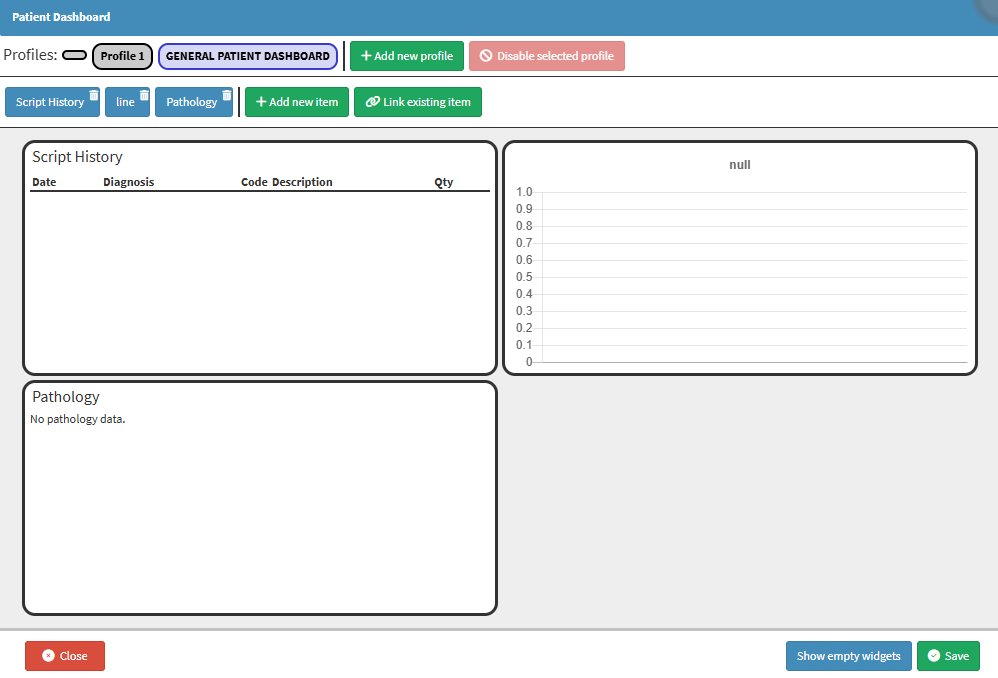
The Patient Dashboard will open.
Click on the Edit button.
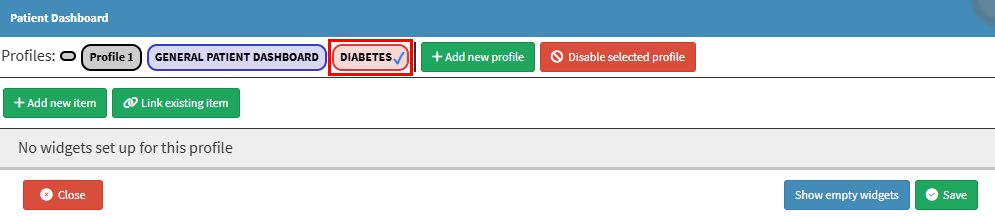
The Patient Dashboard screen will open.
Click on the Add New Profile button to add a new profile.
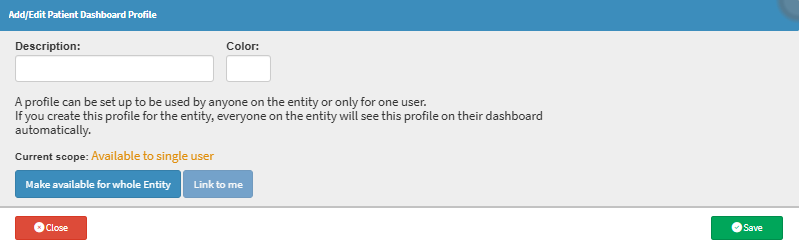
The Add/Edit Patient Dashboard Profile pop-up will appear.
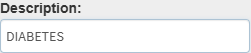
Click on the Description field to give your profile a name.
Click on the Colour Selector field to select your desired colour for your Patient Dashboard Profile.
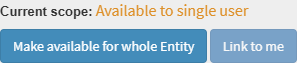
Click on the Make Availablefor Whole Entity button or the Link to Me button to make the Patient Dashboard Profile available to the entire entity or just for your user.
Click on the Save button to save your Patient Dashboard Profile.
The Diabetes Patient Dashboard Profile will now show with the rest of the Profiles.
Click on the Add NewItem button.
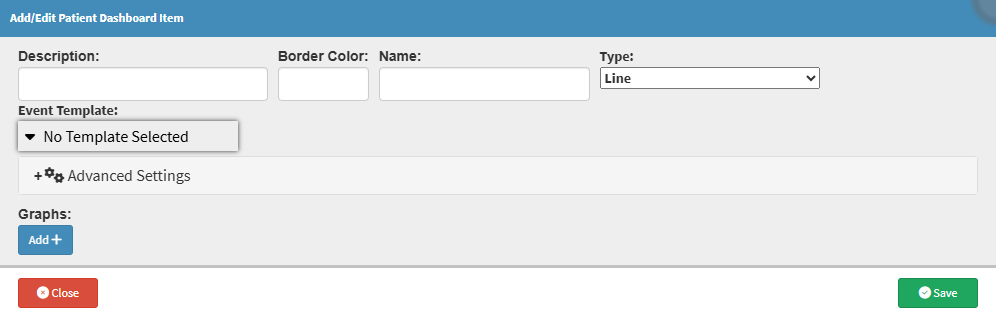
The Add/Edit Patient DashboardItem screen will open.