Why Use This Function:

A Consent form ensures Patients are fully informed and voluntarily agree to Medical procedures or treatments, protecting Patient rights, facilitating clear communication, and providing legal documentation and protection for both Patients and Healthcare Providers.


The Contents of This User Manual:

  • Template Description
  • Placeholders
  • Consent Text
  • Upload Attachments

  • This user manual will start on the Workflow Event Template screen, Consent Form.


Template Description

A unique Name needs to be given to the Template in order for it to be identified when selected and used.

  • Click on the Template Description field and Enter an applicable name for the form.


Placeholders
The Placeholders can be used to pull through information from the system automatically without entering it manually.

  • Click on the Placeholders drop-down menu. 


    • The Placeholder drop-down menu will open where you can Select your desired placeholders to use.


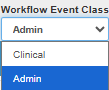
  • Click on the Workflow Event Class drop-down menu to select the desired option.


Consent Text

To obtain informed consent and document the user’s approval in accordance with required standards.

  • Click on the Consent Form panel.


    • The Consent Form panel will expand.


  • Click on the Consent Text box, and enter the desired text.


Upload Attachments


  • Click on the Choose File button to upload an attachment.


    • The File explorer will open.


  • Select the desired file you wish to upload.


    • The file will be uploaded.


  • Click on the Download button if you wish to download the file.


  • Click on the Delete button if you wish to delete the file.

  • Click on the Save button to save the contents of the Consent form that you have just set up.


  • The Consent form that was set up will appear on the Workflow Event Template list.


Please Note: The Template has not been saved as of yet and has been highlighted in red.

  • Click on the Save button to save all changes that have been made.


?Please Note: Once the custom Consent form has been successfully saved it will no longer be highlighted in red.

Last modified: Monday, 16 February 2026, 9:43 AM