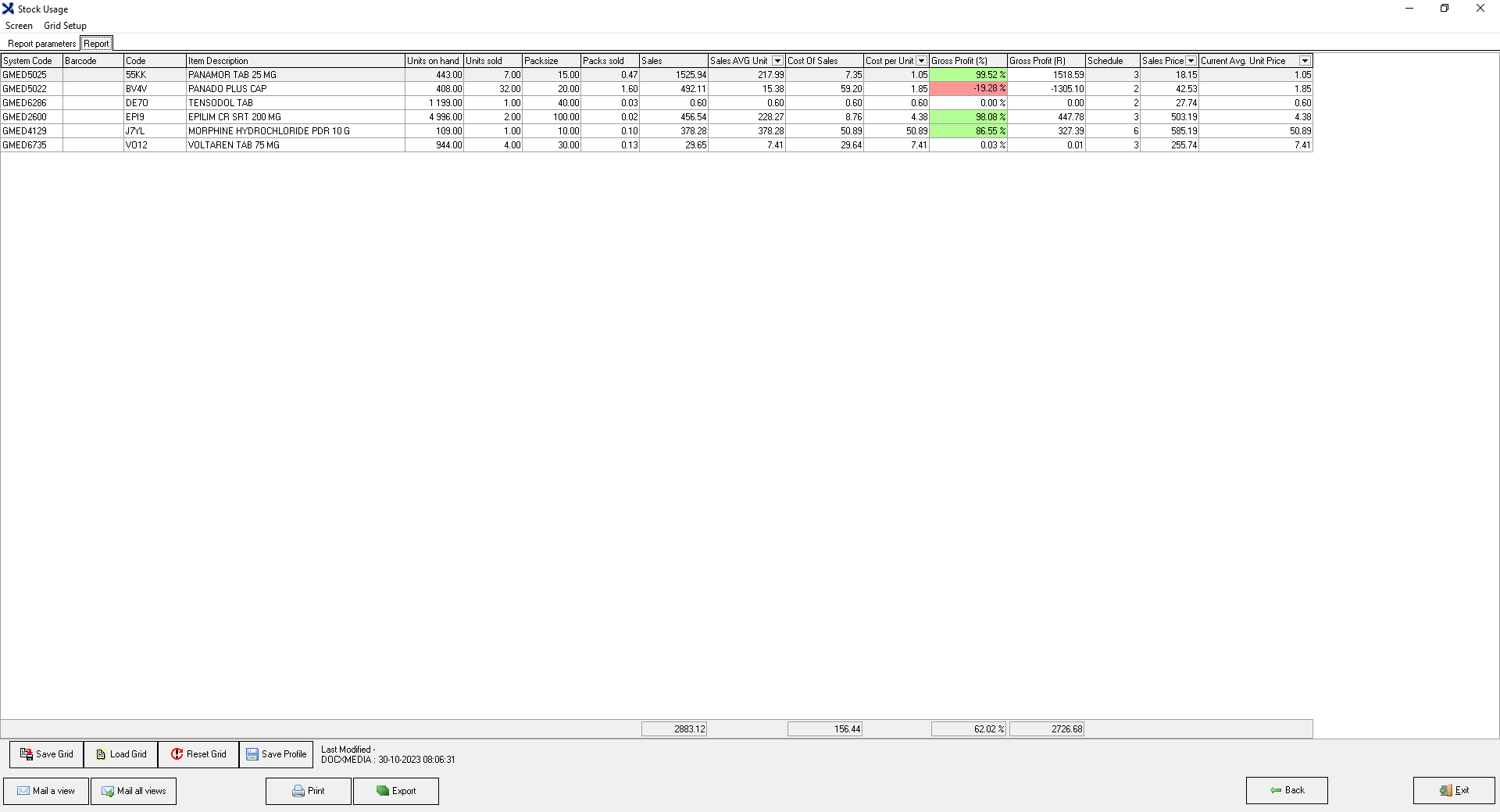
The Stock Usage Report provides an overview of the total amount of stock used over a specified period, showing the profit or loss per item by comparing the purchase price with the sale price. This report is essential for managing inventory, ensuring that necessary medical items are always available, while also preventing overstock or shortages.
The Contents of This User Manual:
Generate the Report
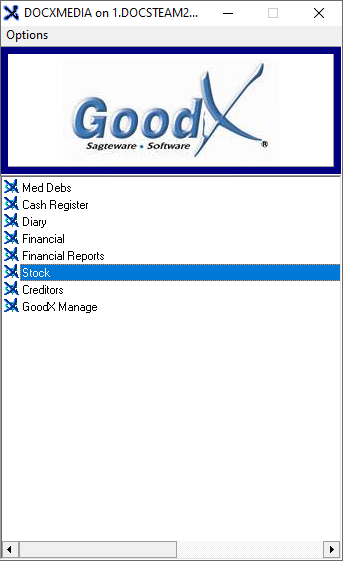
From the Navigator, Double-Click on the Stock Module.
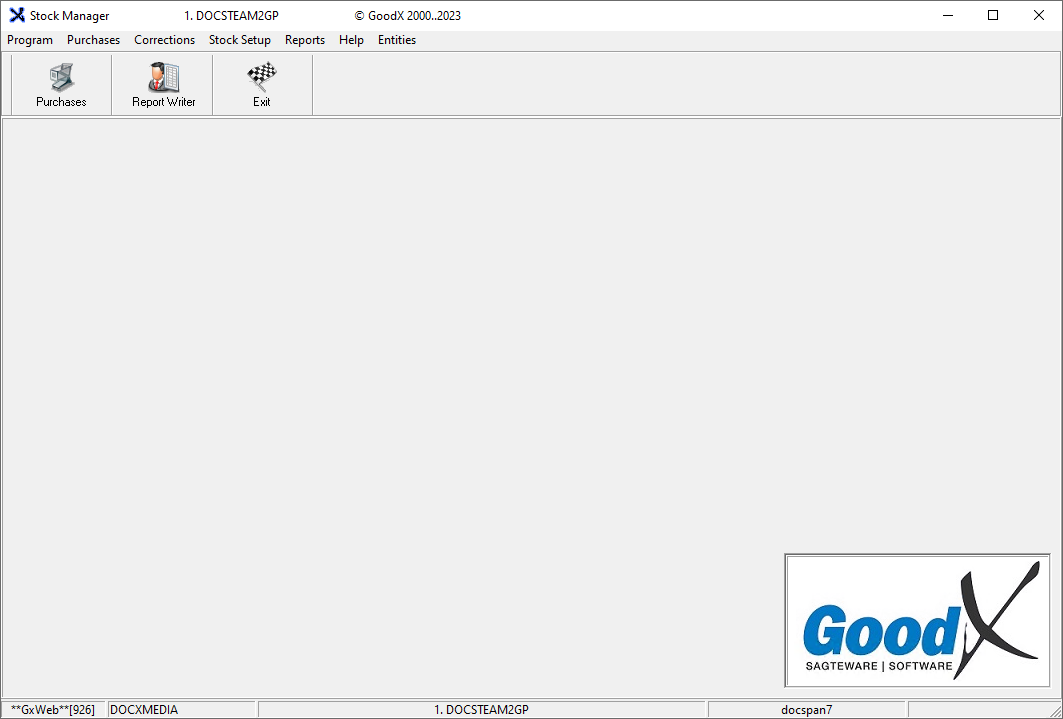
The Stock Manager screen will open.
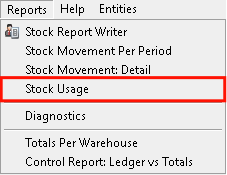
Click on Reportsonthe menu bar.
Click onStock Usageon thesub-menu.
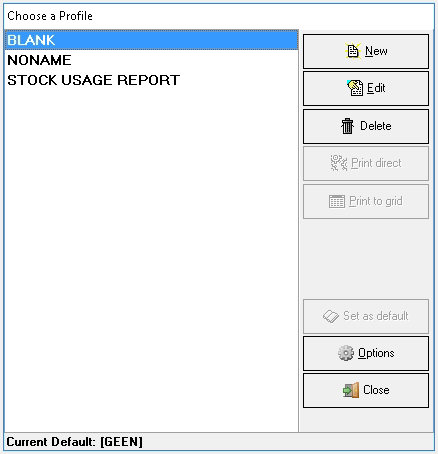
TheChoose a Profile screen will open.
Generate the Report
Click on the desired Profile that the user would like to print or view. The Stock Usage Report will be used as an example for the user manual.
Click on the Print to Grid button.
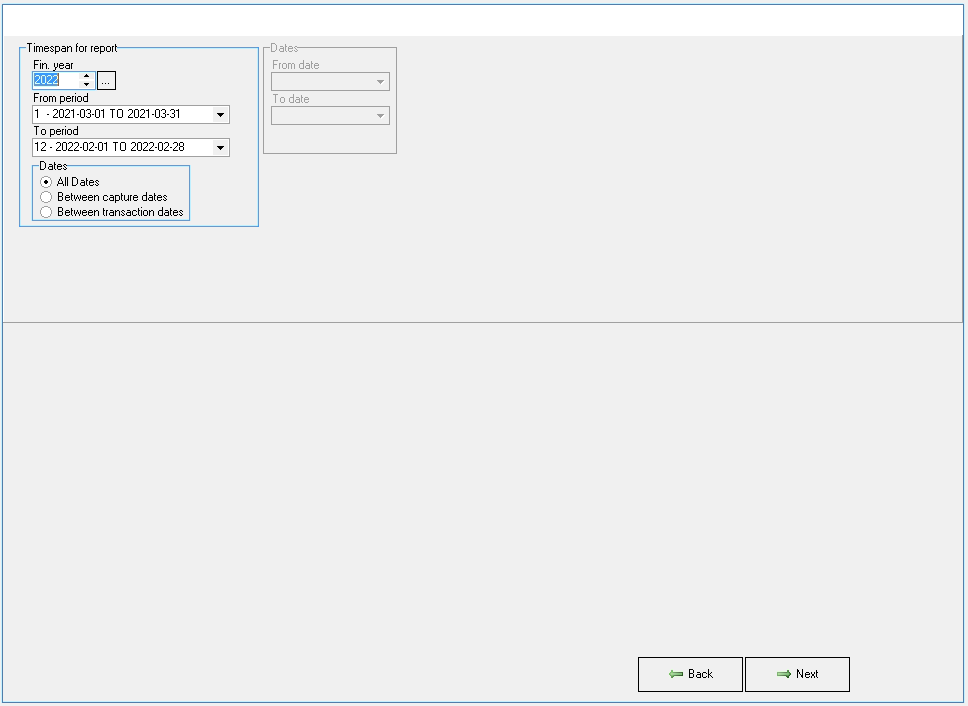
The Timespan for Report screen will open where the dates of the report can be checked and altered if the need arises.
?Please Note: The information and columns shown on the report will depend on the options selected during the setup. The information can be grouped per Medical Practitioner/Service Centre highlighting which Practitioners/Service Centres are making the biggest losses/profits on their stock. In order to be able to sort accordingly, the Settings and Parameters therefore will need to be selected. For more information, please refer to the user manual: Stock Usage - Settings and Parameters.
Click on the Close buttonon the Current profile: Stock Usage Reportscreen to return to the Stock Manager screen.