Text size
Line height
Text spacing
Advancing a booking status moves the patient through the different stages of their visit, such as arrived, waiting, or completed. Each status reflects the patient's current stage in the booking process and helps staff track progress.
Keeping booking statuses up to date provides a clear view of the patient's progress, helping staff identify what needs to happen next, coordinate the patient's journey, and keep the practice running smoothly. Accurate statuses also improve communication between staff and help ensure that patients are managed efficiently throughout their visit.
💡Please Note: Booking Statuses can be set up with specific actions and events that are triggered when the status changes. This helps ensure that required actions are completed as the booking progresses, improving efficiency and reducing the risk of missed tasks.
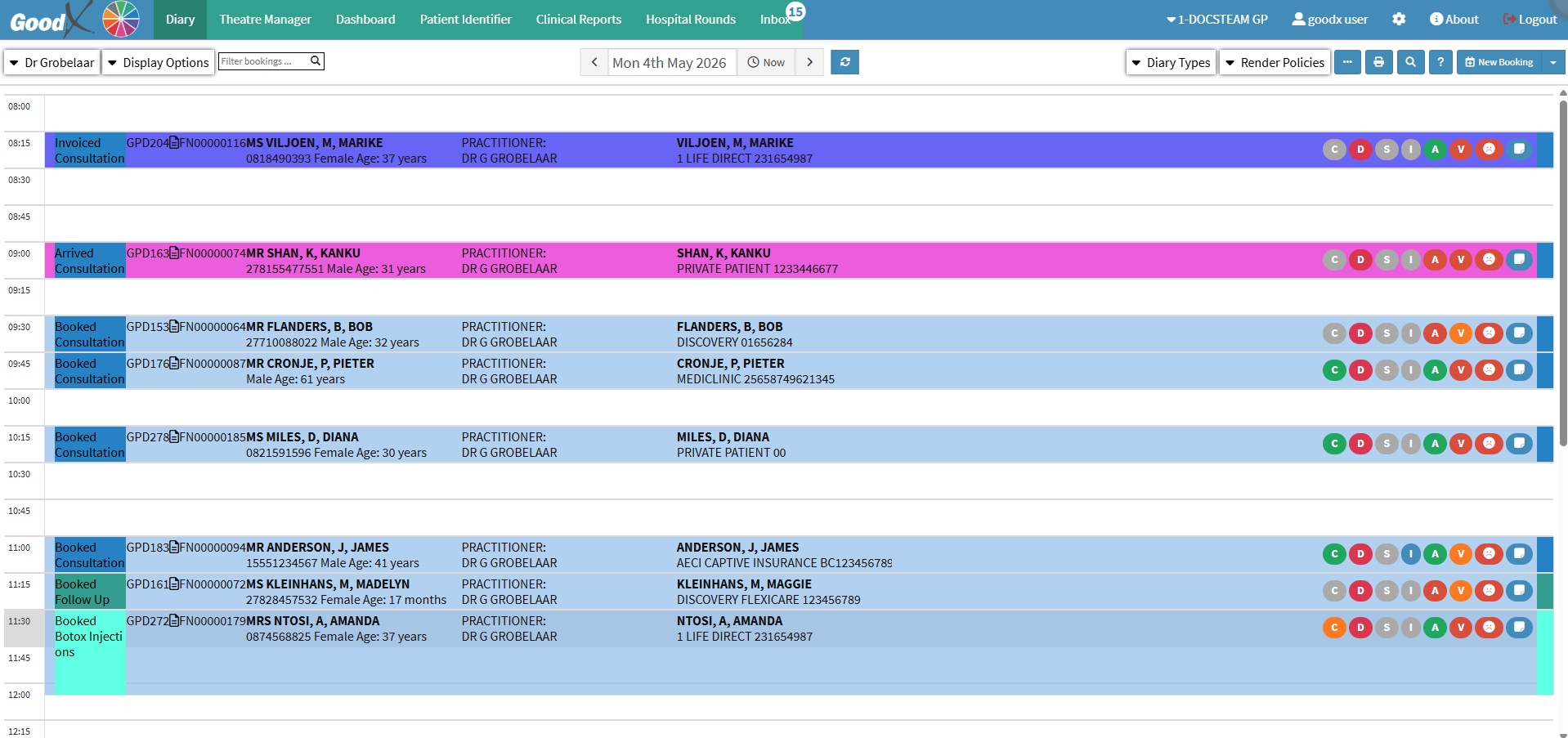

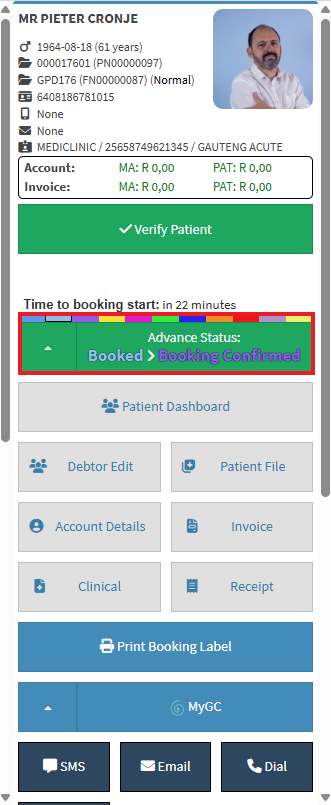
💡Please Note: The Status and colour will change every time you click on the Advance Status button.

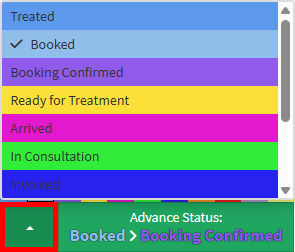
💡 Please Note: Booking Statuses and their corresponding colours, order, and linked actions can differ between Practices. Booking Statuses can be configured to automatically open forms, workflows, or the Invoice screen when the status changes, helping to ensure that all required steps in the workflow are completed. For details, see Booking Status Set Up.