How to Search for a Booking
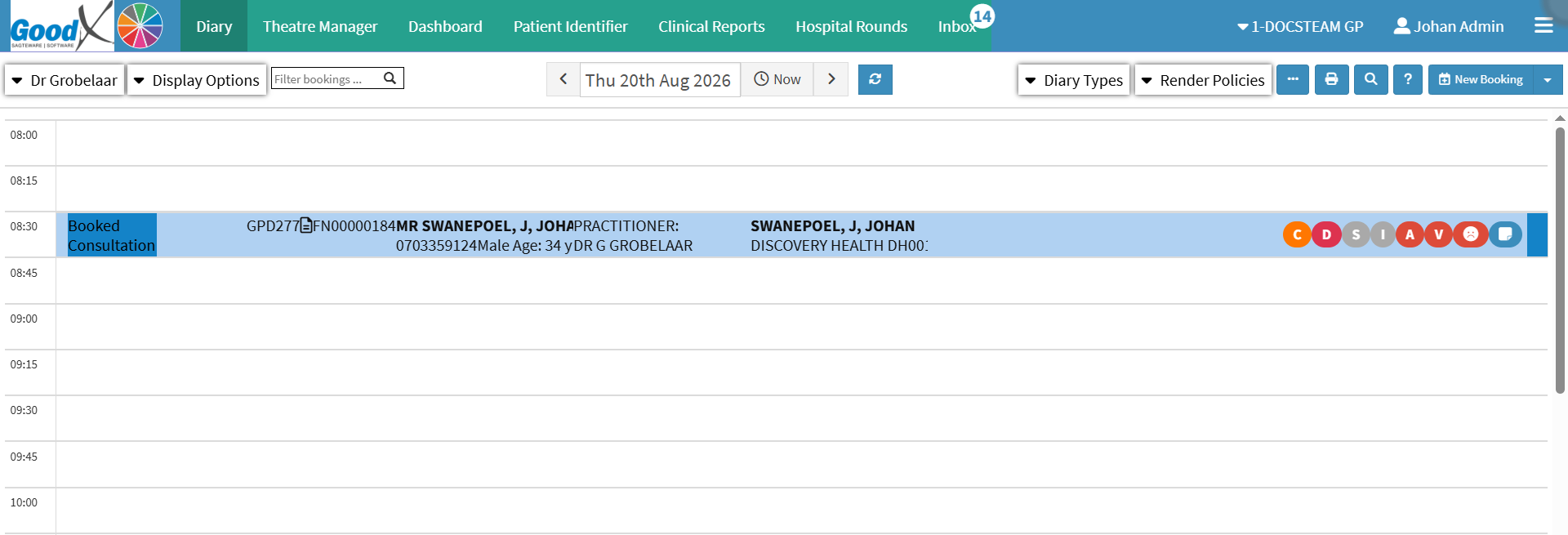
- Click on the Search for Debtor Bookings button.

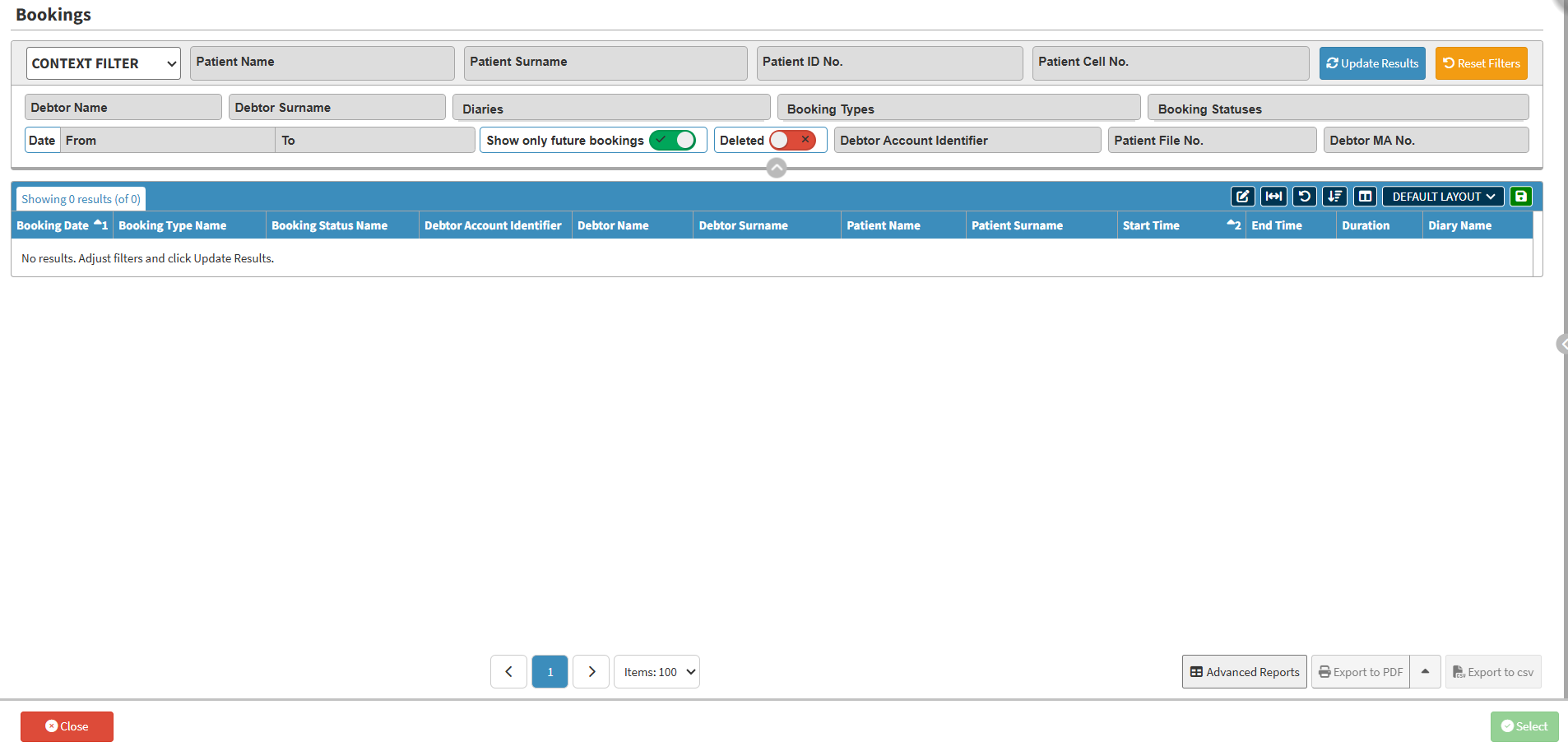
- The Bookings screen will open.

Filters
Filters can be applied to narrow down the data and achieve more accurate and relevant results.

- Select Context Filter from the drop-down menu.

- Context Filter: Gives extra filter options to refine the information on the list.
- Default Filter: Predetermined filters that will always be available to search with.
💡Please Note: On this list screen, the Default filter will only change the Show Only Bookings slider.
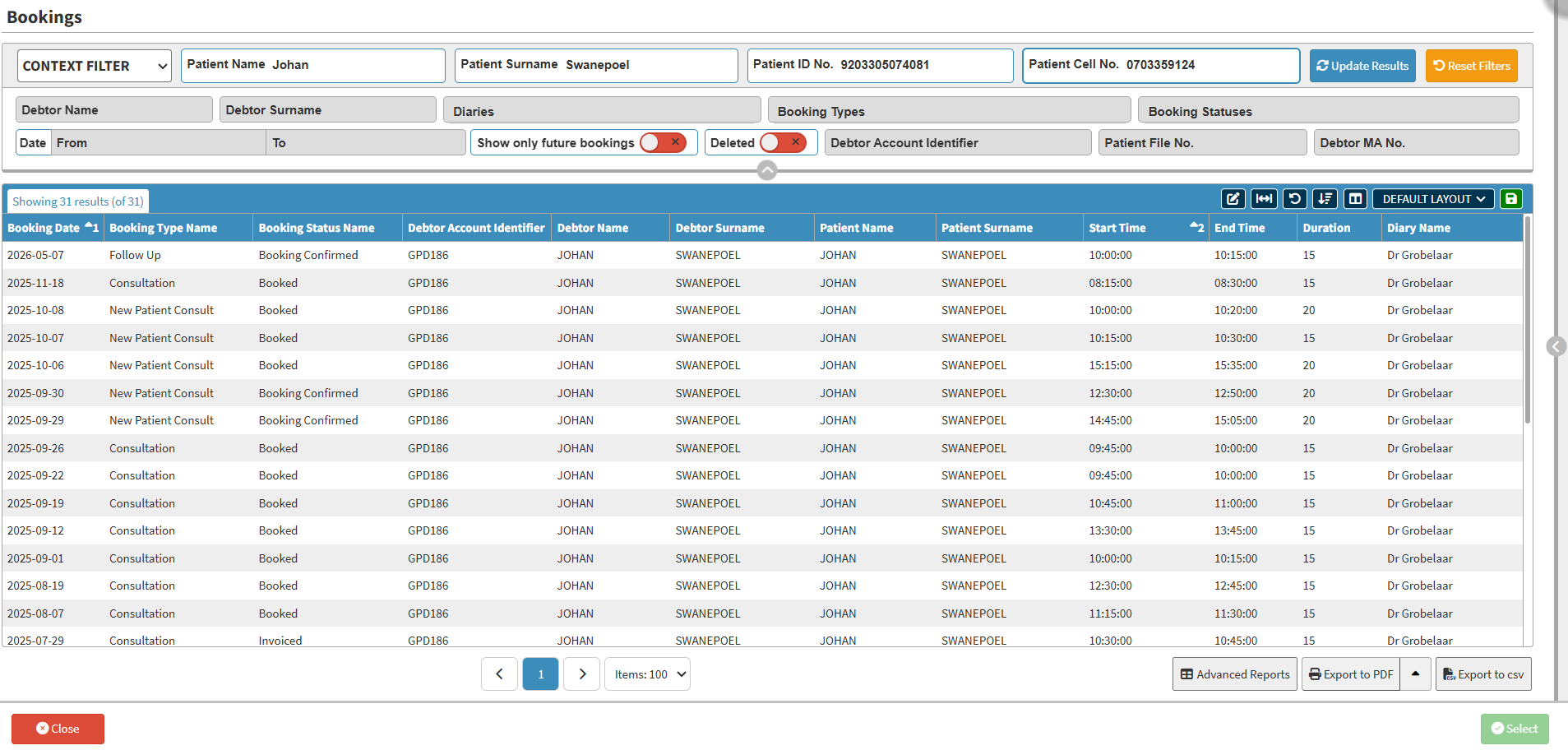
- Complete the Patient's Name in the Name field.

- Complete the Patient's Surname in the Surname field.
![]()
- Complete the Patient's Identification Number or Passport number in the Patient ID No. field.
![]()
- Complete the Patient's Cell Number in the Cell No. field.
![]()
- Complete the Debtor's Name in the Debtor Name field.
![]()
- Complete the Debtor's Surname in the Debtor Surname field.
![]()
- Click on the Diaries drop-down menu and select the appropriate option.
.
- Click on the Booking Types drop-down menu and select the appropriate option.

- Click on the Booking Statuses drop-down menu and select the appropriate option.

-
Click on the Date From field, which opens the Date Picker.
- Select a date from the date picker.

-
Click on the Date To field, which opens the Date Picker.
![]()
- Select a date from the Date Picker.

- Click on the Show Only Future Bookings slider to show all future and past bookings.
![]()
- Click on the Show Only Future Bookings slider a second time to include only future bookings.
![]()
- Click on the Deleted slider to exclude or include deleted bookings.
![]()
- Click once to view Bookings that have not been deleted.
![]()
- Click a second time to view the Bookings that have been deleted.
![]()
- Click on the Debtor Account Identifier field and enter the Debtor Account Identifier.
![]()
- Click on the File No. field and enter the Debtor/Patient File Number.
![]()
- Click on the Debtor MA No. field and enter the Debtor Medical Aid Number.
![]()
- Click on the Update Results button after all filters have been set.
![]()
- The Bookings screen will display the chosen filters that have been applied.

Action Sidebar
The Action sidebar serves as a quick-access panel that allows healthcare staff to efficiently communicate with a Patient or perform related actions directly from the Booking profile screen. It consolidates all essential contact methods and Patient details in one location to streamline administrative workflows.
- Click on the desired Booking to access the functionality of the Booking Search sidebar.

-
- The Booking Search sidebar will open.

- For more information regarding the Booking Search sidebar, please refer to the user manual: Booking Search Sidebar: Navigation and Use.
Page Options
All the additional options that are available for the page.
![]()
- Click on the Previous button to navigate to the previous page.
![]()
- Click on the Page Number button to navigate to the desired page.
![]()
- Click on the Next button to navigate to the next page.
![]()
- Click on the Items drop-down menu to select the number of items that will be displayed on the screen.

- Click on the Export to PDF button to save a PDF file of all the data as a comprehensive report.
- Click on the Export to PDF drop-up menu to access the Export Consolidated PDF option that allows you to generate a single document that combines all the data from multiple sources to provide an overview.
- Click on the Export to CSV button to save the Report in a CSV format.
![]()
💡 Please Note: A Patient file must be selected before exporting data.