Medical Aid List Screen: Navigating the Scheme Tab
Why Use This Function:
Medical Aid Schemes are companies that provide their members with financial assistance for medical expenses, helping cover the costs of medical services. Each Scheme offers various benefit options, each with different levels of coverage and services. These schemes often have agreements with designated service providers (DSPs) who offer services at negotiated rates to reduce out-of-pocket costs for members.
Medical Aid Schemes are regulated by the Medical Schemes Act and overseen by the Council for Medical Schemes (CMS), ensuring that they operate fairly and maintain financial stability. They play a crucial role in the healthcare system by ensuring members have access to necessary healthcare services and supporting the overall financial sustainability of medical expenses.
The Contents of This User Manual:
Filters
Screen Columns Action Buttons
Columns
Page Options
This user manual will start on the Medical Aid List screen, Administrator tab.
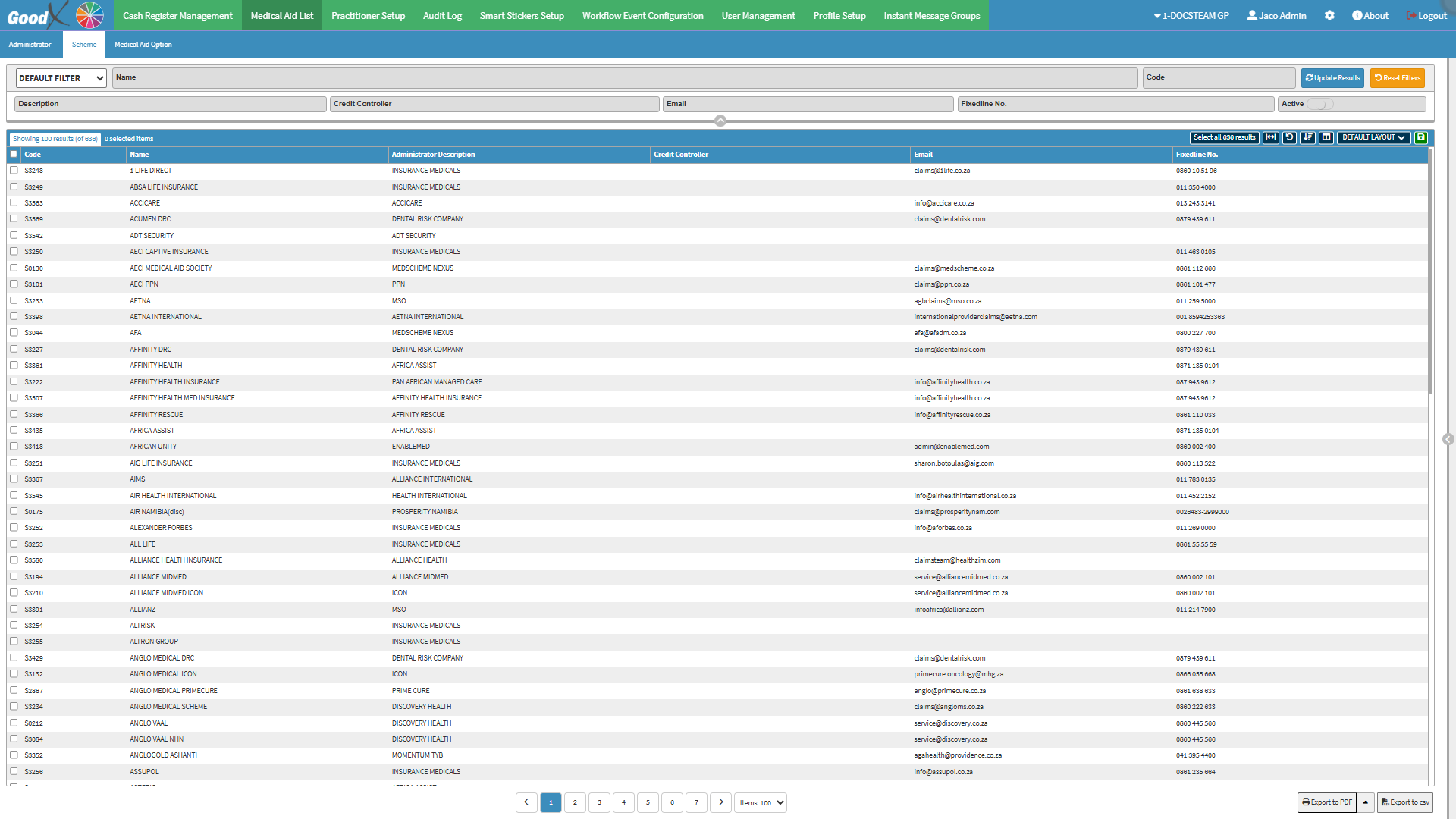
Filters allow you to refine the information displayed on the Scheme screen by limiting results based on selected criteria. All filter options update the list automatically as you type, making it easier and faster to locate specific information.
Click on the Name field to enter the Scheme name you are searching for.
Click on the Code field to enter the identifying code associated with the Scheme you are searching for.
Click on the Description field to enter the name of the company that administers the Scheme.
Click on the Credit Controller field to enter the details of the Credit Controller of the Scheme that you are searching for.
Click on the Email field to enter the email address of the Scheme you are searching for.
Click on the Fixedline No. field to enter the telephone number of the Scheme you are searching for.
Click on the Active slider to change the list options from both active and inactive, to inactive Schemes, and active Schemes.
?Please Note: By default, all Schemeswill be displayed both active and inactive.
Click on the Update Results button to refresh the Scheme list after the Filters have been selected.
Click on the Reset Filters button to clear the Filters that have been set.
Screen Columns Action Buttons
Several additional options are available for the Columns. These additional options are to help you adjust the Report, refine the Search and give more specific results.
Click on the Select All button to select all the entries on the list.
Click on the Expand Widths button to auto-fit the Column Width to the information within all columns.
Click on the Reset Widths button to restore the original Widthsafter any modifications are made.
Click on the Sort Columns button to sort the Columns in the order that you desire.
All the information on the Scheme screen is divided into Columns to logically group related information together.
Code: An identifier that is associated with the Scheme.
Name: The name of the Scheme.
Administrator Description: The name of the company that administers the Scheme.
Credit Controller: The person responsible for managing and overseeing the financial transactions of payments from members.
Email: An email address where communication can be sent.
Fixedline No.: A telephone number where the Scheme Administrator can be reached.
Page Options
All the additional options that are available for the page.
Click on the Previousbutton to navigateto the previous page.
Use the Page Number buttons to navigateto a specific page.
Click on the Nextbutton to navigateto the next page.
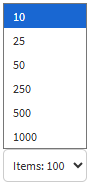
Click on the Items drop-down menu to select the number of items that will be displayed per page.
Click on the Export to PDF button to save a PDF file of all the data as a comprehensive report.
Click on the Export to PDF drop-down menu to access the Export Consolidated PDF option that allows you to generate a single document that combines all the data from multiple sources to provide an overview.
Click on the Export to CSV button to save the Report in aCSV format.