Text size
Line height
Text spacing
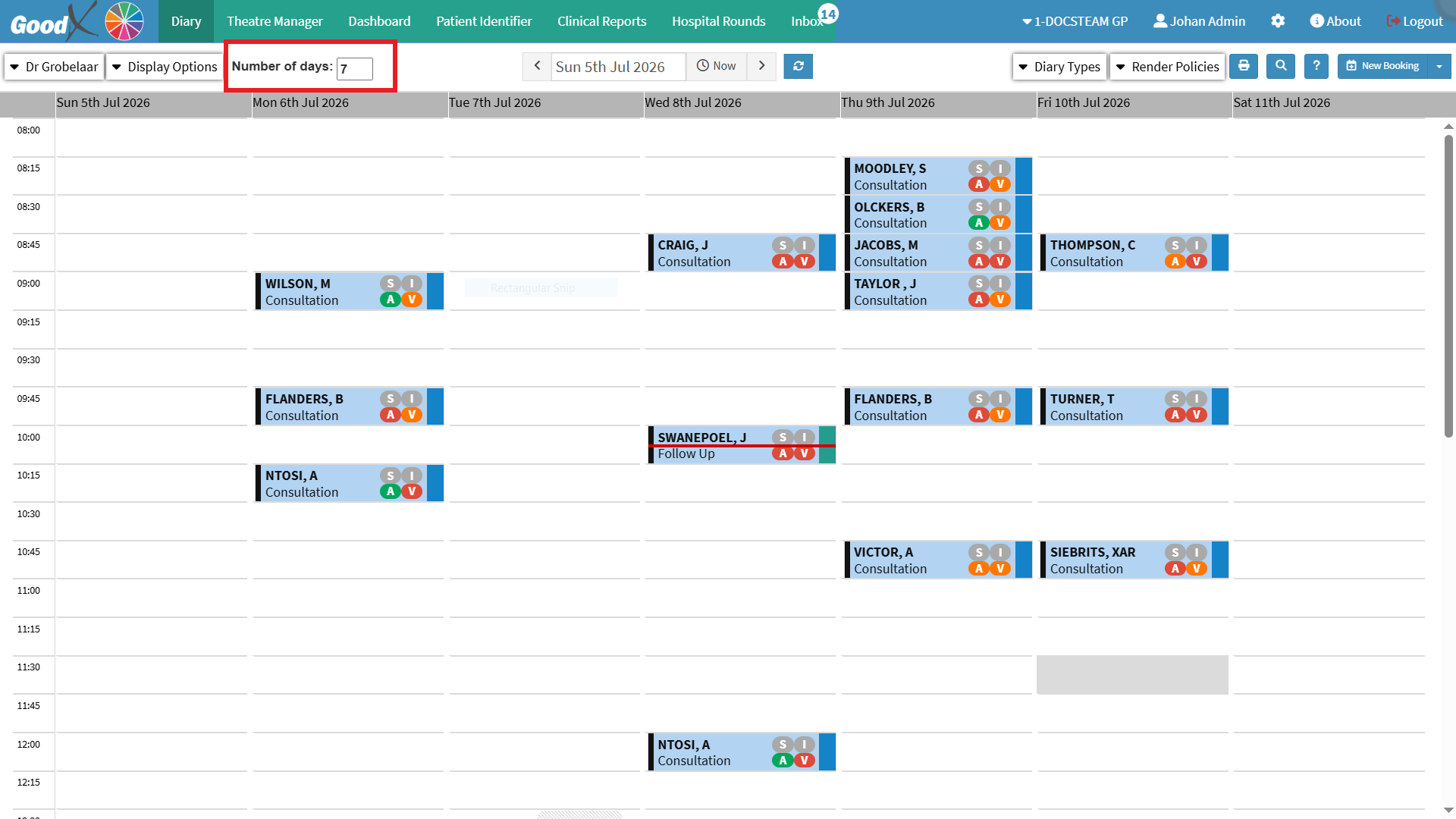
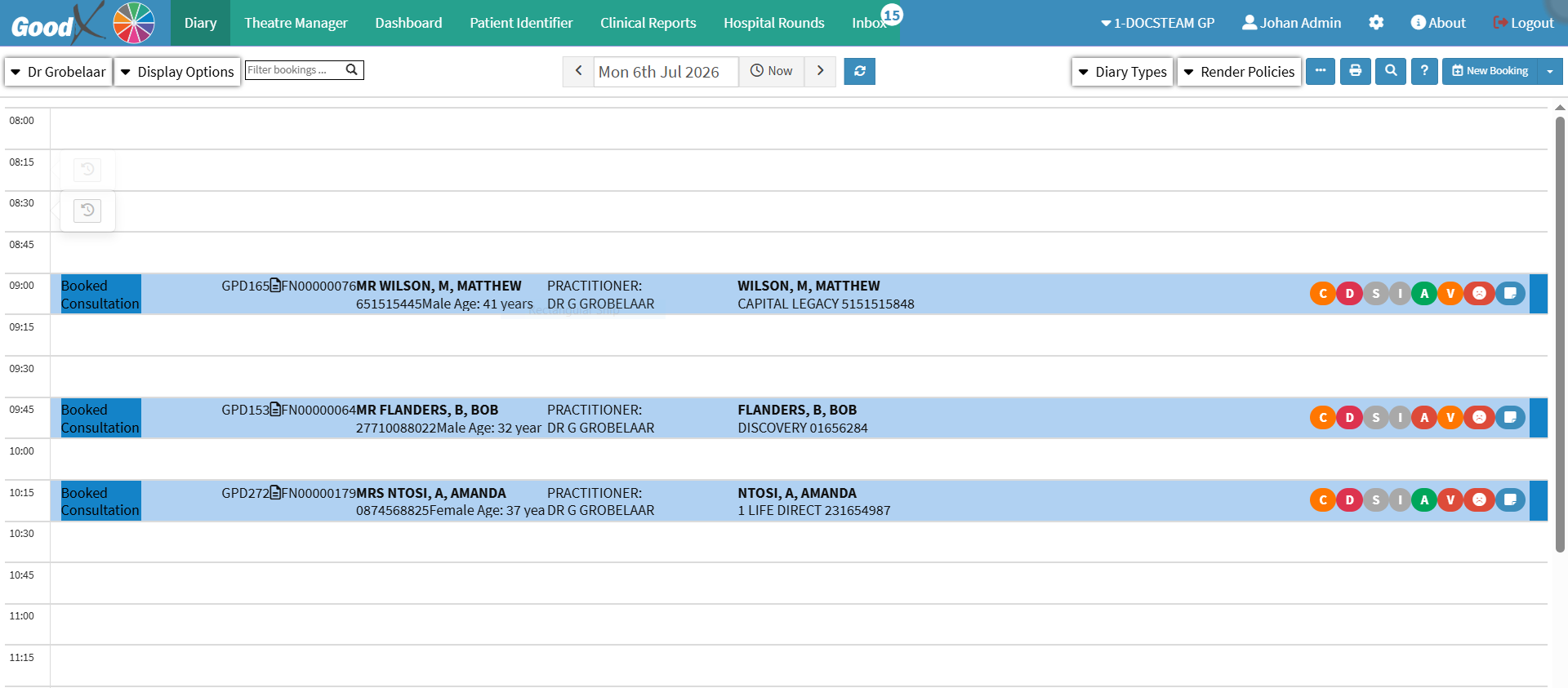
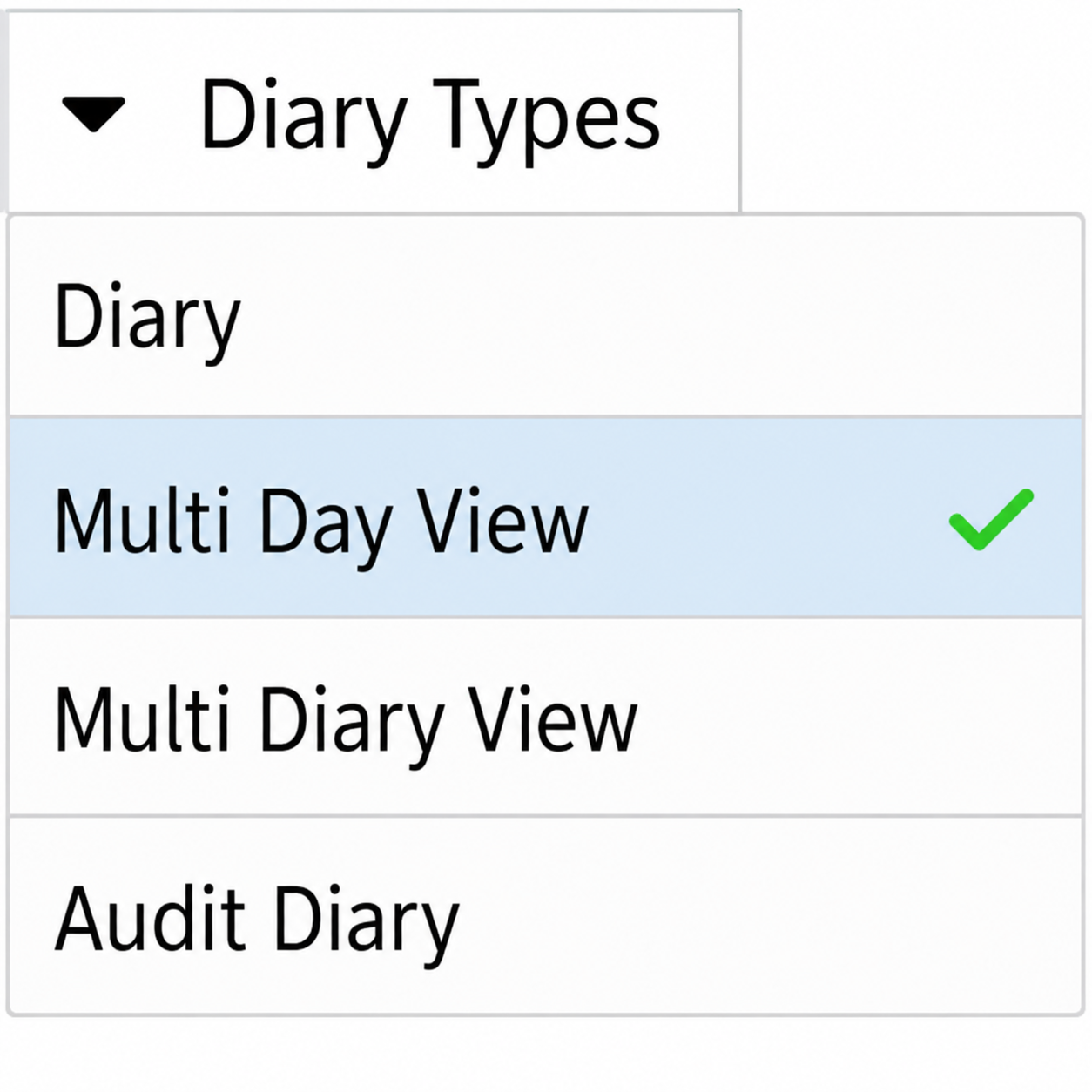
The Multi-day Diary allows you to view multiple days of the appointment schedule at once, enabling more effective time planning for the Practitioner. By providing a broader view of upcoming days, it helps you anticipate peak periods, identify available slots, and prevent overbooking. This enhances your ability to manage the Practice’s time and workflow efficiently, resulting in improved patient flow, better decision-making, and increased overall productivity.

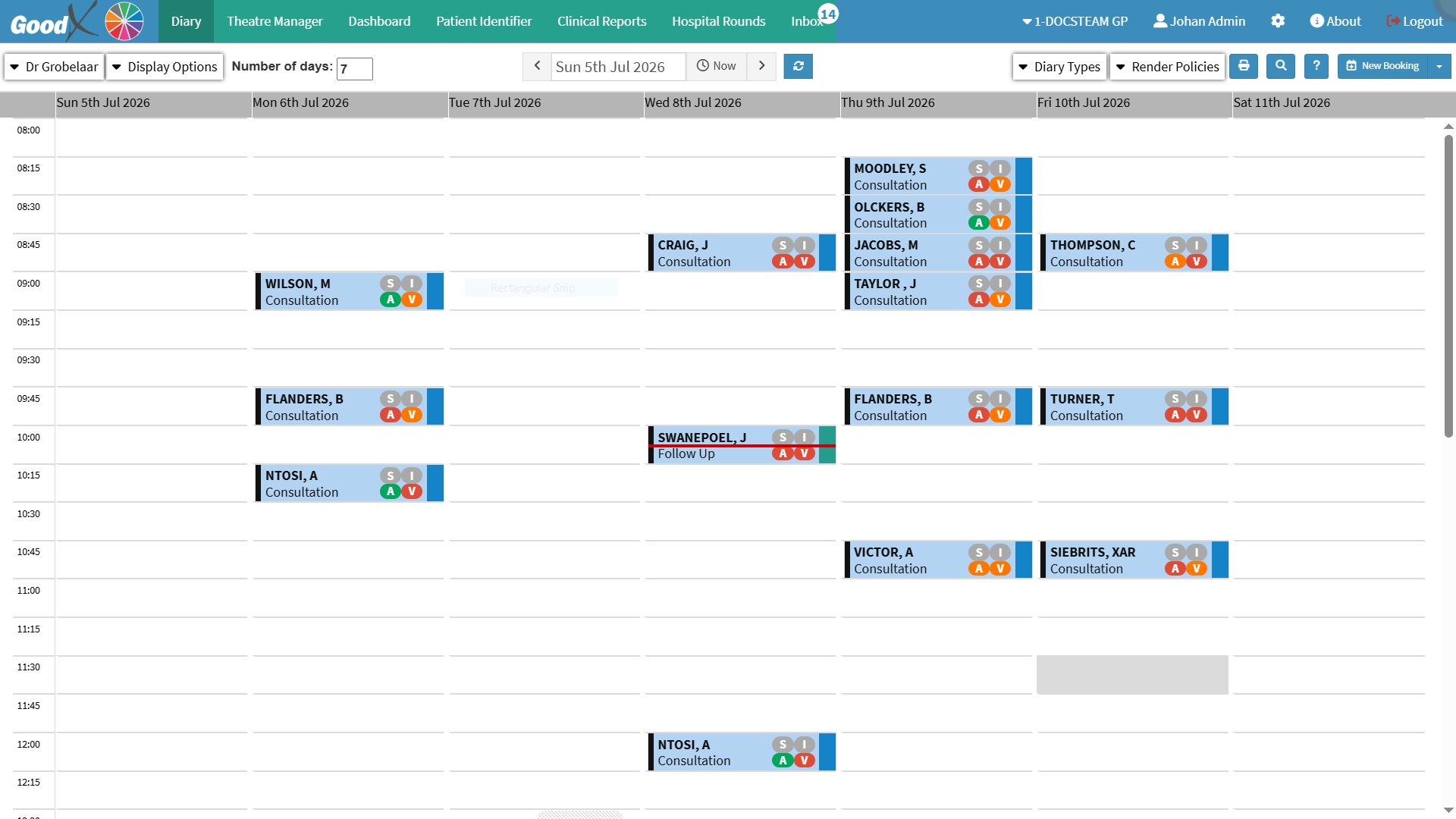
💡Please Note: If enabled, the current timeline is displayed across all diaries. To change the timeline display or colour, for details see: General Settings.