Text size
Line height
Text spacing
Accessing specialised tools through a centralised hub ensures that your Practice remains agile and responsive to Patient needs. Centralised navigation allows you to transition seamlessly between clinical, administrative, and reporting functions without needing to manage multiple separate logins. Centralising these applications simplifies how you interact with different modules, ensuring that every Practitioner and staff member has the correct tool for their specific task at hand.
This manual will start on the GoodX Software Apps screen.
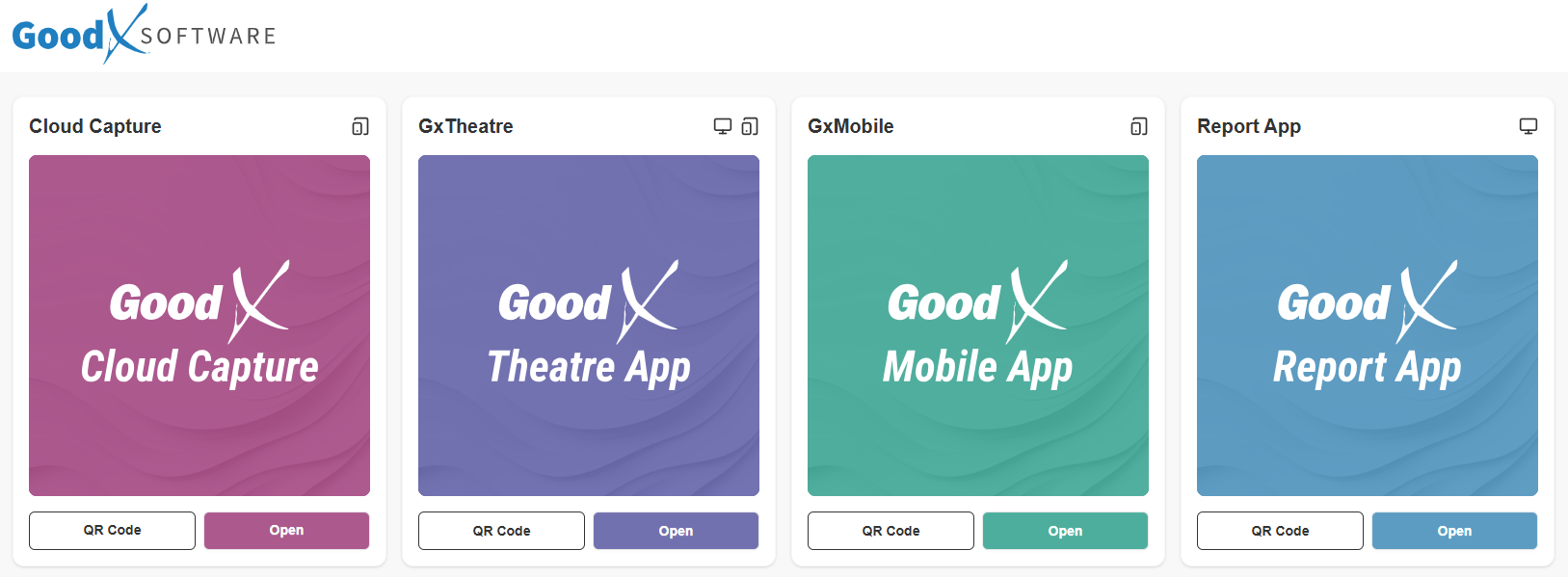
The App will showcase in the top right corner whether or not the App is mobile friendly, desktop friendly or both.
The Mobile-friendly symbol.

The Desktop-friendly symbol.

Cloud Capture allows you to upload clinical images and documents directly to a Patient file using a mobile device for immediate record keeping.
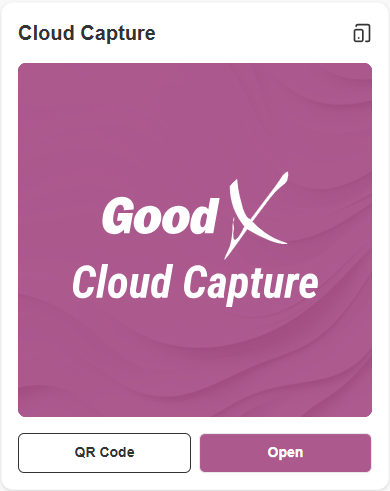
Click on the QR Code button.

The Cloud Capture QR Code screen will open, where you can scan the QR code.
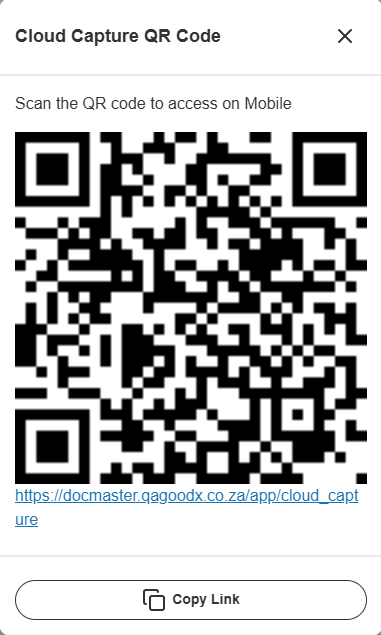
Alternatively, Click on the Link to open the Cloud Capture App or Copy the link to paste in your browser.
Click on the Open button to open the GoodX Cloud Capture App.

💡Please Note: A Notification will pop up if the device is not supported, asking if you still wish to continue and that the app might not work as expected. For more information regarding the Cloud Capture App, please refer to the user manual: Cloud Capture: Navigation and Use.
The Theatre App provides a specialised interface for managing surgical schedules and theatre-related clinical data efficiently.
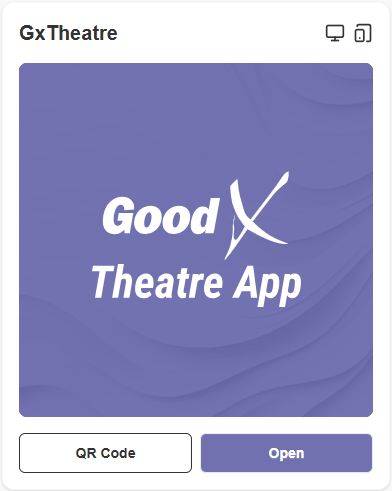
Click on the QR Code button.

The Theatre App QR screen will open, where you can scan the QR code.
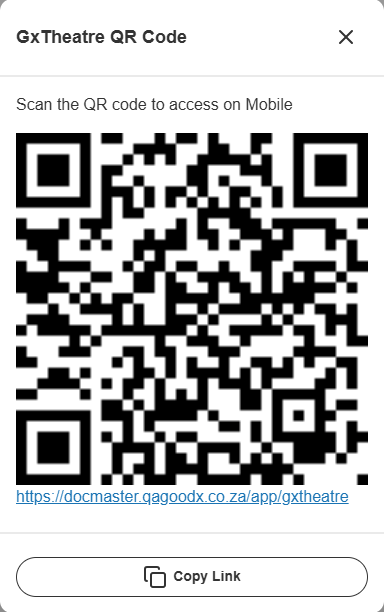
Alternatively, Click on the Link to open the Theatre App or Copy the link to paste in your browser.
Click on the Open button to open the Theatre App.

The Mobile App offers on-the-go access to essential Practice data, allowing you to manage your schedule and Patient information from anywhere.
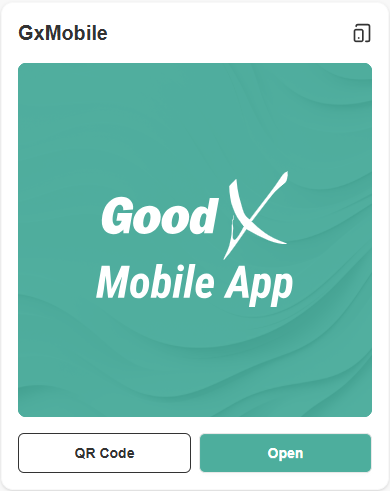
Click on the QR Code button.

The Mobile App QR Code screen will open, where you can scan the QR code.
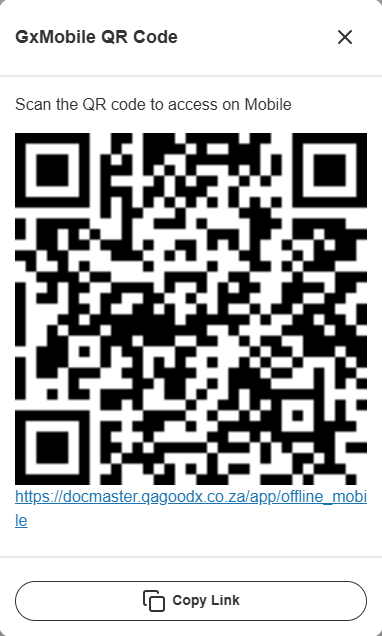
Alternatively, Click on the Link to open the Mobile App or Copy the link to paste in your browser.
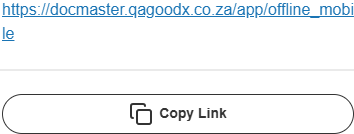
Click on the Open button to open the Mobile App.

💡Please Note: A Notification will pop up if the device is not supported, asking if you still wish to continue and that the app might not work as expected. For more information regarding the Mobile App, please refer to the user manual: GoodX Mobile: Navigation and Use.
The Report App enables you to generate and view high-level analytics and financial data to monitor the health of your Practice.
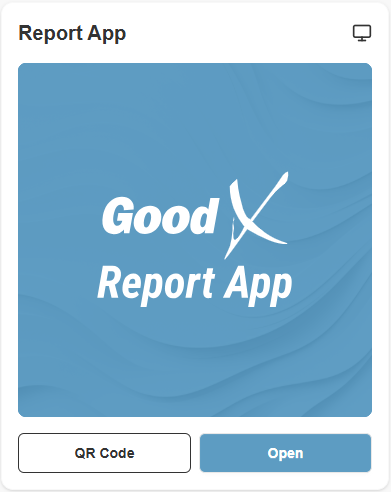
Click on the QR Code button.

The Report App QR Code screen will open, where you can scan the QR code.
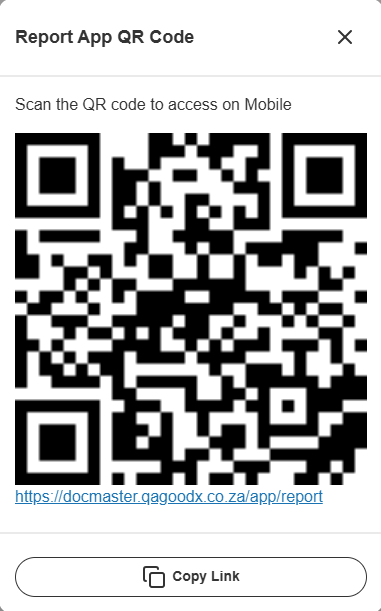
Alternatively, Click on the Link to open the Report App or Copy the link to paste in your browser.
Click on the Open button to open the Report App.